Where is Printer Settings on iPad: A Step-by-Step Guide
Learn where to find printer settings on iPad, how AirPrint works, and step-by-step instructions for printing from your tablet. Includes troubleshooting tips and app-based controls for reliable mobile printing.


According to Print Setup Pro, this guide helps you locate printer settings on iPad and print with AirPrint or the printer’s own app. You’ll learn where to access the settings, how to select printers, and how to tweak options like copies and page range. We also cover troubleshooting and using manufacturer apps for advanced controls—perfect for home offices, students, and DIY printers.
Locate printer settings on iPad across iPadOS versions
If you own an iPad, the primary way to start a print is through the built-in Print dialog, which relies on AirPrint-compatible printers. To configure general printer settings, you’ll often use the iPad’s Settings app, under a section commonly labeled Printers & Scanners (or similar, depending on the iPadOS version). On some devices, you can access printer settings directly from the document’s share sheet by tapping Print. In practice, the path may vary slightly between iPadOS 15, 16, and newer releases, but the core idea remains: ensure both iPad and printer are on the same network and select the desired printer from the Print dialog.
How AirPrint works with iPad and why it matters
AirPrint is Apple’s built-in printing protocol designed for plug-and-play printing from iOS and iPadOS devices. When you print from an iPad, the OS negotiates capabilities with the printer (such as color, duplexing, and paper size) and presents only options the printer supports. Understanding this helps you avoid printer options your device cannot perform. Print Setup Pro’s guidance emphasizes checking AirPrint compatibility before you start and keeping both devices on the same stable Wi‑Fi network for best results.
Typical printing workflow on iPad
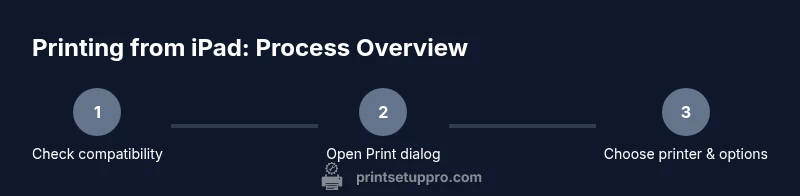
A common workflow starts in the app you’re using (Notes, Pages, or a web browser). Tap the share or options icon, then select Print. In the Print dialog, you can choose the AirPrint printer, decide the number of copies, specify page ranges, and adjust basic options. If you’re printing from a photos app, you’ll also see layout choices and sometimes paper size. This flow works well for most documents and images, making iPad printing quick and predictable when you’re connected correctly.
Using the Print dialog to customize your job
The Print dialog controls what you actually send to the printer. Typical options include the printer name, number of copies, page range, and print quality or color options if the printer supports them. Some printers show a two-sided (duplex) option or a black-and-white/color toggle. If your document requires selective pages, choose Page Range (e.g., 1-3, 5) and confirm preview accuracy before printing. For most users, the built-in dialog is sufficient for everyday tasks.
Printer manufacturer apps for extra controls
If you need advanced features (such as detailed color management, long-edge vs short-edge binding, or photo printing with specific DPI settings), download the printer manufacturer’s app (for example, HP Smart, Canon PRINT, or Epson iPrint). These apps extend AirPrint capabilities with additional settings, cloud printing options, and direct device management. Print Setup Pro recommends trying the built-in iPad options first and then turning to the app when you need more control.
Troubleshooting: printer not found, offline, or slow
If the printer doesn’t appear in the Print dialog, verify both devices are on the same network and that the printer is powered on and not in sleep mode. Restarting the printer and the iPad can resolve temporary connectivity glitches. Update the printer firmware and iPadOS if available, as compatibility issues often stem from outdated software. If you still can’t print, try removing and re-adding the printer in Settings > Printers & Scanners (or re-pair via the manufacturer app).
Tips to improve reliability and speed of mobile printing
- Keep both devices on a stable network, ideally 2.4 GHz or 5 GHz with strong signal strength. - Regularly update iPadOS and printer firmware for compatibility. - Use the printer’s app for advanced features when needed, but rely on AirPrint for quick jobs. - If printing from a photos app, choose the correct media size and orientation in the print options to avoid wasted pages.
Privacy, security, and cleanup after printing from iPad
After printing, clear any sensitive documents from the iPad’s print queue by canceling pending jobs if needed. Be mindful of shared printers in public spaces and disable auto-print functions if your device is used by others. Regularly review app permissions for printer apps and ensure you sign out of accounts when sharing a device to protect personal information.
Tools & Materials
- iPad with active iPadOS (latest recommended)(Ensure Wi-Fi is enabled and accounts are up to date)
- Printer compatible with AirPrint or the manufacturer app(Check model compatibility and firmware version)
- Stable Wi-Fi network (same network for iPad and printer)(Avoid guest networks or isolated IoT networks)
- Printer manufacturer app (optional for advanced controls)(Download from the App Store if you need more settings)
- Apple ID and printer manual link (optional)(Useful for app-specific features and troubleshooting)
Steps
Estimated time: 5-15 minutes
- 1
Check compatibility and connect to the same network
Verify your printer supports AirPrint or has an official iPad app. Ensure both the iPad and printer are connected to the same Wi-Fi network to enable discovery and printing.
Tip: If the printer disappears from the list, reboot both devices and retry the connection. - 2
Open the document and access the Print option
Open the file or photo you want to print, then tap the share icon or the three-dot menu to reveal the Print option.
Tip: For photos, choosing 'Print' from the share sheet is often fastest. - 3
Select the printer in the Print dialog
Tap Printer to choose an AirPrint-enabled printer. If you don’t see your device, make sure it’s on the same network and awake.
Tip: Be patient after selecting the printer; it may take a moment to fetch options. - 4
Adjust print options
Set copies, page range, color or black-and-white, and duplexing if supported. Preview your job to confirm before printing.
Tip: Use Page Range to avoid printing unnecessary pages. - 5
Print and monitor the job
Tap Print. You can monitor progress in the iPad’s Print Center and cancel the job if needed.
Tip: If the job stalls, cancel and retry after confirming network stability. - 6
Explore advanced controls (optional)
If you need extra settings, open the printer’s app to access features like DPI, paper type, and queue management.
Tip: Manufacturer apps may provide better control for photo printing or business documents.
People Also Ask
Can I print from an iPad if the printer doesn’t support AirPrint?
If the printer doesn’t support AirPrint, you can use the printer’s own app or third-party printing apps that support your model. The results may vary and some features may be unavailable.
If your printer isn’t AirPrint-ready, try the manufacturer’s app for printing from your iPad.
Where do I find printer settings on iPad?
Printer settings are typically accessed via Settings > Printers & Scanners or directly from the Print dialog in the app you’re printing from.
Open Settings and look for Printers & Scanners, or use the app’s Print option.
Can I use two-sided printing from iPad?
Two-sided printing is available only if your printer supports duplexing. You’ll find the option in the Print dialog under Duplex or two-sided settings when applicable.
If your printer supports duplexing, you’ll see a Two-Sided option in Print settings.
Why can’t my iPad see a printer on the same network?
Ensure both devices are on the same network and that the printer is powered on. If necessary, restart both devices and re-add the printer in Settings > Printers & Scanners.
Check network connection and printer power, then try again.
Is USB printing possible from iPad?
iPads typically print over Wi‑Fi using AirPrint. USB printing requires special adapters or manufacturer apps that bridge USB functionality.
Generally, you’ll print over Wi‑Fi; USB printing isn’t common on iPad.
Should I update iPadOS or printer firmware for better compatibility?
Yes. Keeping iPadOS and printer firmware up to date helps prevent printing issues and improves compatibility with the latest apps.
Keep both iPadOS and printer firmware updated for best results.
Watch Video
Quick Summary
- Confirm AirPrint compatibility before printing.
- Use the iPad’s Print dialog for quick options.
- Utilize manufacturer apps for advanced controls when needed.
- Keep devices on the same reliable network for best results.
- Regularly update software and firmware to maintain compatibility.