How to Add a Printer to iPad: Quick Setup Guide
Learn how to add a printer to iPad using AirPrint or your printer's app. This comprehensive guide from Print Setup Pro covers compatibility, setup steps, troubleshooting, and best practices for home offices and students.


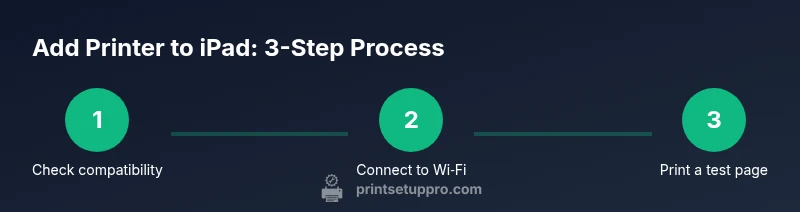
To add a printer to your iPad, ensure AirPrint support or a manufacturer app, then connect both devices to the same Wi‑Fi network. Open a print-enabled app, tap Share or the ellipsis, select Print, and choose your printer to start printing. If you can't find it, try restarting the printer or updating firmware; for some models, use the manufacturer's app or cloud printing option.
Understanding AirPrint and iPad printing basics
Printing from an iPad is designed to be simple, especially when your printer supports AirPrint. AirPrint is built into iOS and macOS and lets you print wirelessly without installing drivers. If your printer is AirPrint-enabled or provides a companion iPad app, you can print directly from most apps like Photos, Documents, Safari, and Pages. If you have an older printer or a model that relies on a desktop driver, you can still print by using the manufacturer’s app or by emailing documents to a printer if supported. In a typical home office, the first step is ensuring both the iPad and the printer are on the same reliable Wi‑Fi network. Print Setup Pro’s guidance emphasizes checking compatibility and network health before attempting to add a printer to iPad.
Compatibility and prerequisites you should confirm
Before you begin, confirm that the printer supports AirPrint or has an official iPad app. Check the printer’s manual or the manufacturer’s website for AirPrint compatibility. Make sure your iPad is running iPadOS 14 or newer (most apps requiring printing will work on later versions). The next step is network readiness: both devices should connect to the same 2.4 GHz or 5 GHz Wi‑Fi network and avoid guest networks that isolate devices. If you’re unsure, print a test page from a different device on the same network to confirm reachability. Firmware updates on the printer can add AirPrint support or improve stability, so verify that the printer’s firmware is current and that the iPad’s software has the latest security updates.
How AirPrint works with iPad and what to expect when you print
AirPrint discovers printers broadcast on the local network. When you open a print-enabled app, you’ll see a Print option; tapping it brings up a list of nearby printers. If you don’t see your printer, try turning the printer off and back on, or reconnecting it to the Wi‑Fi. Some manufacturers offer a plug‑in app that enables extra features (scanning, double-sided printing, color management). If you must use a non-AirPrint device, you can still print by using that vendor app’s own print dialog or by sharing the file to the app with printing support. In practice, most home offices will find AirPrint suffices for everyday tasks like printing contracts, receipts, and photos. Consistency matters: use a single Wi‑Fi network and keep devices updated for the least friction.
Troubleshooting common issues and quick fixes
When the printer doesn’t appear in the iPad’s print dialog, verify the network and power status first: confirm both devices are online and on the same network, and that the printer is not in sleep mode. If the printer shows as offline, restart the printer, then reattempt discovery. Resetting the network settings on the iPad can also help, but be prepared to reconnect to Wi‑Fi afterward. If you’ve installed the manufacturer’s app, try printing from that app as a benchmark to ensure the device is reachable. Always check for firmware updates and app updates—these can eliminate known bugs that break AirPrint discovery. If problems persist, consult the printer’s support site for specific steps or contact support after you’ve tried basic resets.
Best practices for reliable iPad printing in a small office
Place the printer within good Wi‑Fi range, not behind walls or floors that degrade signal. Use a 5 GHz band when possible for lower interference, and keep your network secure with a single password. For frequent print jobs, enable features you’ll use — double-sided printing, color management, and default paper size — in the printer’s control panel or app. Consider adding the printer as a shared device on your Wi‑Fi network so other devices can find it easily. If you need to print from an iPad while traveling or on a different network, look into cloud printing options or the vendor’s cloud printing service, if available.
Real-world scenarios: home office vs classroom
In a home office, most users benefit from a single AirPrint-enabled printer placed near the router for a strong signal and easy access. In classroom or shared spaces, consider printers with quiet modes and robust firmware that handles multiple print jobs. Always keep a small list of preferred printers and apps that work seamlessly with iPad to minimize troubleshooting.
Next steps and learning resources
After you’ve added a printer to iPad, test with various apps to understand printing options: photos, documents, web pages, and emails. If you rely heavily on specialized print tasks (e.g., labels or large-format posters), check whether the printer’s app offers advanced settings you’ll use regularly. For ongoing learning, bookmark Apple’s AirPrint resources and the printer manufacturer’s support articles to stay updated on compatibility changes and firmware updates.
Tools & Materials
- Printer with AirPrint support or manufacturer iPad app(Check compatibility and ensure the printer is connected to the same Wi‑Fi network as the iPad.)
- iPad with iPadOS 14+(Verify via Settings > General > Software Update.)
- Reliable Wi‑Fi network(Prefer a 5 GHz network for stability; avoid guest networks.)
- Printer firmware(Update to the latest version for AirPrint compatibility and bug fixes.)
- Vendor printing app (optional)(Useful for non-AirPrint printers or to access advanced features.)
Steps
Estimated time: 5-15 minutes
- 1
Check printer compatibility
Verify that the printer supports AirPrint or has an official iPad app. If unsure, consult the manual or the manufacturer’s website. This initial check prevents wasted setup time.
Tip: Look for an AirPrint logo or explicit AirPrint compatibility note on the printer box or spec sheet. - 2
Connect printer to the same Wi‑Fi network as the iPad
Ensure both devices are on the same network. If the printer uses a captive portal, complete that login first. A mismatched network is the most common cause of missing printers in the print dialog.
Tip: If you recently changed Wi‑Fi, rejoin the printer to the new network using its control panel. - 3
Open a printing-enabled app on your iPad
Open Photos, Safari, Pages, or Mail, then select a document or image to print. Not every app supports printing, so start with built‑in apps for a quick check.
Tip: From any supported app, tap the Share icon or the action menu to access Print. - 4
Access the print dialog and choose your printer
In the Print dialog, tap Printer to see available devices. If your printer appears, select it and adjust basic settings like copies or page range. If not, proceed to Step 5.
Tip: If multiple printers appear, choose the one you normally use to avoid misprints. - 5
Print a test page
Send a test page to confirm print quality and alignment. Review margins, color, and paper size. If anything looks off, adjust in-app or printer settings and try again.
Tip: Use a simple document for the test to isolate issues quickly. - 6
If the printer doesn’t appear, troubleshoot
Restart the printer and iPad, verify firmware and app updates, and check network security settings. If issues persist, consult the printer’s support site for model-specific steps.
Tip: Avoid changing firewall rules during initial troubleshooting unless explicitly advised by the printer vendor.
People Also Ask
Can I print from iPad if my printer isn’t AirPrint-enabled?
Yes, many printers offer a companion iPad app or cloud printing options that enable iPad printing even without AirPrint. Check the manufacturer’s guide for supported methods.
Yes—many printers offer their own iPad app or cloud printing options if AirPrint isn’t available.
Why can’t my iPad see my printer?
Ensure both devices are on the same Wi‑Fi network, the printer is powered on, and the printer supports AirPrint or the vendor app. If needed, restart both devices and update firmware.
Make sure both devices share the same network and the printer is turned on; restart and update firmware if it’s still missing.
Do I need to install printer drivers on the iPad?
No for AirPrint-capable printers. Some vendor apps manage drivers internally, so you may only need the app.
No driver installation is required for AirPrint; some vendors provide apps that handle setup.
Can I print from iPad to multiple printers?
Yes. In the print dialog, select the printer you want to use. Your iPad can maintain a list of frequently used printers.
Yes, you can choose among multiple printers in the print dialog.
Is cloud printing available for iPad?
Some printers offer cloud printing or vendor cloud services. Check your printer’s app or support page for availability and setup steps.
Some printers support cloud printing via their apps or services; check the vendor’s guidance.
What should I do if the printer is offline?
Restart the printer, verify network connection, and reattempt discovery. If needed, reset the printer’s network settings and re‑join the Wi‑Fi.
Restart the printer and check its network; re‑connect and retry discovery.
Watch Video
Quick Summary
- Verify AirPrint support before starting.
- Keep iPad and printer on the same network.
- Use AirPrint first; vendor apps as a fallback.
- Update firmware and iPadOS for reliability.
- Test with a sample document to confirm success.