Can You Print at the Library? A Practical Guide for 2026
Discover how to print at the library, what to expect, costs, file formats, privacy tips, and alternatives. Learn step-by-step how to prepare, print, and pick up your documents with confidence in 2026.


Yes—many libraries offer basic printing services to the public, though policies vary by location. You’ll typically need a library card or print account, access to the printer, and a file prepared in a supported format. Hours, costs, and page limits differ, so always check your local library’s rules before you go.
Can you print at the library? A practical introduction
If you’re wondering can you print at the library, you’re not alone. Public libraries are increasingly expanding access to printing services to support students, remote workers, and everyday tasks. According to Print Setup Pro, many libraries offer basic monochrome or color printing with simple pay-per-page or credit-based systems. Policies vary by location, so it’s essential to verify hours, accepted file types, and any per-page limits before you visit. This guide helps you navigate the process, avoid waste, and protect your privacy while taking advantage of these shared resources in 2026.
How library printing typically works
Most libraries route printing through a central print queue tied to a user account. You’ll submit your document from a computer or mobile device, select print settings (color vs. black-and-white, single-sided vs. double-sided), and pay at the printer or via an online account. Print previews help catch issues before you print, reducing waste and cost. The Print Setup Pro team notes that staff are usually available to assist with file submissions, especially for users printing sensitive documents. Always log out after a session to protect your information, and keep track of your remaining print credits or quota.
What you can print and what might be restricted
Libraries generally accept common formats like PDFs, Word documents, PowerPoint slides, and image files. Some libraries also support printing from USB drives or cloud storage via a library kiosk. Restrictions may apply to copyrighted materials, inappropriate content, or large print jobs that exceed monthly quotas. Safety considerations may limit printing of executable files or software installations. If you’re unsure whether a file will print, ask staff or run a quick preview from your device before loading it into the queue.
How to print from your device: options and prep
Before you head to the library, prepare your file on your own device to minimize delays. Create a clean file with embedded fonts, optimize images for print quality, and save in a widely supported format like PDF or DOCX. If you’re printing from a phone, check whether the library supports mobile print apps or a web portal. Bring the file on a USB drive as a backup, if allowed. Some libraries require you to sign in to a printing account using your library card or a guest code, so login details should be handy.
Costs, quotas, and common limits
Public printing generally costs per page, with different fees for color and monochrome. Some libraries offer bundles or credit-based systems; others charge by the page without a cap. It’s common to see higher costs for large documents or high-resolution color printing. Track your remaining quota to avoid surprises at the kiosk. Print Setup Pro’s observations from 2026 indicate many libraries publish clear price sheets and limit printing to standard paper sizes (commonly 8.5x11 or A4).
Privacy and security tips when using public printers
Public printers require you to submit documents through a shared queue. To protect privacy, avoid printing sensitive personal information unless necessary, and always delete messages from the queue after printing. Use preview modes to ensure content isn’t left visible on screen. If you’re printing confidential material, consider using a private device and secure cloud storage, then only print once you’ve reached the printer. Remember to sign out of any library portal and close browser windows when finished.
Troubleshooting common issues and getting help
If a print job fails, check that you selected the correct printer, file format, and print settings. Common issues include missing fonts, oversized files, or low memory on the printing station. Staff can re-route jobs to the correct printer or provide a quick workaround. If the printer is out of order, staff can help you reschedule or offer an alternative station. Have a backup plan, such as printing a copy at home or using a campus or coworking printing service.
Alternatives if your library doesn’t offer printing
If your local library limits printing or is temporarily closed, consider alternatives such as public computer labs on campus, workplace shared printers, or print-and-copy shops. Some libraries partner with community centers to provide remote printing, allowing you to upload files and pick them up later. For urgent or large jobs, a professional print service can offer reliable color options, bindery, and faster turnaround times.
Quick-start checklist for library printing
- Confirm library hours and printer availability
- Prepare your file in a supported format (PDF preferred)
- Bring your library card or print account credentials
- Have a login method ready for the kiosk or web portal
- Include a backup copy on USB if allowed
- Preview before printing to minimize waste
- Sign out after printing and verify your receipt
Tools & Materials
- Library card or printing account(Needed for authentication and to access print credits)
- Document/file to print(Saved in a supported format (PDF, DOCX, PPTX, or image formats))
- USB drive (optional)(Brings files directly if the library supports USB printing)
- Device with file ready(Phone, tablet, or laptop depending on library options)
- Print credits or account login(Ensure you have sufficient balance or quota)
- Headphones or quiet environment (optional)(Helpful for staying focused in busy spaces)
Steps
Estimated time: 30-45 minutes
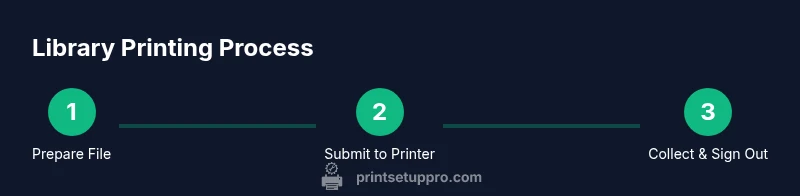
- 1
Prepare your file
Ensure your document is in a library-friendly format (PDF preferred). Check fonts, images, and margins so the print output matches your intent. Save a backup copy in case you need to reprint.
Tip: Use a print preview to confirm layout and avoid wasted pages. - 2
Check library policies
Look up hours, per-page costs, and any quotas for your prints. Decide whether you’ll print color or monochrome and how many pages you plan to print.
Tip: If unsure, ask staff about current limits and outstanding changes to policies. - 3
Access the printing station
Sign in with your library card or guest credentials. If there’s a kiosk, follow on-screen prompts to choose the printer and confirm file upload.
Tip: Have your credentials ready to speed up the process. - 4
Upload and preview
Upload your file to the printer and perform a final preview. Verify color selection, duplex printing, and page order before sending to print.
Tip: Double-check page orientation for wide documents. - 5
Print and pay
Proceed to print, select payment method (credit card, cash, or print credits), and collect a receipt if available.
Tip: Keep the receipt; it often includes a job number for retrieval. - 6
Retrieve and log out
Pick up your prints, ensure all pages are complete, and log out of any accounts or kiosks to protect your data.
Tip: If you have remaining credits, sign out to prevent mischarges.
People Also Ask
Do I need a library card to print at the library?
Most libraries require a library card or printing account to access print services. Some offer guest codes for visitors. Check your local library’s policy before you go.
Yes, a library card or printing account is usually required; some libraries provide guest codes for visitors.
What file types are supported for printing?
Commonly supported formats include PDF, DOCX, PPTX, and image formats. Some libraries accept USB drives or cloud-based submissions. Always confirm with staff if you’re unsure.
Most libraries support PDFs, Word documents, PowerPoints, and images; ask staff if you’re unsure about a specific file.
Can I print from my phone or tablet?
Many libraries support mobile printing via a web portal or a mobile app. You can upload from your device or send to a printer from your phone if the library offers this feature.
Yes, many libraries let you print from a phone or tablet using a web portal or app.
Are there limits on pages or color printing?
Per-page costs and quotas vary by library. Color printing typically costs more per page, and some libraries cap monthly prints or offer credit bundles.
Costs and page limits vary; color prints usually cost more and quotas may apply.
What about privacy when using public printers?
Avoid printing highly sensitive documents if possible. Always log out and clear the print queue after printing. Use preview to ensure confidential info isn’t exposed.
Be cautious with sensitive content; sign out and clear the queue after printing.
What if the printer is not functioning?
Staff can help troubleshoot or reroute jobs to another printer. If the issue persists, consider alternative print options nearby or reschedule.
If a printer is down, staff can help or you can try another printer or nearby service.
Watch Video
Quick Summary
- Check local library policies before printing
- Prepare files in supported formats and preview
- Understand costs and quotas to avoid surprises
- Protect privacy by signing out and handling sensitive content carefully