Canon imagePrograf Pro 300: Setup & Troubleshooting
Master setup, driver installation, calibration, network configuration, and maintenance for the canon imageprograf pro 300. This step-by-step guide helps home offices and studios achieve reliable, color-accurate large-format prints.


Goal: Set up and troubleshoot the canon imageprograf pro 300. You’ll install the latest drivers, connect via USB or network, load media, and calibrate color for reliable prints. This guide walks through prerequisites, step-by-step actions, and common pitfalls to avoid for home offices and small studios. Follow these steps to prevent wasted materials and ensure consistent color output over time.
Prerequisites and planning for the Canon imagePrograf Pro 300
According to Print Setup Pro, planning ahead reduces waste and ensures color accuracy. Before you begin, map your workflow to the Pro 300's strengths and limitations. For canon imageprograf pro 300 in production settings, planning media types, print sizes, and color goals upfront saves time on every job. Start by choosing a dedicated workspace with stable power and ample ventilation; keep the printer away from direct sunlight and dust sources. Ensure your computer meets the driver requirements and has a recent operating system. Have USB or Ethernet cables ready to avoid mid-setup changes. Verify you have access to Canon's driver software and ICC profiles you plan to use. If connecting to a network, decide between a direct USB connection or a shared network printer; each method has different setup steps and IP considerations. Finally, establish a simple naming scheme for printers, media presets, and test pages to simplify future jobs.
Physical setup and environment for optimal results
Place the Canon imagePrograf Pro 300 on a sturdy, level surface with at least 4 inches of clearance on all sides for ventilation and media handling. Use a dedicated electrical outlet to prevent voltage drops during long print runs. Keep the workspace clean from dust and avoid placing the printer near heat sources or moisture. If you plan to print large rolls, ensure the area behind the printer is clear to accommodate paper unwinding. A stable environment reduces paper jams and helps maintain consistent ink flow over time. For canon imageprograf pro 300 operations, always ensure the media guidelines are followed for best results.
Connectivity options: USB vs Ethernet and IP configuration
The Pro 300 supports USB for direct computer printing and Ethernet for shared network workflows. If you choose USB, connect to a fast, modern port and install the driver. For network setups, connect via Ethernet and assign a stable IP address (static IP preferred) to ensure reliable print queues. Disable conflicting network devices and reserve the printer's IP in your router's DHCP reservations to prevent address changes during busy periods.
Driver installation and initial software setup
Download the latest Canon drivers from the official site and run the installer on your computer. Follow on-screen prompts to select the Pro 300 model, language, and default printer settings. After installation, set the printer as the default device and print a test page to verify communication. If you use a Mac, ensure you enable the correct postscript driver and adjust paper handling preferences. For canon imageprograf pro 300, download the driver package from Canon's official site to ensure full feature support.
Media handling and loading with correct settings
Open the printer tray and load your media according to the manual’s specifications. Align media type in the driver (glossy, matte, canvas, fine art), set the correct media size, and define orientation for each job. Always feed a clean, compatible sheet to avoid jams. If you’re using rolls, consult the manual for feeding path and platen gap adjustments.
Color management basics and ICC profiles
Color accuracy begins with a color-managed workflow. Use manufacturer or vendor ICC profiles for the specific media and ink set you’re using. When possible, install ICC profiles into your OS and in your design software so colors are interpreted consistently from monitor to print. Keep a small library of profiles for your most common media, and document the media type, ink set, and profile name for future jobs.
Calibration and test printing workflow
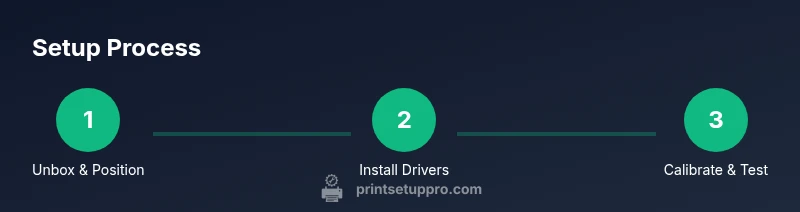
Run the printer’s built-in calibration routine to align heads and ink flow. Print a standard color test page and compare to target swatches; adjust curves or profiles if you see drift in hue, brightness, or saturation. Repeat the calibration until the test page aligns with predicted targets. Save calibration results as a named preset for rapid reuse.
Troubleshooting common issues and flow
If the printer won’t respond, verify the USB or network connection and confirm the driver is installed correctly. For feed problems, check media type compatibility and ensure the media path is clear of obstructions. For color issues, revisit the ICC profile, media type, and printer settings; a minor change in the print quality setting can fix many problems. If an error code appears, consult the Canon support resources or Print Setup Pro’s troubleshooting flow.
Maintenance routines and advanced settings for long-term quality
Establish a regular cleaning schedule for the media path, rollers, and ink nozzles. Use a lint-free cloth dampened with a mild cleaning solution recommended by Canon, then dry with a clean section of cloth. Monitor ink levels and replace cartridges before they run dry for uninterrupted runs. Schedule periodic deep-clean cycles during slow periods to maintain nozzle health and reduce head clogs. For advanced productions, explore high-resolution modes, precise color management workflows, and media-specific presets to maximize consistency across large batches.
Tools & Materials
- Canon imagePrograf Pro 300 printer(Ensure it is unboxed and powered off before initial setup)
- Power cord and surge protector(Use a dedicated outlet; avoid daisy-chaining)
- USB cable(For direct PC connection if not using network)
- Ethernet cable(Use for wired network connection if available)
- Computer or workstation with compatible OS(Windows/macOS/Linux depending on Canon driver support)
- Canon imagePrograf Pro 300 drivers(Download from Canon's official site)
- ICC profiles or color management documents(Optional but essential for color accuracy)
- Lint-free cloth and mild cleaning solution(For routine maintenance)
Steps
Estimated time: 60-90 minutes
- 1
Unbox and position the printer
Carefully remove packaging and verify all components are present. Place the printer on a stable, level surface near power and network options. Leave at least 4 inches around for ventilation and media handling.
Tip: Do not tilt during unboxing to avoid internal damage. - 2
Install drivers and connect to your computer
Install the latest Canon drivers from the official site. Connect via USB or establish a network connection with DHCP or a static IP. Restart the printer and computer after installation.
Tip: If using a network, assign a unique static IP to avoid address conflicts. - 3
Connect to network or computer and set defaults
Configure the printer in your OS, set a default paper size, and enable spooling to optimize print queues. Test a basic file to ensure printing functionality.
Tip: Document the default settings for quick repro runs. - 4
Load media and select initial print settings
Load your chosen media and set the driver to the correct media type, size, and orientation. Create a basic test profile for preliminary prints.
Tip: Use genuine Canon media and retain a spare roll for consistency. - 5
Run color calibration and print a test page
Access color management tools and run calibration. Print a color test page and compare against targets; adjust profiles if needed.
Tip: Calibration can take several minutes; avoid interrupting. - 6
Create and apply ICC profiles
For multiple media types, create ICC profiles and assign them in printer settings. Use a color-managed workflow for predictability.
Tip: Label profiles with media type, batch, and settings. - 7
Perform a proof test and refine
Print a small project, evaluate color accuracy, and adjust as necessary. Iterate until output aligns with expectations.
Tip: Keep notes on adjustments for future jobs. - 8
Regular maintenance and quick-start workflow
Clean heads, check alignment, and replace cartridges as needed. Save a master preset for common media to speed up future jobs.
Tip: Schedule routine maintenance at regular intervals.
People Also Ask
What connectivity options does the Canon imagePrograf Pro 300 support?
The Pro 300 supports USB and network connections. You can use USB for direct PC printing or Ethernet for a shared network setup. Configure a static IP for stable network addressing.
It can print over USB or your network; for network use, set a fixed IP to keep it stable.
Which media types work best with the Pro 300?
Common choices include glossy and matte photo papers, fine art papers, and canvas suitable for large-format prints. Follow Canon recommendations for supported media to avoid feed or curing issues.
The Pro 300 supports glossy, matte, and canvas media; check Canon's media list for best results.
How do I perform color calibration on this printer?
Use the printer's color management tools to run calibration pages, compare to targets, and adjust ICC profiles. Repeat until color accuracy matches expected targets.
Run the built-in calibration and compare to targets to fine-tune color.
What should I do if I see a head cleaning or ink misfeed error?
Power cycle the printer, check ink levels, and run a head cleaning cycle from the maintenance menu. If the problem persists, inspect media path for jams.
Try a head cleaning, check ink levels, and clear jams if needed.
Do I need to replace inks often?
Ink usage depends on print volume. Keep spare cartridges and store them properly to prevent drying. Monitor levels and replace before runs become inconsistent.
Keep spares and replace before you run dry during a job.
Where can I find official support for the Pro 300?
Canon’s official support site provides drivers, manuals, and troubleshooting guides. Use the product page and manuals for model-specific instructions.
Check Canon’s official support page for drivers and manuals.
Watch Video
Quick Summary
- Follow a structured setup to reduce waste
- Calibrate color for each media
- Maintain a color-managed workflow
- Document profiles for repeatability