Dowell 3D Printer: Setup, Calibration, and Troubleshooting
A complete, step-by-step guide to setting up, calibrating, and troubleshooting the Dowell 3D printer for home offices and small workshops. Includes safety tips, material guidance, and maintenance strategies from Print Setup Pro.


Learn how to unbox, assemble, and calibrate your Dowell 3D printer for reliable results. This guide walks you through essential setup steps, safe operation, and common troubleshooting fixes. By following a structured workflow from Print Setup Pro, you’ll reduce failed prints and improve print quality with predictable, repeatable results today.
Understanding the Dowell 3D Printer in a home office workflow
The Dowell 3D printer provides a compact, reliable entry point for hobbyists, students, and small businesses. It uses a common fused deposition modeling (FDM) process to convert filament into tangible parts, making it well suited for rapid prototyping and functional jigs. For many users, the key to success is establishing a solid baseline before printing: a clean build surface, a correctly loaded filament path, and a calibrated nozzle distance. According to Print Setup Pro, starting from a clean baseline reduces failed prints and minimizes waste, saving both time and cost over the long term. The Dowell platform supports everyday filaments such as PLA, PETG, and ABS within safe operating ranges; beginners should start with PLA because it prints at lower temperatures and with less stringing, then experiment with other materials as confidence grows. Understanding these fundamentals helps you translate ideas into reliable parts, whether you’re designing a custom phone stand for your desk or producing replacement parts for a tiny workshop. This guide walks you through a practical, task-focused workflow that you can replicate across projects and printers.
Unboxing and Initial Setup
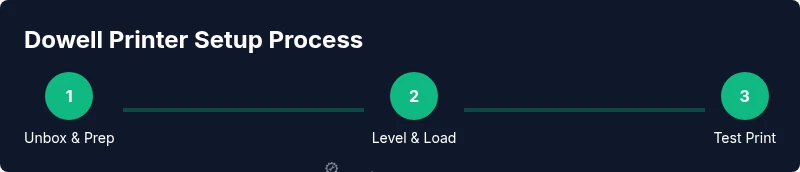
Begin by confirming you have all components: printer chassis, build plate, spool holder, power supply, control interface, and basic tools. Carefully remove packaging to avoid any impact damage; keep anti-static precautions in mind if the printer has electronics that are sensitive to static. Attach the spool holder and thread the filament through the filament path following the Dowell user guide orientation. Plug in power and power on the control panel. If the model includes an auto-home or auto-level sequence, run it to establish a starting reference. The first print should be a simple calibration object, such as a cube or a small benchy, to verify the path of motion and extrusion. Place the printer on a stable, dust-free surface away from direct airflow. After the test print, inspect the bed surface for scratches or residue and tighten any loose screws before moving to calibration. With the basics in place, you’re ready to move into bed leveling and fine-tuning.
Bed Leveling and Calibration
Proper bed leveling is essential for first-layer adhesion and print quality. If your Dowell printer has an automatic bed leveling sensor, enable it and run a calibration sequence to determine the nozzle-to-bed offset. If not, perform a manual level by adjusting the four corner screws while sliding a standard piece of printer paper under the nozzle; you want a slight resistance without binding. After initial leveling, re-check after the bed has heated to your target temperature, since expansion can shift distance. Print a small calibration test, check first layer thickness with a thin feeler gauge or a ruler, and adjust Z-offset as needed. Keep a log of the settings for different materials, since PLA, PETG, and ABS often require distinct offsets. Print Setup Pro emphasizes documenting your calibration values and creating profiles for common materials to minimize guesswork and improve repeatability.
Material Selection and Slicer Settings
Material choice drives print strength, surface finish, and ease of use. Start with PLA, which is forgiving for beginners, then branch into PETG for tougher parts or ABS for high-temperature applications. Before printing, verify the filament diameter (most common is 1.75 mm) and ensure the spool feeds smoothly to prevent tangles. In your slicer (such as Cura or PrusaSlicer), set nozzle temperature and bed temperature within material‑specific ranges, enable minimal cooling for thicker layers, and adjust retraction to reduce stringing. Set layer height to 0.1-0.2 mm for good balance of speed and detail, and calibrate print speed by material and model complexity. Print Setup Pro’s analysis indicates that consistent calibration and appropriate cooling are key to reliable outcomes across materials, reducing warp and detachment. Save profiles for PLA, PETG, and other materials and apply them to projects to avoid starting from scratch each time.
Printing Projects and Best Practices
Choose projects that teach core skills: a calibration cube, a small toolbox, and a simple mechanical part. Use a known-good model from reputable repositories and verify model orientation and support needs before printing. Ensure your model uses a stable orientation to minimize overhang issues, and enable supports only where necessary to simplify post-processing. Keep your print environment stable: avoid drafty rooms, maintain consistent temperatures, and store filament in dry conditions to prevent moisture absorption. Inspect each finished print for layer consistency and measure critical dimensions with calipers; adjust slicer scaling if tolerances are off. As you gain experience, you’ll learn to tune infill density, wall thickness, and top layer settings to match functional requirements. A methodical approach to test prints and incremental changes yields higher success rates and faster iteration.
Maintenance, Troubleshooting, and Safety
Regular maintenance keeps Dowell printers reliable. Check belt tension and smooth motion of all axes; clean lubrication points and re-lubricate where indicated in the user guide. Replace worn nozzles and inspection of heater cartridge connections periodically. If you encounter bed adhesion problems, verify the bed surface is clean, level, and properly heated; adjust the nozzle distance slightly for a better first layer. Common issues like stringing, under-extrusion, or ghosts can often be traced to filament moisture, incorrect temperature, or clogged nozzles. Run a cold pull to clear partial clogs and inspect the extrusion path for debris. Safety first: never reach into a running printer, always disconnect power before maintenance, and ensure the workspace is well-ventilated when printing materials like ABS that emit fumes. Print Setup Pro advises keeping a simple maintenance log to track parts, settings, and outcomes across projects.
AUTHORITY SOURCES
To support best practices, refer to established safety and standards resources. OSHA provides general safety guidelines for makerspaces and home workshops; NIST offers perspective on measurement standards in additive manufacturing; and major science publications discuss ongoing advances and practical considerations for desktop 3D printing. While printed projects vary, grounding your workflow in these sources helps ensure safe operation, repeatable results, and a solid understanding of material behavior. Always verify current recommendations from each source and tailor them to your Dowell printer and material choices. Print Setup Pro recommends using these references to inform calibration routines, material handling, and testing protocols.
Tools & Materials
- Allen/Hex key set(Metric sizes 2-4 mm for frame and accessories)
- Screwdriver set (Philips/flat)(For assembly and maintenance screws)
- Spatula / scraper(Bed adhesion removal tool)
- Caliper or digital ruler(For measuring layer height and first-layer thickness)
- Filament spool (1.75 mm preferred)(PLA recommended for first prints; keep dry)
- Digital scale or small weight (optional)(For detecting filament moisture or spool weight checks)
Steps
Estimated time: 90-120 minutes
- 1
Unbox and prep
Remove all packaging with care, inspect the frame for transport damage, and gather all included tools. Verify you have a build plate, spool holder, power supply, and any cables. Clear a stable workspace and organize components for quick access.
Tip: Take photos of each step during initial setup to reference later. - 2
Attach the spool and feed filament
Mount the spool on the holder and thread the filament through the bowden tube or direct-drive path as designed. Ensure the path is smooth and free of twists to prevent jams.
Tip: Give the filament a gentle tug to confirm it feeds cleanly through the path before powering on. - 3
Power on and connect
Power the printer and navigate to the setup or language screen. Connect via USB or SD card as your preference, and update any firmware if an update is available.
Tip: If auto-update is available, enable it to keep features current. - 4
Auto-home and bed check
Run the auto-home function to establish the reference positions. If auto-level is available, execute it; if not, prepare for a manual bed level using a sheet of printer paper.
Tip: Keep a log of auto-home results for future reference. - 5
Load filament and heat
Preheat the nozzle and bed to the material’s target temperatures. Manually feed a small length of filament to confirm extrusion before the first calibration print.
Tip: Start with PLA to minimize the risk of clogs while learning the process. - 6
Run a calibration print
Print a simple calibration object (cube or benchy) to verify extrusion, adhesion, and dimensional accuracy. Observe first layers and adjust Z-offset if necessary.
Tip: If the print artifacts appear, pause and re-check bed level and filament tension. - 7
Save profiles and plan next steps
Document your material settings and save slicer profiles for common materials. Plan a small sequence of tests to validate new materials or services.
Tip: Create a quick-reference sheet with your go-to settings for PLA and PETG.
People Also Ask
What is the best use case for the Dowell 3D printer?
The Dowell 3D printer is well-suited for quick prototypes, hobby projects, and small-batch parts. It’s ideal for creating jigs, spacers, and ergonomic models. For high-volume or ultra-precise production, consider a higher-end system designed for manufacturing.
Great for quick prototypes and small projects; ideal for hobbyists and students working on functional parts.
Do I need to level the bed before every print?
Bed leveling is essential when you notice adhesion issues or after relocating the printer. Many users level once per project, while auto-level features reduce frequency. Always verify the initial layer for a reliable start.
Level the bed when you see adhesion issues or after moving the printer; auto-levels help, but a quick check is wise.
Which filaments work best with the Dowell printer?
PLA is the easiest starting material, followed by PETG for stronger parts. ABS is possible with proper enclosure and ventilation. Always follow the filament manufacturer’s guidelines for temperatures and bed prep.
PLA is the easiest start, PETG for tougher parts, ABS with care.
How can I fix bed adhesion problems?
Ensure the bed is clean and level, use an appropriate surface, and confirm the nozzle distance is correct for the first layer. Adjust bed and nozzle temperatures within material guidelines and pause to inspect if prints lift during the first layer.
Clean and level the bed, check the first layer distance, and adjust temperatures if needed.
Can I use third-party slicers with the Dowell printer?
Yes. Third-party slicers like Cura or PrusaSlicer are compatible when you export proper G-code for your Dowell printer. Save your profiles and verify the printer settings match the machine’s capabilities.
Yes—Cura or PrusaSlicer work fine with proper G-code export.
What should I do if the printer makes unusual noises?
Power off and inspect belts and pulleys for looseness or misalignment. Check the cooling fan and motor mounts for debris. If noises persist, contact support before continuing long prints.
Power off, check belts and mounts, and remove debris; contact support if noises continue.
Watch Video
Quick Summary
- Calibrate bed level and nozzle distance consistently.
- Start with PLA and expand to other materials gradually.
- Document settings for repeatable results.
- Prioritize safe operation and clean maintenance.
- Use official references to inform safety and best practices.