Epson P900 Setup, Calibration, and Troubleshooting
Learn how to set up your Epson P900 for premium photo printing. This step-by-step guide covers drivers, ICC profiles, calibration, media choices, and troubleshooting to ensure color-accurate results.


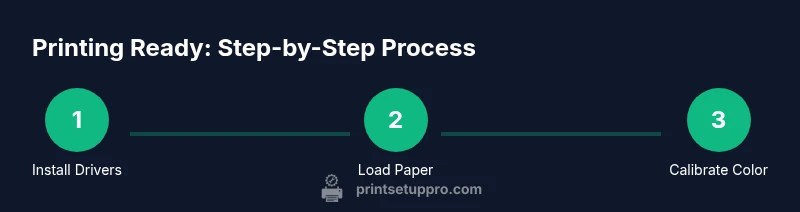
This guide shows you how to set up the Epson P900 for high-quality photo printing in 6 clear steps. You'll install drivers, load compatible paper, select the right ICC profile, calibrate colors, and run a test print. By the end, your prints should match your on-screen colors precisely and consistently, with proper maintenance baked in.
Why Epson P900 is a popular choice for photo printing
The Epson SureColor P900 has earned a reputation among photographers and enthusiasts for its capable 13-inch wide format and deep ink set, which together deliver smooth gradients and rich color. For many home studios and small print shops, the P900 represents a sweet spot between price and quality. According to Print Setup Pro, integrating the Epson P900 with properly managed ICC profiles dramatically improves color accuracy across different media. The Print Setup Pro team also notes that reliable color output starts with solid driver settings, well-chosen paper, and a consistent calibration routine. When you pair the P900 with paper profiles from the manufacturer and your own test prints, you’ll notice fewer surprises between screen previews and final prints. This is especially true for portrait and landscape photography where vivid skin tones and skies matter most.
In practice, users who commit to a color-managed workflow find fewer reprints and less guesswork in print quality. The P900’s adjustable print head and advanced ink chemistry help reproduce subtle tonal transitions, provided you match the ink set to the paper type and the intended viewing environment. Reading the manual and keeping your printer firmware up to date also helps protect against color drift over time. Print Setup Pro’s guidance emphasizes a disciplined approach: standardize media, profiles, and monitor soft-proofing to stay aligned with real-world results.
Understanding the P900’s ink system and color capabilities
The P900 relies on a nine-color ink set designed to cover a wide color gamut. This configuration enables smoother skin tones, richer blacks, and more accurate midtones—crucial for photo printing. To exploit these capabilities, you should use pigment-based papers and select the corresponding printer profile provided by Epson or the paper maker. Color accuracy isn’t just about the ink; it’s about the entire workflow, including paper choice, lighting in your workspace, and how you soft-proof images on your calibrated monitor. Printing with a proper ICC profile helps ensure that the color you see on screen translates to the print in a predictable way. Print Setup Pro underscores the importance of keeping ICC color management front and center, especially when switching between glossy, satin, and matte finishes. A deliberate setup minimizes color shifts and preserves the intent of your original capture.
If you work with challenging scenes—high-contrast skies, vibrant foliage, or skin tones that need subtle gradations—don’t hesitate to test several profiles. The P900’s ink system performs best when used with papers that have been precisely profiled for the printer’s ink combination. Inconsistent lighting during editing can affect soft-proofing, so calibrate your monitor regularly and rely on manufacturer-recommended workflows for the best results. The Print Setup Pro team also recommends documenting your most-used media profiles for quick recall during projects.
Preparing your workspace, ink, and media
A clean, stable workspace makes a big difference when producing consistent prints with the Epson P900. Start with a flat, level surface and good lighting to evaluate your prints accurately. Have the printer powered on and warmed up before loading media. Use high-quality papers designed for inkjet printers, and download the appropriate ICC profiles from the paper manufacturer or Epson. A color-managed workflow begins with a calibrated monitor and the correct target ICC profile loaded in the printer driver. Keep a test swatch library handy so you can quickly compare prints to on-screen colors. Print Setup Pro recommends labeling all media with its profile name to prevent accidental mismatches in future jobs. If you’re working with multiple media types, consider setting up a small color management station: monitor calibration tool, a dedicated reference print, and a small notebook to log profile choices and observed results.
Tip: Clean the printer’s exterior and removable covers before loading paper to avoid dust contaminating the print path. Regular maintenance helps ensure consistent nozzle health and print quality across sessions.
Step-by-step setup and color management overview
This section outlines a practical workflow for initial setup, driver installation, media loading, ICC profiling, and color calibration. The Epson P900 supports USB and network connections; choose the method that fits your workspace. Installing the official Epson driver ensures access to the printer’s advanced print settings, including media type, color management, and print quality modes. After driver installation, load your selected media and load the corresponding ICC profile. The critical components of color management are: monitor calibration, soft-proofing with the correct profile, and printer-side profile application. In many workflows, you’ll start with a nozzle check, perform a print head alignment, then print a test image and compare against your soft proof. Adjust driver settings as needed to achieve a faithful rendition of the source image. Print Setup Pro advises keeping a log of profiles and their results to simplify future reprints.
This guide focuses on achieving steady results across batches rather than chasing a single perfect print. If you encounter unexpected shifts, verify media compatibility, re-run nozzle checks, and confirm you’re using the intended ICC profile for the media in use. Consistency is built through repeatable steps and careful record-keeping.
Printing best practices and troubleshooting common issues
When aiming for archival quality or gallery-standard results, start by matching your paper type and its corresponding ICC profile within the printer’s settings. Glossy paper often benefits from a darker print tone, while matte finishes require precise ink limitation and softer contrast for optimal texture. If colors look off, verify that the color management option is set to Printer Manages Colors with the correct profile selected. Regular nozzle checks and head cleaning help prevent banding and color gaps, especially after long idle periods. Weather, humidity, and temperature can subtly impact ink behavior, so maintain a stable environment. If you notice unexpected color shifts between prints, revisit the ICC profiles, re-attach the media type, and re-run a test image. For advanced users, you can experiment with calibration targets and multiple profiles to fine-tune results for different studios or viewing conditions. Print Setup Pro emphasizes documenting your testing process so you can reproduce the same results on future projects.
Proven steps to save, back up, and maintain color accuracy
To maintain color accuracy over time, organize your ICC profiles and paper profiles in a dedicated folder with clear naming conventions. Back up your profiles and notes on a separate drive or cloud storage, enabling quick recovery in case of a PC or drive failure. Schedule periodic maintenance tasks: nozzle checks every few weeks if you print regularly, and perform a full calibration after changing media types or updating firmware. Keep an eye on printhead alignment reports and re-run alignment if you notice minor shifts in alignment across colors. Finally, test print after any firmware update to confirm that no changes have altered color behavior. A disciplined maintenance routine, combined with consistent software and hardware setups, yields reliable, predictable results.
Tools & Materials
- Epson P900 printer(Ensure unit is fully assembled and powered on)
- Power cord(Standard power cord compatible with your region)
- USB-C or USB-A cable(For initial connection or setup)
- Ethernet network cable(If using wired network printing)
- Printer driver installer from Epson(Download latest driver/firmware)
- ICC profiles for your papers(Download from paper manufacturer or Epson)
- Quality photo papers (glossy, luster, or matte)(Select media compatible with P900)
- Calibrated monitor with colorimeter (optional)(For precise soft proofing)
- Colorimeter/spectrophotometer (optional)(For advanced color calibration)
- Lint-free cleaning tools(For routine printhead maintenance)
Steps
Estimated time: 60-90 minutes
- 1
Unbox and place the P900
Unbox the printer, remove protective materials, and place it on a stable, level surface. Ensure adequate clearance for the paper path and access to all ports. Power on and allow the printer to initialize.
Tip: Verify the tray and feed paths are free of dust and debris before loading media. - 2
Connect and install drivers
Connect the printer via USB or network, then install the latest Epson driver. Follow on-screen prompts to choose your connection, language, and basic setup options. Restart the printer if prompted.
Tip: Choose Printer Manages Colors in the driver during initial tests for greater control over profiles. - 3
Load media and set paper type
Load your selected photo paper into the appropriate tray. In the driver, select the exact media type and size you’ll be using, and enable edge-to-edge printing only if your paper supports it.
Tip: Always use the ICC profile that matches the exact media and finish you’ve loaded. - 4
Install ICC profiles for your media
Place the ICC profiles in the system palette or printer driver profile folder. Apply the profile to the specific media in your print settings. This step is essential for color accuracy.
Tip: Label profiles clearly with paper name and finish for quick future access. - 5
Run a nozzle check and alignment
Print a nozzle check pattern to verify printhead health. If any color banding or gaps appear, run a head cleaning and re-check. A proper nozzle check reduces banding in final images.
Tip: If alignment issues persist, run a printer head alignment and test again. - 6
Print a test image and soft-proof
Print a small, representative test image using the loaded ICC profile. Compare with a calibrated monitor soft-proof. Adjust brightness and contrast in the print settings if needed.
Tip: Soft-proof under lighting similar to your target display environment. - 7
Calibrate color (optional advanced step)
If you have a colorimeter, run a target-based calibration to tailor the printer profile to your equipment and paper. Save the new profile with a clear name for reuse.
Tip: Document calibration conditions (paper type, ink batch, room lighting) for repeatability. - 8
Save, back up profiles and maintain
Back up all profiles and notes to an external drive or cloud storage. Schedule routine maintenance like nozzle checks and firmware updates. Keep a running log of successful print setups for future projects.
Tip: Regularly check for firmware updates and re-test profiles after updates.
People Also Ask
Can the Epson P900 print up to 13 inches wide?
Yes. The Epson P900 is designed to handle up to 13-inch wide media, making it suitable for standard photo-sized prints and some larger formats. Always verify media width in the driver settings before printing.
Yes, the Epson P900 supports up to 13-inch wide media. Make sure the media width is set correctly in the printer driver before printing.
What ink system does the Epson P900 use?
The P900 uses a nine-color UltraChrome ink set designed to cover a wide color gamut with improved black density and smoother tonal transitions. Use corresponding ICC profiles to maximize this color range.
It uses a nine-color UltraChrome ink set for a broad color gamut; pair it with the correct ICC profiles for best results.
Do I need ICC profiles for every paper?
Yes. Each paper type and finish typically requires its own ICC profile to accurately translate colors from screen to print. Use manufacturer-provided profiles or create custom ones for best accuracy.
Yes, ICC profiles are essential for every paper type to achieve accurate color.
Is wireless printing supported on the P900?
The P900 supports network printing via wired Ethernet or compatible wireless setups depending on your environment. Check your router and printer network settings to enable wireless printing if desired.
Yes, you can print over a network; ensure your printer and computer are on the same network and that the driver is configured for network printing.
What maintenance tasks are recommended?
Regular nozzle checks, head cleaning when needed, and firmware updates help maintain print quality and prevent color drift. Keep the printer clean and perform routine calibration when changing media.
Do nozzle checks, clean as needed, update firmware, and recalibrate after changing media.
What should I do if prints look washed out?
Verify you’re using the correct ICC profile for the media, check monitor calibration, and ensure the printer is set to the intended print mode. Re-test with a known-good profile to confirm.
If prints look washed out, confirm the profile and monitor calibration, then re-test with a known-good profile.
Watch Video
Quick Summary
- Set up drivers and ICC profiles correctly to ensure accurate colors.
- Use high-quality media and maintain printer regularly.
- Calibrate color with a colorimeter for best results.
- Store profiles and papers with proper labeling.