Epson SureColor P900 Setup and Troubleshooting Guide
Comprehensive, step-by-step guide to set up and troubleshoot the Epson SureColor P900. Learn driver installation, media handling, color management, nozzle checks, and maintenance for reliable, gallery-quality prints.


By the end of this guide you will be able to set up and troubleshoot the epson surecolor p900 printer, install drivers, load media, run nozzle checks, and calibrate color for consistent prints. You'll learn practical steps, common fixes, and best practices for maintenance. This how-to is designed for home offices, students, and small businesses needing reliable results.
Overview of the Epson SureColor P900
The eps on surecolor p900 is a compact, professional-grade wide-format photo printer designed for high-quality color output. It uses a nine-color pigment ink system to deliver rich color gamut, deep blacks, and smooth gradients on a variety of media types. As a printer intended for home offices, studios, and small businesses, it supports common photo papers, glossy and luster finishes, and matte media, enabling a flexible workflow from casual snapshots to archival prints. Correct setup and color management start here: knowing the printer’s capabilities, supported media, and how color is interpreted by your software and monitor helps you predict results before you press print.
For best results with the epson surecolor p900, plan your workflow around color-managed work practices and consistent media. The device’s print engine is designed to work with ink and paper combinations that maximize color accuracy while preserving archival integrity. This means you’ll benefit from using original Epson media when possible and configuring each media type in the printer driver to match the ink set and intended finish.
note):null},{
Tools & Materials
- Epson SureColor P900 power cable(Use the original power cord; ensure the outlet supplies 100-240V depending on your region.)
- USB cable (Type-B to Type-A)(For direct PC connection if not using Wi‑Fi or Ethernet.)
- Ethernet cable (optional)(Use for wired network printing if available.)
- Computer with Windows or macOS(Needed to download drivers and manage print jobs.)
- Printer driver and software from Epson(Download the latest version from Epson’s support site.)
- ICC color profiles and media test sheets(Helpful for color calibration with your media.)
- Lint-free cleaning supplies and microfiber cloths(For nozzle checks and maintenance without scratches.)
- Assorted media (photo paper, fine art paper, glossy/matte finishes)(Test prints across media types you plan to use.)
Steps
Estimated time: 75-120 minutes
- 1
Power on and prep the printer
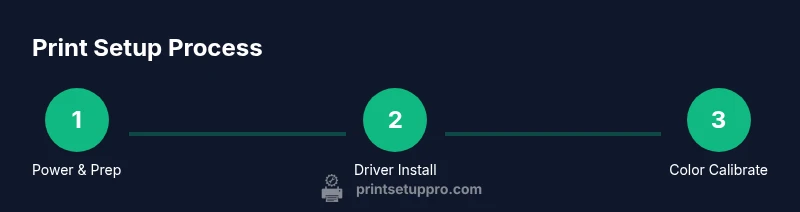
Place the P900 on a stable, level surface away from direct sunlight and excessive dust. Connect the power cable, turn on the printer, and wait for the initialization sequence to complete. This ensures the internal sensors and ink lines are ready for setup.
Tip: Use a surge-protected outlet to protect against power spikes during firmware updates or nozzle checks. - 2
Decide connectivity and establish a link
Choose between USB, Ethernet, or Wi‑Fi depending on your setup. If you’re on a wired network, connect the Ethernet cable and enable network printing in the printer’s control panel. For USB, connect directly to your computer and ensure the device is visible in your OS.
Tip: If you plan to print wirelessly, note your Wi‑Fi network name (SSID) and password before starting. - 3
Download and install the official drivers
Visit Epson’s support site to download the latest driver package for Windows or macOS. Run the installer and follow on-screen prompts to add the P900 as a printer option. Restart your computer if prompted to ensure the driver loads correctly.
Tip: Do not use third-party drivers; official Epson software provides the best compatibility and color accuracy. - 4
Load media and configure media settings
Open the printer lid, load your chosen media, and select the correct media type in the driver settings (e.g., matte, glossy, or fine art). Align the media guide to avoid skewed prints and set the appropriate paper size matching your print job.
Tip: Always print a nozzle check before your first production run to confirm ink delivery across all nozzles. - 5
Run nozzle check and perform head alignment
Print a nozzle check pattern to verify all colors are delivering ink cleanly. If gaps appear, run the head cleaning and, if necessary, a second nozzle check after cleaning. This step helps prevent banding and color gaps in final prints.
Tip: If a nozzle is consistently missing, perform a deeper cleaning only when needed to conserve ink. - 6
Calibrate color and perform a test print
Calibrate your monitor for color accuracy and select a color-managed workflow. Print a small test sheet using a known profile and compare it to a reference. Adjust driver color settings or paper profiles as needed to match your intended result.
Tip: Soft-proof in your image editor using an ICC profile that matches the media you’ll print on. - 7
Update firmware and finalize your workflow
Check for firmware updates via the printer’s menu or Epson’s software. Installing the latest firmware can improve stability, ink efficiency, and color handling. Save your profile settings and document the media profiles you created for future jobs.
Tip: Keep a log of driver versions and media profiles so you can reproduce prints consistently.
People Also Ask
What is the recommended media for the P900?
The P900 supports a range of media types, including glossy, luster, matte, and fine art papers. For best color accuracy, start with Epson-branded media designed for pigment inks and create dedicated printer profiles for each media type.
Use Epson-branded media to ensure the printer’s ink interactions give you the best color and longevity. Create profiles for each media type.
How do I perform a nozzle check?
Print a nozzle check pattern from the printer menu or driver. Inspect the pattern for gaps or broken lines; if present, run a print head cleaning and recheck. Repeat once or twice if needed.
Print the nozzle check pattern, look for gaps, and clean the print head if necessary, then recheck until the pattern is solid.
Can I connect the P900 to Wi-Fi, and how stable is it?
Yes, the P900 supports Wi‑Fi. Ensure strong signal, keep firmware updated, and use the Epson software to manage network settings. For critical jobs, a wired Ethernet connection can be more stable.
Wi‑Fi works well with solid signal, but Ethernet is often more reliable for large print jobs.
How often should I replace ink cartridges?
Ink cartridges are consumed with print volume. Replace cartridges when the device notifies you or when colors start fading. Use genuine ink to maintain print quality and archival properties.
Replace cartridges when prompted by the printer or when colors start fading; genuine ink is recommended for best results.
What should I do if the printer won’t initialize after power up?
Check the power connection, ensure the outlet is functioning, and reseat the power cable. If the issue persists, try a different USB/Ethernet connection or consult Epson support for diagnostics.
Make sure the plug and outlet are ok, reseat the power cable, and retry. If needed, contact support for help.
Is firmware updates mandatory for color accuracy?
Firmware updates are not strictly mandatory but can improve stability, performance, and compatibility with media profiles. Check regularly and apply updates when they improve your workflow.
Firmware updates aren’t required, but they can improve how the printer works with your media and software.
Watch Video
Quick Summary
- Power up the P900 on a stable surface.
- Install official drivers from Epson before printing.
- Use color-managed workflows for accurate results.
- Perform nozzle checks and head alignment as part of routine maintenance.
- Keep firmware and media profiles up to date for reliable prints.