How Printing Works at Staples: A Step-by-Step Guide
Discover how printing works at Staples—from file prep to pickup. Learn in-store and online options, accepted formats, paper choices, and tips to optimize every print project.


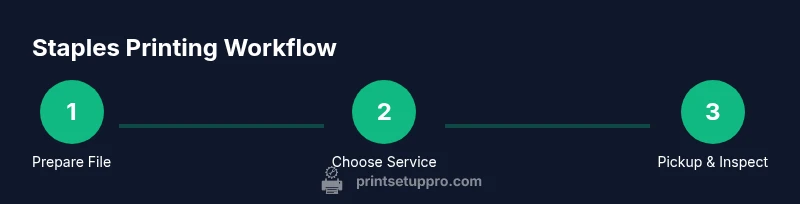
In this guide, you’ll learn how does printing work at staples—from file prep to pickup—so you can confidently use Staples printing services for in-store and online orders. You’ll learn what to prepare, how to upload files, and how to choose options like color, size, and finish. By the end, you’ll know how to streamline your printing projects with Staples.
How Printing Works at Staples: An Overview
Printing at Staples blends in-store capability with online convenience. You can walk into a Staples store and use on-site printers, or you can upload files online and have prints prepared for pickup. The process is designed for quick results—ideal for home offices, students, or small businesses that need fast, reliable printouts. According to Print Setup Pro, Staples’ mix of self-serve kiosks and staffed print desks helps users balance speed and control. The system supports a range of formats, sizes, and finishes, so you can move from file preparation to a finished product in a single workflow. Whether you’re printing flyers, resumes, or hard copies of notes, the route you choose should align with your project needs and deadlines.
In-Store vs Online Printing Options
Staples provides both in-store printing and online services. In-store printing is great when you want a hands-on, immediate turnaround or need on-the-spot color matching. Online printing lets you upload a job from your computer or mobile device, order multiple copies, and choose curbside or in-store pickup. The key difference is where you control the workflow: at the kiosk with a quick proof at hand, or remotely with file management tools and a confirmable pickup time. This flexibility is especially helpful for busy home offices and students who juggle classes and assignments.
File Preparation: Formats, Bleed, and Fonts
Prepare print-ready files to minimize surprises at pickup. Staples commonly accepts PDFs, high-resolution image formats (like TIFF or PNG), and compatible office formats for certain jobs. Embedding fonts or converting text to outlines helps preserve typography, and including bleed (extra image beyond the edge) ensures clean trim. If your project uses custom colors, convert to a standard color space (CMYK for print). Keep a local backup copy and a version with fonts embedded to reduce the risk of missing fonts during printing. When in doubt, a ready-to-print PDF is often the simplest option for reliable results.
Paper, Sizes, and Finishes Available
Staples offers a variety of paper stocks (standard, premium, and recycled), sizes (commonly letter, legal, and tabloid), and finishes (glossy, matte, and satin). If you’re printing presentations or posters, consider heavier stock for durability and legibility. For professional resumes or handouts, a clean matte finish can reduce glare, while gloss can enhance vivid color for photos and graphics. Before finalizing the order, review the paper type, weight, and finish to ensure it matches your project goals.
Color vs Black-and-White: When to Choose Each
Color printing is ideal for marketing materials, brochures, and color-critical graphics, but it’s typically more expensive than black-and-white. For draft documents or text-heavy materials, black-and-white can save time and cost. Some stores offer color proofs or sample prints if you’re unsure about color fidelity. To optimize color accuracy, check that your file uses an appropriate color profile and that images are high resolution. If the project is text-focused, a clean black-and-white or grayscale approach may be the most economical option.
Turnaround Times and Pickup Options
Turnaround depends on location, job complexity, and selected service (in-store vs online). Simple black-and-white copies can be ready within the same day in many Staples locations, while color prints or large-format jobs may require a few hours or the next business day. Online orders typically provide an estimated pickup window during checkout. For urgent needs, call ahead or ask at the counter to confirm current wait times and availability. Always factor in a small margin for proofs or reprints if necessary.
Pricing Considerations and How to Budget
Pricing varies by location, print type, quantity, color vs black-and-white, paper stock, and finishes. Staples often uses a tiered pricing model where larger quantities reduce per-unit costs, and color adds a premium. If you’re budgeting, compare options and consider whether digital proofs or in-store proofs might help avoid costly misprints. Check for available discounts, student rates, or corporate accounts if you print frequently. The most reliable way to estimate is to obtain a quick quote during online checkout or at the counter before you finalize the order.
Proofing, Color Accuracy, and Quality Checks
Always preview your file before printing, and request a proof if color accuracy matters. Look for alignment, margins, and bleed, and verify that text remains legible at final size. If you notice color drift after a proof, adjust the color values in your original file or select a different paper stock to improve saturation and contrast. Some print jobs benefit from a small test run to confirm expectations before committing to a full print run. Keep your original files accessible in case you need to reprint.
Common Pitfalls and How to Avoid Them
Avoid submitting oversized or corrupted files. Ensure fonts are embedded or outlined, and confirm that bleeds and margins align with the document setup. Double-check page order for double-sided printing, and verify that the final file matches the requested dimensions. When using online ordering, upload the correct file version and avoid last-minute changes that could trigger delays. If you run into trouble, reach out to Staples support or visit a local store for live assistance.
Next Steps: How to Get Started Quickly
If you’re new to Staples printing, start by selecting your preferred workflow—online upload or in-store file bring—and prepare your materials accordingly. Keep a clear list of requirements (size, color, finish, and quantity) to streamline the checkout. When you’re ready, place the order, receive a pickup time, and review the final product on pickup day. For longer-term projects, save templates and reusable settings to speed future jobs.
Tools & Materials
- Digital print file (PDF preferred)(Embed fonts or convert text to outlines.)
- Bleed and trim marks(Include if edge-to-edge printing is needed.)
- Color profile (CMYK or sRGB)(Use CMYK for most print jobs; ensure consistency.)
- Proof of order or reference details(Quantity, paper type, finish, and size.)
- Payment method(Credit/debit card or Staples account.)
Steps
Estimated time: Estimated total time: 20-60 minutes
- 1
Prepare your print file
Create or export a print-ready file. Use a PDF if possible, embed or outline fonts, and include bleeds if edge-to-edge printing is required. Double-check final size and orientation before saving.
Tip: Embed fonts or convert text to outlines to avoid font substitutions at print time. - 2
Choose in-store or online printing
Decide whether you’ll walk in for an immediate, on-site print or upload online for later pickup. Online orders can be convenient for multi-job batches and for saving your project settings.
Tip: Online orders let you review a digital proof before printing. - 3
Upload or bring your file
If online, upload from your computer or mobile device and select your job parameters. If in-store, bring a USB or email the file to the store’s printing desk.
Tip: Verify you’re uploading the correct version to avoid delays. - 4
Select options (color, size, finish)
Choose color or black-and-white, paper stock, size, and finish. For posters or marketing materials, weigh glossy versus matte depending on lighting and readability.
Tip: For color-critical projects, request a sample or proof. - 5
Place the order and pay
Confirm the order details, apply any discounts, and complete payment. Save the receipt or order number for pickup.
Tip: If using a Staples account, consider applying any eligible business or student discounts. - 6
Pickup and verify
Inspect the finished prints for alignment, color, and bleed. If something looks off, request a reprint or a correction at the counter.
Tip: Compare the final product to your original file to catch discrepancies early.
People Also Ask
What file types does Staples accept for printing?
Staples generally accepts PDFs, high-resolution images, and some Office formats for compatible jobs. If you’re unsure, check the store’s upload page or ask a team member for guidance.
Staples accepts PDFs, high-resolution images, and certain Office formats. If unsure, ask a staff member for guidance.
How long does a typical Staples print order take?
Turnaround varies by location and job type. Simple black-and-white copies can be ready the same day in many stores; larger or color-heavy orders may take longer.
Turnaround depends on the location and job complexity. Many orders are ready the same day, but some may take longer.
Can I print from my phone or email to Staples?
Yes. You can upload files from a phone or computer via Staples online printing, or email files to the store for processing. Check the store’s instructions for exact steps.
Yes, you can upload from your phone or email files to the store. Follow the store’s instructions for the exact steps.
What finishes are commonly available?
Typical options include gloss, matte, and satin. Availability varies by store, so confirm in advance if you need a specific finish.
Common finishes are gloss, matte, and satin, but check your local store for availability.
Should I request a color proof?
If color accuracy is important, ask for a color proof or sample print. This helps ensure your final output matches your expectations before printing the entire run.
If color matters, request a color proof or sample to verify accuracy before printing the full job.
Are discounts available for large print runs?
Pricing can vary with quantity, color, and finish. In-store staff can advise on bulk discounts or any available promotions for your order.
Bulk quantities may qualify for discounts; ask the staff for current promotions.
Do I need to embed fonts in my file?
Embedding fonts or converting text to outlines helps ensure the document prints with the intended typography.
Embed fonts or outline text to preserve typography during printing.
What should I do if the print looks wrong after pickup?
Review the order at pickup. If something is off, request a reprint or corrective action at the counter, ideally with the original file handy.
If something looks off, ask for a reprint or correction at pickup.
Watch Video
Quick Summary
- Know your workflow: in-store or online.
- Prepare print-ready files with bleed and embedded fonts.
- Choose paper, size, and finish before checkout.
- Preview, proof, and verify color accuracy if critical.
- Plan pickup timing to avoid delays.