How to Check if Your Printer Is Connected to the Network
Learn how to verify your printer is connected to the network with a clear, step-by-step approach. From printer menu checks to router DHCP lists, this guide covers wired and wireless setups, IP verification, and practical fixes for home offices and small workplaces.


This guide helps you confirm your printer is on the same network as your computer or mobile devices. You will verify status on the printer, print a network configuration page, check the IP address, and run a quick ping test from another device. No advanced skills required—just follow the steps and you’ll know where the problem lies.
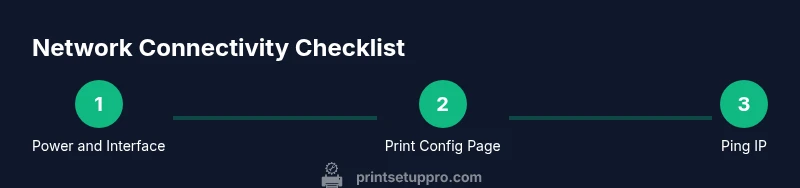
Start with the basics: confirm power and network interface
Before diving into diagnostic checks, ensure the printer is powered on and that its network interface (Wi‑Fi or Ethernet) is active. On many models, a steady wireless icon or a green Ethernet indicator confirms the device is “speaking” to the network. If the printer is on a surge protector or a power strip, make sure it’s fully powered and not intermittently losing power. According to Print Setup Pro, many connectivity issues start with a simple power or interface problem that looks like a network fault. Take a moment to visually inspect the printer’s status lights and confirm they match the model’s user manual indicators. This foundational step saves time and helps you interpret subsequent results more reliably.
Find the network status on the printer
Most modern printers offer a dedicated network status screen or printout that shows connection type (Wi‑Fi or Ethernet), the current IP address, and the connected network name (SSID). If your device has a color display, navigate to the Network or Wireless menu to confirm status. If you don’t see a status screen, proceed to printing a network configuration page from the printer’s menu. This section sets the stage for verifying that your printer is actually speaking to the network rather than just appearing to be on it.
Print or view the printer's network configuration page
Printing a network configuration page is a fast way to capture the printer’s IP address, subnet mask, gateway, and DNS server details. On most printers, you can select Network, Information, or Reports, then choose Print Network Configuration or Print Configuration Page. Review the IP address shown—ideally, it should be on the same subnet as your router (for example, 192.168.0.x or 10.0.0.x). If the IP address starts with 169.254.x.x, the printer failed to obtain an address from DHCP and needs to rejoin the network. Keeping a copy of these details helps with future troubleshooting and reduces repeated checks.
Identify the printer's IP address and verify the same subnet
Once you have the IP address, compare it with devices on the same network. You can check the subnet by noting the first three octets (e.g., 192.168.1.x or 10.0.0.x). If your computer shows a different subnet, the printer may be on a guest network or a different VLAN, which blocks device discovery. If the address is in the correct range, proceed to test connectivity. If not, you’ll need to reconnect the printer to the correct network or assign a compatible static or reserved IP.
Ping the printer from a computer or mobile device
Open a command prompt (Windows) or Terminal (macOS, Linux, or mobile apps) and type a simple ping command using the printer’s IP address (for example, ping 192.168.1.45). Successful replies indicate basic reachability. If you receive timeouts or destinations unreachable messages, verify the device is on the same network, disable VPNs that might isolate your device, and retry. If ping fails, move on to verify router settings and potential IP conflicts. Print Setup Pro guidance emphasizes confirming reachability as a quick litmus test of connectivity.
Check the router’s client list and DHCP assignments
Log in to your router’s admin page (commonly 192.168.0.1 or 192.168.1.1) and navigate to the list of connected devices or DHCP clients. Look for the printer’s hostname or IP address to confirm it’s actively assigned and reachable on the network. If the printer appears with an IP like 0.0.0.0 or a duplicate address, you’ll need to rebind the device to the network or reserve an IP in the DHCP settings. This step helps you identify whether the problem is printer-side or network-side.
Resolve common connectivity problems: wrong password, IP conflict, or firewall blocks
Wireless networks sometimes require re-entering the printer password or updating credentials after a router reboot. If the printer reports authentication failures, rejoin the network with the correct password. IP conflicts arise when two devices share the same address; one remedy is to assign a unique, reserved IP to the printer. Firewalls or network isolation settings can also block printer traffic; temporarily relaxing these rules for testing can reveal whether security settings are the culprit. After changes, print a configuration page and re-test connectivity to confirm success.
Reconnect to the network on the printer: forget and rejoin
If issues persist, remove the current network profile on the printer and rejoin the correct network. On many models, you’ll choose Wireless > Setup > Wireless Network > Add Network, then enter your SSID and password. Ensure the network name exactly matches the one used by your other devices. This step is crucial when network credentials change or when the printer has wandered onto a guest network. After reconnecting, print a new configuration page to verify the changes took effect.
Consider wired vs wireless and interference issues
Wired connections (Ethernet) are often more stable than Wi‑Fi, particularly in environments with thick walls or many wireless clients. If your printer supports Ethernet, try a direct cable connection to the router or a network switch to determine if wireless interference is the root cause. For Wi‑Fi, place the printer closer to the router, avoid metal obstacles, and check for channel congestion. Both connections should produce a valid IP and successful reachability tests, confirming proper network integration.
Final checks and confirmation: one last test across devices
Conclude with a cross-device test: print a test page from a computer, a mobile device, and, if available, another networked device such as a laptop or tablet. The outcome should be consistent across devices, and the printer should appear under Recently Connected in the router’s device list. Document the results and any IP addresses obtained. If any device still cannot print, revisit steps such as rejoining the network, updating drivers, or restarting the printer and router.
Troubleshooting checklist and next steps
If connectivity remains elusive after following the above steps, create a simple checklist to guide further investigation. Confirm that the printer is on the same network as the testing device, that an IP address is assigned and reachable, and that the router is not isolating clients. If problems persist, consider firmware updates for the printer, driver updates for the computer, or contacting support for model-specific guidance. A structured checklist can dramatically reduce the time to resolution.
Tools & Materials
- Printer(Ensure it is powered on and has network access enabled.)
- Computer or smartphone with network access(Used to run ping tests and access the router interface.)
- Active network (Wi-Fi or Ethernet)(The network where the printer should be reachable.)
- Printer manual or quick-start guide(Helpful for model-specific menu paths.)
- Access to router admin page(Needed to check DHCP clients and IP assignments.)
- Optional Ethernet cable(Useful for a direct wired test if Wi‑Fi is unreliable.)
- Pen and notebook or digital notes(Record IP addresses, subnet, and results for future reference.)
Steps
Estimated time: 30-60 minutes
- 1
Power up and access printer menu
Verify the printer is on and that the status lights indicate normal operation. If a display is present, navigate to the Network or Wireless section to confirm the interface is active. If there is no screen, proceed to printing a network configuration page from the printer's control panel.
Tip: If the display is dim or unresponsive, try a quick reset per the manual before continuing. - 2
Print the network configuration page
From the printer menu, choose Network/Information/Reports, then print the Network Configuration Page. This page lists the IP address, subnet, gateway, and DNS settings—critical data for subsequent checks.
Tip: If the page is blank, ensure the printer’s internal memory isn’t full and that you selected the correct page type. - 3
Note the IP address and verify subnet
Record the IP address shown on the page and compare the first three octets with your computer’s IP or router’s network. If they share a common subnet, you’re likely on the same LAN; if not, rejoin the correct network on the printer.
Tip: If you see a 169.254.x.x address, the printer did not obtain an IP from DHCP. - 4
Ping the printer from a computer
Open Command Prompt or Terminal and ping the printer’s IP. A successful reply confirms reachability; failures suggest network isolation, firewall blocks, or misconfigured IPs.
Tip: Disable VPNs temporarily to ensure they aren’t routing traffic away from your local network. - 5
Check the router’s client list
Log in to the router and locate the connected devices or DHCP clients. Confirm the printer appears with its IP and hostname. If it’s missing, rejoin the network or assign a reserved IP.
Tip: If you see a duplicate IP in use, reboot the printer and renew its DHCP lease. - 6
Review DHCP and IP assignment
Ensure the router’s DHCP scope includes the printer’s IP range. Reserved IPs can prevent future conflicts and provide stability across reboots.
Tip: Set a static or reserved IP if your printer frequently changes addresses. - 7
Resolve password, IP, or firewall issues
Re-enter or update wireless credentials on the printer if authentication fails. Address IP conflicts and adjust firewall rules or guest network isolation that may block traffic.
Tip: After changes, reprint the configuration page and re-test connectivity. - 8
Reconnect to the network
If needed, remove the current network profile on the printer and rejoin with the correct SSID and password. Verify the connection by printing another configuration page.
Tip: Ensure SSID matches exactly; case sensitivity and hidden networks can cause failures. - 9
Consider wired testing
If wireless is unreliable, test with an Ethernet cable directly to the router or a switch to determine if interference or signal strength is the root cause.
Tip: Wired connections often yield more consistent test results and easier troubleshooting. - 10
Run cross-device tests
Print a test page from multiple devices (computer, phone, tablet) to confirm consistent connectivity. If any device fails, focus troubleshooting on that device’s network path.
Tip: Document test results to spot recurring patterns across devices. - 11
Finalize with a concise checklist
Create a short, repeatable checklist covering power, network status, IP address, ping results, and a successful print on at least two devices.
Tip: A saved checklist speeds future troubleshooting and reduces downtime.
People Also Ask
Why does my printer show offline even though it is connected to Wi‑Fi?
Offline status can result from IP address changes, DHCP issues, or the printer being on a different network segment. Start by printing the network configuration page to confirm the IP and gateway, then ping the IP to verify reachability. If necessary, rejoin the correct network or assign a reserved IP.
Offline status often means an IP address changed or the printer joined a different network. Print the config page, ping the IP, and rejoin the correct network if needed.
Can I connect the printer to the network using a USB-to-Ethernet adapter?
Some printers support USB-to-Ethernet adapters for wired connectivity. Check the model’s documentation for compatibility. If supported, install the adapter and configure the network settings to obtain a stable IP.
Some printers support USB-to-Ethernet; check compatibility and configure as directed in the manual.
How do I find the printer’s IP address on Windows?
Print the network configuration page from the printer or view the printer status through the Control Panel or Settings app. The IP address will be listed on the network information page. You can also check the router’s connected devices list for the printer’s IP.
Print the page from the printer or look up the IP in Windows printer settings or the router’s device list.
What should I do if the printer’s IP address changes after reboot?
If IPs change, assign a reserved DHCP IP on the router or set a static IP on the printer. This prevents variation after reboots and makes future troubleshooting faster.
Reserve a DHCP lease or assign a static IP to keep the printer address stable.
Is it necessary to print a network configuration page for every check?
Not every check is necessary, but printing the network configuration page at key points—after rejoining the network or when troubleshooting IP issues—helps confirm current settings and reduces ambiguity.
Only print when you need up-to-date IP and network data to guide your next steps.
Why would ping fail even when the printer seems connected?
Ping failures can indicate firewall blocks, router isolation, or firmware issues. Verify basic connectivity first, then check firewall rules and ensure the printer is reachable on the LAN.
A ping failure usually points to network blocks or misconfigurations, not the printer hardware itself.
What’s the difference between a wired and wireless connection for printers?
Wired connections are typically more stable and less prone to interference, while wireless offers flexibility. If wireless is unstable, testing with a wired connection can clarify whether the issue is wireless or broader network problems.
Wired is often more stable; use it to isolate wireless issues.
Watch Video
Quick Summary
- Verify printer and device share a network.
- Print and review the network configuration page.
- Test reachability with a ping to confirm connectivity.
- Check router DHCP and reserved IP settings for stability.
- Document IP addresses and test results for future use.