How to Set Up an HP Printer: A Complete Guide 2026
Learn how to set up your HP printer from unboxing to wireless printing. This step-by-step guide covers drivers, network setup, and troubleshooting for a smooth, reliable printing experience.


Goal: You will successfully connect and configure an HP printer for wireless or USB printing. By following this guide, you’ll cover unboxing, power, driver installation, network setup, and initial print testing. The process suits most HP models and modern operating systems, with clear steps and common troubleshooting tips. This guide provides a proven path for reliable results and minimal setup time. This is the foundation for a smooth printing experience.
HP Printer Setup Essentials
If you’re wondering how to set up hp printer, you’re about to embark on a process that establishes reliable printing from multiple devices. According to Print Setup Pro, starting with a clean workspace and selecting the right model for your needs reduces setup time and future headaches. This section explains what you need to know before you begin, including model compatibility, the typical wiring or wireless paths, and how to align your expectations with real-world use. The goal is a solid baseline for printing, scanning, and photo tasks across devices. By understanding your environment—home office, classroom, or small shop—you’ll choose the quickest, most dependable setup path and minimize avoidable issues later on.
Choosing the Right HP Printer Model
HP’s lineup includes versatile all-in-ones and dedicated printers designed for different workloads. Review factors like print speed, color management, paper handling, and whether you need scanning or fax capabilities. Print Setup Pro emphasizes matching your common tasks to the printer’s features to prevent wasted effort. If you plan to print from a variety of devices (desktop, laptop, phone), prioritize models with strong wireless support and robust mobile printing options. This upfront decision affects driver availability, firmware updates, and ongoing maintenance across your ecosystem.
Tools & Materials
- HP printer (model you own)(Unbox and inspect accessories; confirm model compatibility with your OS.)
- Power cable(Plug into a grounded outlet; keep away from water or heat.)
- USB cable (if wired setup is needed)(Only required if you’re not using a wireless setup.)
- Computer or mobile device with internet(Needed for driver installation and network setup.)
- Wi‑Fi network name (SSID) and password(Have credentials ready for wireless configuration.)
- Active internet connection(Required for driver download and firmware checks.)
- Printer paper and a few test sheets(Use standard size to verify settings during tests.)
- HP printer drivers/software installer(Download from HP’s official site or use the included USB installer.)
- Smartphone or tablet (optional for mobile printing)(Useful for printing from mobile apps without a computer.)
Steps
Estimated time: 20-40 minutes
- 1
Unbox and position the printer
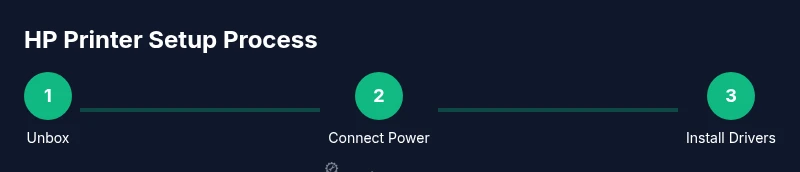
Carefully remove all packaging and protective material. Place the printer on a stable surface with easy access to a power outlet and your router or network switch if you plan to use a wired connection. Ensure there is enough clearance for paper trays and output paths to avoid jams. This step sets the foundation for reliable feeding and quiet operation.
Tip: Keep the box and inserts until you’ve confirmed the printer works correctly. - 2
Connect power and turn on
Plug the printer into a grounded outlet and press the power button. Wait for the startup screen to finish initializing. If there are any firmware prompts, allow them to complete before proceeding.
Tip: Power the device from a surge-protected outlet to guard against outages during setup. - 3
Choose your setup path (Wi‑Fi or USB)
Decide whether you’ll connect over Wi‑Fi or with a USB cable to a single computer. Wireless setup offers multi-device printing, while USB provides a straightforward, static connection. If you’re coordinating multiple devices, wireless is typically the better long-term choice.
Tip: If unsure, start with Wi‑Fi; you can switch to USB later if needed. - 4
Download and install drivers
From your computer or mobile device, download the latest HP drivers and software. Follow the on-screen prompts to install printer utilities, scanning options, and any required print-management tools. If you have a USB drive from HP, you can also run the installer directly from it.
Tip: Choose the full feature driver rather than a basic driver for access to all functions. - 5
Add the printer to your device
In your device’s settings, add a new printer, selecting the HP model from the discovered list. For Windows, you’ll use Settings > Devices > Printers & scanners. On macOS, use System Preferences > Printers & Scanners. For mobile, open the HP Smart app if available.
Tip: If the printer doesn’t appear, use the manual add option and enter the printer IP address (for networked setups). - 6
Print a test page
Once added, print a test page to verify print quality and alignment. Check color accuracy, margins, and any banding. If issues appear, run any diagnostic utilities provided by the HP software.
Tip: Use standard plain paper for the first test to avoid paper-type discrepancies. - 7
Update firmware if available
Check for firmware updates using the HP software or printer’s control panel. Updating firmware can fix bugs, improve compatibility, and enhance security. Allow the update to complete and reboot if prompted.
Tip: Schedule updates during a time when you won’t need frequent printing. - 8
Configure default print settings
Set your preferred paper size, print quality, color settings, and duplex options. Save these as a default profile if your frequent tasks require consistent output. This reduces repeated changes for each job.
Tip: Create a separate profile for documents and photos to speed up workflow. - 9
Document network details and security
Record the network name, password, and any security features enabled (WEP/WPA/WPA2). Consider enabling secure printing if your environment handles sensitive materials. Re-check device visibility from other connected devices.
Tip: Keep a small, private note with essential credentials in a secure place.
People Also Ask
Do I need an internet connection to set up an HP printer?
No, you can set up over USB with a single computer. Wireless setup requires a network. If you plan to print from multiple devices, a stable internet connection makes driver updates and firmware checks smoother.
You can start with USB, but for multi-device printing you’ll want a network connection and internet access for updates.
Can I set up an HP printer without a computer?
Yes, you can often set up HP printers using a mobile device and the HP Smart app. This method covers most wireless configurations and basic print tasks.
Yes, you can typically set up using a phone or tablet with the HP Smart app.
What should I do if the printer won’t connect to Wi‑Fi?
Verify your network name and password, ensure the printer is within range, and restart the router and printer. Re-run the Wi‑Fi setup in the printer’s control panel or HP software.
Check the name and password, move closer to the router, and restart devices, then try again.
How do I update the printer firmware?
Use the HP software installer or the printer’s settings menu to check for updates. Install any available firmware to improve stability and compatibility.
Check for updates in the HP software, then install them if available.
Is the HP Smart App required for basic printing?
Not strictly required for basic printing, but the app greatly simplifies setup, mobile printing, and scanning on many HP models.
It’s not required for basics, but it makes mobile printing easy.
Why is my test page blank or misaligned?
Check ink or toner levels, run a print head cleaning if offered, and verify paper size and margins. Repeat the test after adjustments.
If a test page is blank or misaligned, check consumables and settings, then try again.
Watch Video
Quick Summary
- Choose wireless setup for multi-device printing.
- Install the latest HP drivers and firmware.
- Test with a page to verify alignment and color.
- Update security settings and save your profiles.