HP DeskJet 3700 Ink: Step-by-Step Cartridge Replacement and Troubleshooting
Learn how to replace ink cartridges, clean print heads, and fix common issues on the HP DeskJet 3700. This comprehensive guide from Print Setup Pro covers cartridge selection, maintenance, and troubleshooting for reliable hp deskjet 3700 ink output.


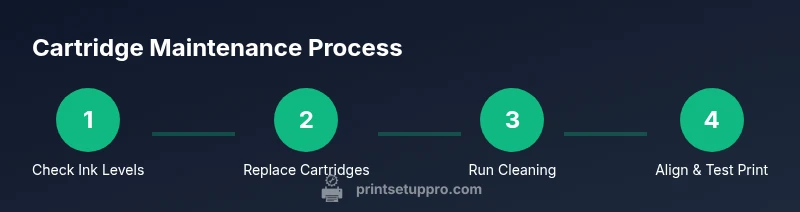
HP DeskJet 3700 ink troubleshooting and cartridge replacement is straightforward: verify ink levels, replace exhausted cartridges with authentic HP ink, run a print head cleaning, and align the printhead for best results. This guide shows you exact steps, safety checks, and maintenance practices to keep your printer producing crisp output.
Understanding the HP DeskJet 3700 ink system
The HP DeskJet 3700 ink system is designed for simple cartridge swaps and compact performance, which is ideal for home offices and student desks. According to Print Setup Pro, the printer uses two main ink reservoirs—black and tri-color—delivered through a micro-print head that distributes ink across the paper with precision. The goal is consistent flow: cartridges seated correctly, no air gaps, and clean nozzles. When you see thin lines, color shifts, or missing grayscale, the issue usually traces back to clogged nozzles, dried ink, or misaligned cartridges. Regular maintenance is inexpensive and quick, and it yields noticeably sharper text and brighter photos over time. Keep ink fresh by using genuine HP cartridges whenever possible; hp deskjet 3700 ink helps ensure consistent performance and longer cartridge life. A simple habit—checking ink levels and performing a brief alignment after installing new cartridges—goes a long way toward reliable output.
Diagnosing common ink issues
Many HP DeskJet 3700 ink problems manifest as horizontal bands, color mis-registration, or pale grayscale. Start by printing a diagnostic print page from the printer software. If the page shows gaps or missing colors, inspect the cartridges: ensure they are seated fully, and look for tape or protective packaging that wasn’t removed. Air leaks in the cartridge or a partially clogged nozzle can also cause streaks. If the issue persists, run a nozzle check and a print head cleaning from the printer control panel. For best results, avoid letting ink cartridges run completely dry; keep the printer plugged in and exercise it to keep ink moving through the system. If you recently refilled or replaced cartridges, reseat the cartridges and restart the printer to reset the ink flow.
Cartridge replacement essentials
Replacing HP 61 black and color cartridges is straightforward in the DeskJet 3700. Before you begin, gather authentic cartridges and a clean work surface. Open the front access door, lift the cartridge tray, and carefully remove old cartridges by gripping the plastic tabs. Unpack the new cartridges, remove the protective tape as directed, and avoid touching the electrical contacts or nozzle to minimize smearing. Insert the black cartridge into the left slot and the tri-color cartridge into the right slot, aligning them with the guides. Close the cover and wait for the printer to recognize the new ink; the system may calibrate automatically, and you might see the alignment page print automatically.
Print head cleaning and alignment techniques
The print head cleaning routine dissolves dried ink and clears clogged nozzles so your colors print cleanly. Start a cleaning cycle from the printer’s control panel or the HP software on your computer, then print a test page to evaluate results. If gaps persist, run a second cleaning cycle, followed by an alignment page to ensure the nozzles are correctly positioned.
Verifying ink levels and cartridge authenticity
To confirm you have enough ink, check the printer's status screen or the software utility; ink levels may appear differently depending on the cartridge's age. For authenticity, always prefer genuine HP ink cartridges; counterfeit or refilled cartridges can cause leakage and degraded performance. If the system can't verify authenticity, you'll see a message that prompts you to replace with an HP cartridge.
Best practices for longevity and efficiency
Store cartridges upright in a cool, dry place; avoid direct sunlight; never shake new cartridges too aggressively; adopt a routine: at least monthly power-on resets; Keep the printer up and use it weekly to prevent ink drying. hp deskjet 3700 ink should be handled with care to minimize moisture exposure and ensure cartridges stay sealed until use.
Authority sources
- https://www.nist.gov
- https://www.ieee.org
- https://www.uspto.gov
note”:null}],
toolsMaterials":{"items":[{
Tools & Materials
- HP 61 black ink cartridge(Authentic HP ink; avoid third-party cartridges for best results.)
- HP 61 color ink cartridge(Authentic HP ink; replace when color is low.)
- Lint-free cloth(For wiping any stray ink from exterior surfaces.)
- Paper towels(Keep on hand for minor spills.)
Steps
Estimated time: 20-25 minutes
- 1
Power down and unplug
Power off the printer and unplug the power cord. This prevents electrical shocks and avoids accidental carriage movement while you work.
Tip: Always unplug before opening the access door. - 2
Open access door and locate cartridges
Gently lift the cartridge access door to expose the cartridges. Do not force the carriage if it’s stuck; give the printer a moment to settle.
Tip: Support the printer on a stable surface to prevent tipping. - 3
Remove old cartridges
Grasp the cartridge by the sides and pull straight out to remove it from its slot. Put the used cartridge in a safe container to avoid leaks.
Tip: Do not touch the copper contacts or ink nozzles. - 4
Prepare new cartridges
Remove the new HP 61 black and color cartridges from packaging and remove protective tape as directed. Do not touch the gold contacts/ink nozzle.
Tip: Handle cartridges by the edges to avoid fingerprints. - 5
Install new cartridges
Insert black into the left slot and color into the right slot, pushing firmly until they click into place.
Tip: Ensure cartridges are seated fully before closing the door. - 6
Close the access door and wait
Close the cartridge cover and wait for the printer to recognize the new ink. The device may calibrate automatically.
Tip: Don’t interrupt the recognition process. - 7
Print an alignment page
From the printer software, select Print & Scan > Align Printer to print an alignment sheet.
Tip: Alignment improves print accuracy and color alignment. - 8
Run a nozzle check/test page
Print a nozzle check to verify ink flow. If lines appear broken, plan a cleaning cycle.
Tip: Perform up to two cleaning cycles if needed. - 9
Review results and test again
Compare the test page to expected output; repeat cleaning or alignment if necessary, until print quality is consistent.
Tip: If problems persist after multiple cycles, consider professional support.
People Also Ask
Can I use third-party ink cartridges in HP DeskJet 3700?
Third-party cartridges may work but can cause leaks or degraded print quality. HP recommends using genuine HP ink for best results.
Third-party cartridges can work, but for best results, use genuine HP ink to avoid leaks and poor print quality.
How do I know which cartridges fit my HP DeskJet 3700?
This model uses HP 61 black and HP 61 color cartridges. Check the model number on your printer or in the manual to confirm compatibility.
Look for HP 61 black and HP 61 color cartridges to fit this model.
Is print head cleaning necessary?
Only run cleaning if you notice streaks or color gaps. Repeated cleaning wastes ink and may affect cartridge life.
Only run a cleaning cycle when you see print quality issues.
How often should I replace cartridges?
Replace cartridges when print quality declines or ink levels are low. Keep a spare cartridge on hand to minimize downtime.
Replace them when you notice faded prints or low ink.
What if I see a cartridge jam message?
Power cycle the printer, reseat both cartridges, and remove any packaging remnants. Ensure there’s no ink leakage in the carriage area.
If you get a jam message, restart the printer and reseat the cartridges.
Can I print while the printer is calibrating?
Wait for the printer to finish its initial calibration before printing to ensure sharp results.
Allow the printer to finish calibration before printing.
Watch Video
Quick Summary
- Use authentic HP ink for reliable output.
- Always perform a nozzle check after installing cartridges.
- Run alignment after cartridge replacement for accurate prints.
- Maintain a clean, dry workspace to avoid contamination.