Mac Printer Setup: A Complete How-To Guide
Learn how to set up and troubleshoot a Mac printer with AirPrint, USB, and network connections. This step-by-step guide covers drivers, printing from macOS apps, and common issues to ensure reliable, high-quality printing from your Mac.


You will learn how to set up a Mac printer from scratch, including connecting via USB or Wi‑Fi, enabling AirPrint, installing the correct drivers, and resolving common printing issues. This quick guide highlights essential steps, safe network practices, and practical tips to ensure reliable printing on macOS for home offices and classrooms.
Why mac printer setup matters
In today’s home office and classroom environments, a reliable Mac printer is a cornerstone of productivity. A proper setup minimizes print errors, protects your devices, and reduces downtime when deadlines loom. According to Print Setup Pro, the most seamless Mac printing experiences come from understanding the three core pathways: AirPrint for wireless simplicity, native macOS drivers when available, and robust network sharing for multi-device households. When you align these options with your printer’s capabilities, you gain consistent results across apps, from word processing to PDFs and photo printouts. This section also covers common misconfigurations—like mixed USB/network connections or outdated firmware—that disrupt workflows and waste time. By prioritizing compatibility, you’ll save steps down the line and keep your Mac printer ready for school projects, remote work, and daily tasks.
note
Tools & Materials
- Mac computer with a recent macOS update(Ensure system updates are current to support new drivers and AirPrint features)
- Printer with USB, Wi‑Fi, or AirPrint capability(AirPrint is preferred for easiest setup on macOS)
- USB cable or access to a working Wi‑Fi network(Have both options available in case one pathway fails)
- Printer driver/software package (if not AirPrint)(Some printers require vendor software for full features)
- Power cables for printer and router(Don’t rely on wall outlets with shared power strips)
- Accessible printer documentation or support contact(Helpful if you encounter unusual hardware behavior)
Steps
Estimated time: 35-60 minutes
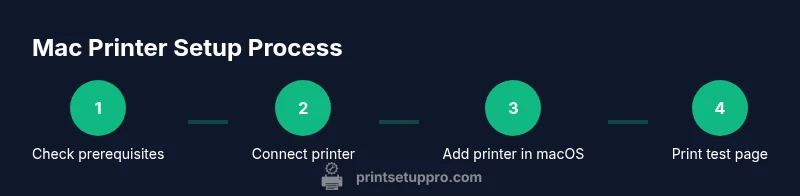
- 1
Check prerequisites and compatibility
Begin by confirming your Mac's macOS version supports the printer. If you’re using AirPrint, verify the printer advertises AirPrint support and is on the same network as your Mac. Gather cables and ensure the printer is powered on and in a ready state before starting.
Tip: If you plan to share the printer across devices, note the network name (SSID) and password beforehand. - 2
Choose USB or network connection
Decide whether to connect via USB for a direct link or set up Wi‑Fi for wireless printing. USB is simple but ties the printer to a single computer; network printing allows multiple devices to print from the same printer.
Tip: If you’re unsure, start with USB to confirm basic functionality, then switch to a network connection for shared use. - 3
Add the printer in macOS
Open System Settings (or System Preferences) > Printers & Scanners, and click Add Printer. macOS will search for available printers; select your device and follow on-screen prompts to install drivers if required.
Tip: If you don’t see the printer, ensure it’s on the same network and that the printer’s wireless option is enabled. - 4
Install drivers or enable AirPrint
If your printer doesn’t appear with AirPrint, install the vendor’s driver package from the printer’s support site or use macOS’ built-in drivers. Reboot the printer and Mac if the device isn’t recognized after installation.
Tip: AirPrint is the simplest path on macOS; use it whenever the printer supports it. - 5
Print a test page
From a document or web page, select Print and choose the newly added printer. Verify print quality, color accuracy, and alignment. If any issues appear, adjust print settings or run a nozzle check if your printer supports it.
Tip: Print a test page from a few different apps to ensure cross-app compatibility. - 6
Set defaults and sharing
If you’ll print from multiple devices, set the printer as default or configure sharing in your macOS network settings. Ensure security settings allow access only to authorized devices.
Tip: Document the default printer path for quick access in busy workflows. - 7
Troubleshoot common issues
Common problems include printer not found, driver mismatches, or print quality defects. Check cables, restart devices, confirm firmware versions, and verify firewall or network restrictions don’t block print jobs.
Tip: Keep a small checklist handy: power cycle, verify connections, update drivers, and re-test.
People Also Ask
What is the easiest way to print from a Mac without installing drivers?
Using AirPrint is typically the easiest method because it relies on built‑in macOS support. Ensure your printer supports AirPrint and is on the same network as your Mac.
AirPrint usually provides the simplest printing experience on a Mac when the printer supports it.
How do I add a printer if it doesn't show up in System Preferences?
First check power, connections, and that both devices share the same network. If still missing, update your macOS and printer firmware, then re-scan for printers. You can also install the vendor driver package as a fallback.
If the printer doesn’t appear, confirm connections and try updating software, then re-scan for printers.
Can I print from multiple Macs to the same printer?
Yes. Enable printer sharing on the host Mac or connect the printer to the network so all devices on the same network can print. Ensure access controls are in place to protect sensitive documents.
Yes, you can share the printer across multiple Macs on the same network.
What should I do if print quality is poor?
Check ink or toner levels, run a nozzle or print head cleaning if available, and print a test page. Use the driver’s color settings to ensure accurate reproduction.
For bad print quality, check ink levels and run a cleaning, then print a test page.
Is it safe to print over public networks?
Printing over public networks can expose documents. Use secure Wi‑Fi, enable firewall protections, and consider VPNs or network segmentation for sensitive materials.
Printing on public networks can expose documents, so use secure connections whenever possible.
Should I keep the printer on or off when not in use?
Many printers support sleep modes to save energy. Leave it on if you print frequently; otherwise, turning it off is fine as long as you allow time for it to warm up next time.
Most printers wake quickly from sleep, so leaving it on can be convenient if you print often.
Watch Video
Quick Summary
- Verify compatibility before starting to reduce setup friction
- AirPrint provides the simplest macOS printing path
- USB is reliable, while Wi‑Fi enables multi‑device printing
- Test across apps to ensure consistent results
- Keep drivers and firmware current to avoid glitches