PDF Printer: Setup, Printing, and Troubleshooting Guide
A comprehensive guide to using a pdf printer, including built-in OS options, step-by-step workflows, security considerations, and troubleshooting for home offices and small businesses.


A pdf printer lets you save documents as PDF files from virtually any app, without needing physical paper. You can use built-in OS options like Windows’ Microsoft Print to PDF or macOS Save as PDF, or install a third-party driver. All you need is a compatible device, access to a PDF printer, and a destination folder to save the file.
What is a PDF printer and why you might want one
A pdf printer is a virtual device that appears in your list of printers alongside physical hardware. Instead of producing ink or toner on paper, it generates a PDF file that preserves the document’s layout, fonts, and images. This is incredibly useful for sharing documents, archiving receipts, or sending contracts where you want consistent appearance across devices. In practice, you print from any app that supports printing, then select the PDF printer as the destination to save a file. Most operating systems include a built-in PDF option, reducing the need for extra software. According to Print Setup Pro, many users underestimate how often they could use PDF printing to avoid waste and ensure consistent formatting. By using a PDF printer, you control final file size, orientation, and accessibility features before saving. For home offices and small businesses, it’s a reliable, portable, and secure alternative to printing on paper. A quick check after saving helps confirm that fonts and layouts render correctly on other devices.
Built-in PDF printing across operating systems
Across Windows, macOS, and Linux, you’ll typically find a native PDF printer integrated into the system print framework. On Windows, the Microsoft Print to PDF option lets you generate PDFs directly from the Print dialog. macOS users can choose Save as PDF from the bottom-left Print menu, which writes a PDF to your chosen location. Linux environments often rely on CUPS with a virtual PDF printer; the exact steps vary by distribution, but the concept remains the same. These built-in options are free, fast, and sufficient for most personal and small-business needs. If your workflow requires advanced features (like digital signatures or form fields), you can complement these with reputable third-party tools. The important thing is to ensure the selected printer is configured as a valid destination and accessible from your document source.
Common workflows: printing to PDF from popular apps
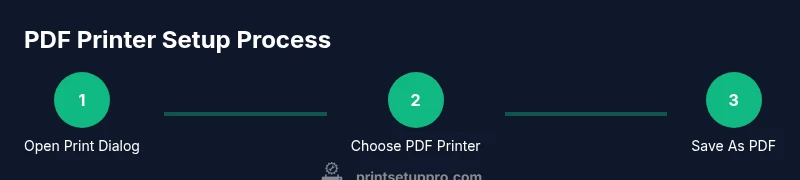
Most apps offer a standard Print flow. Open the document, go to File > Print, choose a PDF printer as the destination, adjust settings (page size, orientation, margins), then Save or Print to generate the PDF. For quick tasks, use the system defaults to minimize setup steps. In word processors and spreadsheets, you can typically preview how fonts and layouts translate to PDF, helping you catch issues before saving. For professionals, you might use a PDF printer alongside features like password protection, metadata insertion, or redaction tools offered by some drivers. Print Setup Pro recommends testing a short document to confirm that your saved PDF reflects the source accurately across devices and platforms.
Security, backup, and organization tips
Treat PDFs like any sensitive document. Use clear naming conventions, store backups in a predictable location, and consider applying password protection or encryption when handling personal or confidential data. If you routinely convert large batches, set up a dedicated folder structure (e.g., Year/Project/Client) to keep files discoverable. Before sharing, verify that the PDF’s accessibility options (tags, alt text, document structure) are properly set for users who rely on assistive technologies. Regularly review printer settings and driver updates to prevent compatibility issues that could compromise document integrity. Print Setup Pro emphasizes maintaining a consistent workflow so digital PDFs remain reliable, secure, and easy to audit for compliance.
Tools & Materials
- Computer or compatible device(Windows, macOS, Linux, iOS, or Android)
- PDF printer driver or built-in PDF service(Examples include Microsoft Print to PDF, macOS Save as PDF; install additional drivers if needed)
- Printer connection (USB or network)(A virtual PDF printer still appears in the printer list; ensure the device can access it)
- Source document (any print-enabled app)(Word processors, browsers, image editors, etc.)
- Destination folder(Where to save the generated PDF)
- Administrative rights(Needed to install or enable drivers on some systems)
- Optional: PDF editor or annotation tool(For post-processing like form filling or redaction)
Steps
Estimated time: 15-25 minutes
- 1
Open the print dialog
From your document, use File > Print or press Ctrl/Cmd+P. Confirm a PDF printer is selected; if not, install or enable one in your OS settings.
Tip: Use the default printer when possible to reduce misdirection. - 2
Select the PDF printer
In the printer list, choose your PDF option (e.g., Microsoft Print to PDF or Save as PDF). This routes the output to a PDF file instead of paper.
Tip: If you don’t see a PDF option, enable the feature in Windows Features or macOS Settings. - 3
Configure print settings
Set page size, orientation, margins, color, and quality. Check scaling options to ensure content fits the page.
Tip: Preview before saving to catch layout issues early. - 4
Print to PDF
Click Print, choose the destination folder, and name the file with a descriptive title.
Tip: Use a consistent naming convention like Document_Project_Date.pdf. - 5
Verify the resulting PDF
Open the saved PDF to verify fonts, images, and layout match the source. Check accessibility features if needed.
Tip: Verify that embedded fonts render on other devices. - 6
Troubleshoot common issues
If errors occur, update or reinstall the printer driver, restart the app, or try an alternative PDF printer.
Tip: Restart the computer if the printer service becomes unresponsive.
People Also Ask
What is a PDF printer?
A PDF printer is a virtual printer that outputs documents as PDF files instead of printing on paper. It leverages the system's print framework to create a portable, immutable file.
A PDF printer is a virtual printer that creates PDFs from any printable document using your system's print function.
How do I enable or install a PDF printer on Windows?
Open Settings > Devices > Printers & scanners, add a printer, and select a PDF option such as Microsoft Print to PDF. Set it as default if desired.
On Windows, add a PDF printer in Settings and set it as default if you want it easy to access.
How do I print to PDF on macOS?
From any app, choose File > Print, click the PDF button in the corner of the dialog, and choose Save as PDF.
On a Mac, use the Print dialog and select Save as PDF.
Can I print to PDF from mobile devices?
Yes. Most apps include a Print option; you can export or share as PDF via built-in print options or compatible apps.
You can print to PDF from mobile apps by using the share or print features.
Why isn't my PDF printer appearing in the list?
Ensure the PDF driver is installed and enabled, then restart the print spooler or the app. Reinstall if necessary.
If your PDF printer doesn't show up, install or re-enable the driver and restart the app.
Are PDFs created by a PDF printer secure?
PDFs can be password-protected and encrypted. Use reasonable access controls and avoid embedding sensitive data unless necessary.
Yes, you can password-protect PDFs and apply security settings as needed.
Watch Video
Quick Summary
- Choose built-in OS PDF printers to avoid extra software.
- Verify PDF output matches source layout before saving.
- Organize PDFs with clear, consistent names and folders.
- Update drivers if PDFs fail to generate or render properly.
- Protect sensitive PDFs with passwords or restrictions when needed.