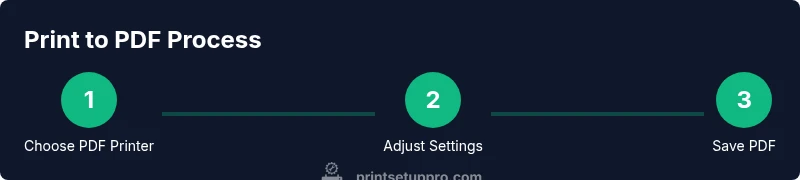
Print to PDF Printer: A Comprehensive How-To Guide
Learn how to print to a PDF printer with confidence. This comprehensive guide covers setup, workflows, troubleshooting, and best practices for Windows, macOS, and Linux to export clean, reliable PDFs.


Print to PDF means routing a document to a PDF file via a virtual printer or OS feature instead of printing on paper. This guide explains how to set it up and troubleshoot common issues.
Why printing to PDF is a practical capability for modern work
For home offices and small teams, exporting documents as PDF files is a common workflow that reduces formatting surprises when sharing, archiving, or sending print-ready files. If you’ve ever wondered how to turn any printable document into a reliable PDF, you’re in the right place. According to Print Setup Pro, printing to PDF is not a mystery reserved for tech pros; it’s a standard feature built into most operating systems and many printer drivers.
Why this matters: PDFs preserve layout, fonts, and graphic fidelity across devices. They’re universally viewable, don't require recipients to have your editor, and they compress well for email or cloud storage. In practice, you can print from word processors, spreadsheets, design apps, or emails, and save a clean, professional PDF instead of producing a paper copy or exporting a rough image. For people who share documents with clients, instructors, or teammates, a consistent PDF version reduces back-and-forth corrections.
Next, you’ll learn how to distinguish between native OS PDF printing and third-party PDF printers, how to verify compatibility with your device, and how to troubleshoot when the PDF export doesn’t reflect the original formatting. In short, mastering PDF printing saves time, protects your document’s integrity, and improves your professional image. Print Setup Pro’s guidance makes this approachable, even for beginners.
PDF printer vs virtual PDF apps: which to choose
There are two primary paths to produce a PDF from any document: using a built-in PDF printer (a virtual printer) or employing a dedicated PDF application. The built-in option is included with Windows (Microsoft Print to PDF) and macOS (Save as PDF) and works by adding a PDF as a print destination. A dedicated PDF tool may offer advanced features such as OCR, form fields, or stronger compression. Understanding the trade-offs helps you pick the right tool for the moment.
With a system PDF printer, you usually get a straightforward, universally supported result. It’s fast, easy, and requires no extra software beyond what your operating system provides. The downside is fewer editing features and sometimes limited control over image quality or fonts. A third-party PDF app may let you optimize embedded fonts, apply password protection, or embed metadata during export, which is valuable for professional workflows.
In practice, many people start with the OS default and graduate to a specialized tool when they need something more robust. Print Setup Pro notes that for everyday tasks—meeting notes, contracts, receipts—the built-in printer is often enough, while design teams or legal departments sometimes require the extra capabilities of dedicated PDF software.
System requirements and setup basics
To print to PDF reliably, you need a compatible device, updated drivers, and a clear path to the print destination. Start with your operating system: Windows 10/11, macOS 11+ or newer, and modern Linux distributions all offer built-in PDF printing or straightforward add-ons. Before you begin, check that your computer and printer are on the same network if you’re printing wirelessly, or connected via USB if you’re using a local setup.
Driver health matters. Outdated or misconfigured drivers can cause missing PDF destinations, font substitutions, or poor rendering. Update your printer drivers from the manufacturer’s site or through your system’s update mechanism, then restart the printer spooler service if necessary. If you’re in a managed IT environment, verify that group policies aren’t restricting the PDF printer. Finally, ensure your document contains fonts that are embedded or subset to prevent font substitution issues in the exported PDF.
With the basics in place, you’re ready to test the process with a simple file. Print a short document to your PDF destination, review the saved file for layout, margins, and image scaling, and adjust settings if needed. This early test helps you catch issues before they appear in larger jobs.
Step-by-step workflows (OS-centric) you’ll actually use
Most users will perform PDF printing directly from the Print dialog. Here are the core workflows for Windows, macOS, and Linux:
- Windows: Open the document, choose Print, select Microsoft Print to PDF as the printer, pick the desired page range and layout, then click Print and save the file with a descriptive name. The save location controls where the PDF is stored. Keeping a consistent naming convention helps later search.
- macOS: In any app, choose File > Print, click the PDF button at the lower-left, and choose Save as PDF. You can also add metadata and security options in some apps before exporting. Check that your page size and margins match your preferred output to avoid surprises.
- Linux: Most desktop environments expose a PDF printer in the Print dialog. If not, install a common PDF backend (like CUPS-PDF) and restart the printing service. The Linux approach is similar to Windows/macOS, but you may encounter differences in font rendering and color profiles.
Tip: For cross-platform consistency, create a short checklist you can run before exporting: embed fonts, verify margins, choose the correct resolution, and confirm the file name. This reduces rework when delivering PDFs to others.
Troubleshooting: common issues and fixes
PDF printing problems are usually solvable with a few targeted checks. Common issues include missing PDF destinations, fonts not embedding, blurry images, or corrupted exports.
- Missing PDF destination: Ensure the PDF printer is installed and enabled in the devices list. Reinstall drivers if necessary and restart the computer.
- Font embedding: When fonts aren’t embedded, the PDF may substitute fonts on another device. Set font embedding in the export options or use a subset of fonts.
- Image quality: If images appear blurred, check the output resolution and compression settings; select a higher DPI or lossless compression where possible.
- File corruption: If your PDF opens but shows errors, try exporting from a different app or updating the PDF engine. Re-export using a default profile to test consistency.
If problems persist, consult the manufacturer’s support resources or reference Print Setup Pro’s troubleshooting checklist for PDF exports across Windows, macOS, and Linux.
Advanced tips: automation and batch exports
For frequent tasks, automation saves time and reduces manual steps. Consider setting up a default PDF printer profile that includes your preferred page size, margins, and image quality. Create a batch export workflow by queuing multiple documents and exporting them to PDFs in one run. On Windows, you can script Print to PDF via PowerShell or use third-party batch tools; macOS users can leverage Automator to create a PDF export workflow; Linux users can script with CUPS or command-line tools.
If you need OCR or searchable text, opt for an OCR-enabled PDF printer or run OCR post-processing after export. Use metadata to improve searchability, and consider password-protecting sensitive files when distributing. Always test a representative sample before deploying a batch.
Bottom line: Automation reduces manual errors and speeds up repetitive tasks, but test thoroughly to avoid inadvertently altering content or metadata.
Privacy and security considerations when exporting PDFs
PDF exports can contain sensitive information. Use password protection, restrict editing, and remove metadata when sharing confidential documents. When collaborating, store PDFs in secure locations and enforce access controls. If you’re printing from a shared device, clear temporary files afterward to prevent data leaks. For compliance, consider redacting sensitive data before export, and verify that any embedded fonts or images don’t violate licensing terms.
Print Setup Pro emphasizes a cautious, privacy-by-default approach: review the document’s content before export, apply the minimum necessary permissions, and periodically audit shared PDFs for security settings.
Tools & Materials
- Computer or mobile device(Windows, macOS, or Linux; ensure internet access for driver updates if needed)
- Printer with PDF printing capability or a virtual PDF printer(Examples include OS level PDF printers or dedicated PDF software)
- Printer drivers and software(Install the latest version from the manufacturer or OS repository)
- USB cable or network access(Use USB for direct connections or a stable network for wireless printing)
- PDF viewer/editor (optional)(Helpful for reviewing, annotating, or editing after export)
Steps
Estimated time: 15-40 minutes
- 1
Verify PDF printing capability
Check that your OS offers a PDF as a print destination or that a PDF printer is installed. Confirm the option appears in the printer list when you open the Print dialog.
Tip: If you don’t see a PDF destination, install a built-in or third-party PDF printer and restart the app. - 2
Prepare the document
Open the file you intend to export and ensure fonts are embedded or subset. Clean up margins and ensure images are at a suitable resolution for screen or print.
Tip: Use a simple layout to minimize unexpected shifts after export. - 3
Open Print dialog and select PDF printer
From the app, choose Print and select the PDF destination. If you have multiple PDF options, pick the one that best fits your needs (compression, font handling, etc.).
Tip: Set a descriptive default file name to ease future searches. - 4
Configure page and output settings
Choose the correct page size, orientation, margins, and print quality. If you plan to share digitally, a lower DPI may suffice but test for readability.
Tip: Enable or verify font embedding if your document uses non-standard fonts. - 5
Export and save the PDF
Click Print or Save, then select a destination folder and confirm the file name. Use a consistent naming convention across projects.
Tip: Save to a known folder and create subfolders by project to keep it organized. - 6
Verify the exported file
Open the saved PDF with a viewer to check layout, fonts, hyperlinks, and image quality. Address any anomalies by re-exporting with adjusted settings.
Tip: Check critical pages first to catch issues early. - 7
Troubleshoot if necessary
If the PDF printer doesn’t appear or exports fail, reinstall the driver, restart the computer, or test with a different document. Narrow down whether the issue is the source or the printer.
Tip: Consult the vendor’s support page for known issues and patches. - 8
Archive and share the PDF
Store a copy in a secure folder or cloud storage and share via a controlled link. Maintain versioning if you expect updates.
Tip: Avoid sensitive content in unencrypted channels and apply password protection when needed.
People Also Ask
What does printing to PDF actually mean?
Printing to PDF creates a PDF file instead of a paper print by routing the document through a PDF printer or OS feature. It preserves layout and can be saved, shared, or archived.
Printing to PDF creates a PDF file instead of a physical print by routing the document through a PDF printer or OS feature.
Which apps support printing to PDF?
Most modern apps offer a Print option that lists PDF as a destination. You can export from word processors, spreadsheets, design tools, and email clients.
Most modern apps let you print to PDF from the print dialog.
Why can't I see the PDF printer in the list?
Ensure the PDF printer driver is installed and enabled. If needed, reinstall the driver, then restart the app or computer.
If you don't see a PDF printer, install or enable the PDF driver and restart.
Is there a difference between Export as PDF and Print to PDF?
Export saves from within an app, while Print to PDF uses the system print dialog to generate the PDF. Both can produce high-quality results, but features vary by tool.
Export saves within an app; Print to PDF uses the system dialog to create a PDF.
How do I troubleshoot a corrupted PDF export?
Try exporting from a different app or with a default profile, update drivers, and re-export. If issues persist, test with a smaller document first.
If a PDF is corrupted, re-export from another app or update drivers and test with a simple file.
Can I password-protect PDFs after exporting?
Yes, many PDF printers and editors support password protection during export. Use a strong password and share it securely with authorized recipients.
You can password-protect PDFs during export with many tools.
Watch Video
Quick Summary
- Choose the right PDF printer for your workflow
- Embed fonts and verify page settings before export
- Test exports with representative documents
- Leverage OS defaults for everyday tasks, add-ons for advanced needs
- Prioritize privacy when sharing PDFs