Printer iPhone Polaroid: Print from iPhone to Instant Prints
Learn how to print photos from your iPhone to a Polaroid-style printer. This step-by-step guide covers AirPrint and Bluetooth, media choices, apps, and troubleshooting to deliver vivid instant prints.


Goal: Print photos from your iPhone to a Polaroid-style instant printer using AirPrint or Bluetooth. You’ll need an iPhone, a compatible printer, the right photo paper, and a printing app. By following the steps in this guide, you’ll achieve clean, border-emulated prints that match the classic Polaroid look. This article from Print Setup Pro keeps the process simple, with practical tips for improving color fidelity and border quality.
Why the printer iphone polaroid workflow matters
For home offices, students, and creative projects, the printer iphone polaroid workflow enables you to print directly from your phone to a Polaroid-style printer. This approach reduces the number of devices involved, speeds up your memory-making process, and makes it easier to share tangible keepsakes. The Print Setup Pro team often sees how direct mobile printing cuts friction, especially when you're capturing moments on the go and want border-ready prints within minutes. By embracing a mobile-first approach, you also simplify backups and archiving since the photos stay on your device until you print. Remember that consistent lighting and color control are essential for best results, whether you’re printing a family portrait or a casual snapshot.
How AirPrint and Bluetooth enable printing from iPhone to instant printers
AirPrint provides a seamless, wireless printing pathway from iPhone to compatible printers. When a device supports AirPrint, you simply select Print from the share sheet and choose the printer. Bluetooth offers a direct pairing method, which is especially handy for portable printers or in environments with weak Wi‑Fi. Not every printer supports both interfaces, so check your model’s specs and ensure the iPhone and printer are discoverable. In the printer iphone polaroid workflow, AirPrint is preferred for high reliability, while Bluetooth can be a convenient fallback for on-the-go use.
From a Print Setup Pro perspective, choosing a printer that clearly advertises iPhone printing capabilities and Polaroid-style border templates will save you setup time and deliver more predictable color and border results.
Step-by-step setup overview for printer iphone polaroid printing
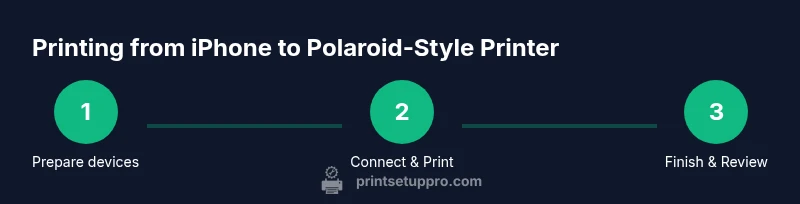
Getting ready to print from iPhone to a Polaroid-style printer involves four core activities: confirm compatibility, establish a connection, select the photos, and print with appropriate settings. Start by verifying that your iPhone OS and printer firmware are current. Then pair over AirPrint or Bluetooth, depending on your setup. Finally, crop and adjust photos within a printing app to fit the Polaroid-style border and print a test page before producing a full batch. The goal is a reliable, repeatable process that you can perform without reconfiguring every time.
Choosing the right media and color handling
Paper choice has a dramatic impact on the final look. Use instant photo paper designed for your printer’s border options and size (commonly 2x3 or 4x6). Some printers offer ready-made Border templates that mimic classic Polaroid frames, while others require you to crop and frame manually. Color handling matters too: calibrate your display and consider enabling color management in your photo app to keep skin tones and whites consistent. Matte vs glossy finishes produce different tactile feels; for Polaroid-style prints, glossy is often preferred for rich colors, while matte reduces glare in bright rooms.
When you choose media, also consider paper weight and drying time. Heavier stock tends to resist curl and ghosting, resulting in more professional-looking prints. If you’re unsure, print a small trial using a few different papers to compare border clarity and color fidelity.
Troubleshooting common issues with printer iphone polaroid printing
If your iPhone cannot find the printer, verify the printer is powered on, in pairing mode, and within range. For AirPrint, ensure both devices are on the same Wi-Fi network; for Bluetooth, confirm the devices are paired. If prints appear pale or off-color, check the paper type, color profile, and whether the app offers ICC profile options. Alignment problems often stem from crop settings; re-crop with the Polaroid border in mind. Restarting the printer and your iPhone can resolve stubborn detection issues. These steps help keep your printer iphone polaroid workflow smooth and predictable.
Tips for maintenance and getting best results
Regular maintenance protects print quality: clean the printer’s rollers with a lint-free cloth, keep ink/toner supplies topped up, and store photo paper properly to prevent moisture damage. Use a flat, stable surface for the printer and keep the print area free of dust. If you notice color drift, re-calibrate the color settings in your app and reprint a test image. Maintaining consistent lighting during photographing and editing also helps preserve color accuracy when printed.
Advanced tips: optimizing apps and workflows for iPhone printing
Experiment with different photo apps that offer built-in borders or frame templates to emulate Polaroid borders more exactly. Create presets for common sizes (2x3 and 4x6) so you can print with a single tap. If you print in batches, queue prints in the app and let the printer rest between sessions to prevent overheating. For white borders, adjust the crop to leave a margin around the subject; this helps recreate the classic Polaroid aesthetic. Pair your workflow with cloud-backed storage for easy reprints while keeping a local copy on your iPhone for privacy.
Security and privacy considerations when printing from mobile devices
Printing from a mobile device can involve sensitive images. Prefer local printing whenever possible and limit sharing of photos through cloud print features. If you must print from a cloud-connected app, review the app’s permission settings and delete sensitive media from the device after printing. Regularly update your devices to reduce vulnerabilities, and use a strong screen lock on your iPhone to protect your content in case the device is misplaced.
Your go-to checklist before you print
- Verify printer-iphone compatibility and update firmware
- Confirm the correct paper type and border options
- Align crop to the Polaroid-style frame and select print size
- Run a test print to validate color and border fidelity
- Print in batches, allowing cool-down time between prints
- Inspect finished prints and store them properly
Tools & Materials
- iPhone(iPhone with the latest iOS and AirPrint/Bluetooth support)
- Instant photo printer (AirPrint/Bluetooth compatible)(Prefer models that advertise Polaroid-style borders or border templates)
- Photo paper compatible with your printer(Check size (2x3, 4x6) and border options)
- Photo editing/app(For cropping and color adjustments; choose apps with Polaroid-like templates)
- Wi‑Fi router or stable Bluetooth connection(Keep devices within reliable range)
- USB-C/Lightning cable (optional)(For wired setup or charging on stationary printers)
- Soft microfiber cloth(For gentle cleaning of printer rollers)
Steps
Estimated time: 30-45 minutes
- 1
Charge and power on the printer
Ensure the printer is charged or plugged in and powered on. Enable the intended connection method (AirPrint or Bluetooth) and ensure the printer is discoverable by your iPhone.
Tip: Keep the printer within line-of-sight; wireless detection is faster within 10 meters. - 2
Verify iPhone readiness and network
On the iPhone, confirm iOS is up to date and that Wi‑Fi or Bluetooth is active. If using AirPrint, ensure the iPhone and printer share the same network or are discoverable via Bluetooth.
Tip: Disable VPNs temporarily if AirPrint discovery fails. - 3
Open a photo app and select photos
Launch your preferred photo-printing app or the printer’s companion app. Select the photos you want to print and review the available border options.
Tip: Multi-select can speed up batch printing; use border templates early to save edits. - 4
Crop and frame for Polaroid style
Crop each image to fit inside the Polaroid border you want, leaving margins where appropriate. Some apps offer built-in Polaroid frames; enable them if available.
Tip: Preview several crops to find the most flattering composition. - 5
Choose print settings
Set the print size (2x3 or 4x6, depending on paper) and enable any border templates. Confirm paper type and finish in the app’s settings before printing.
Tip: Select a border option that enhances the subject and reduces glare. - 6
Print a test image
Print one test image first to verify color, border, and alignment. Adjust the crop or color profile if needed before proceeding.
Tip: Always run a single test print when using new paper or a new app. - 7
Print the final batch
Print the remaining photos in small batches to allow the printer to cool and papers to dry. Avoid stacking photos until fully dry.
Tip: Give 30–60 seconds between prints if the printer is warm. - 8
Finish and store prints
Let prints dry completely, then handle with clean hands. Store in a cool, dry place away from direct sunlight to preserve color and border integrity.
Tip: Use protective sleeves or albums designed for instant prints.
People Also Ask
Can I print directly from iPhone to a Polaroid-style printer without a computer?
Yes. Many instant printers connect via AirPrint or Bluetooth, enabling direct printing from your iPhone.
Yes, you can print directly from your iPhone using AirPrint or Bluetooth on most instant printers.
Which apps work best for printer iphone polaroid printing?
Use the printer’s native app or a general photo printing app that supports the printer’s protocol and border options.
Use the printer’s app or a compatible photo app that supports your device and border options.
What paper works best for Polaroid-style borders?
Choose 2x3 or 4x6 sized instant photo papers designed for your printer, with a glossy or matte finish based on preference.
Choose the right-sized instant photo paper for your printer with options for glossy or matte finishes.
My iPhone won’t see the printer; what should I do?
Verify both devices are on the same network (or paired via Bluetooth), restart both devices, and re-add the printer in the printing settings.
Make sure both devices are on the same network or paired via Bluetooth, then re-add the printer.
Are prints secure if I print from a shared iPhone?
Yes, prints are created locally when possible; avoid cloud print hacks by using trusted apps and keeping photos on device until printing.
Prints are generally local; avoid exposing sensitive photos through cloud-based printing.
How can I improve border quality on small prints?
Use apps with dedicated border templates and verify that the crop respects the border area before printing.
Use border templates and confirm your crop fits the frame before printing.
Watch Video
Quick Summary
- Choose a printer that supports iPhone printing and Polaroid-style borders.
- Test print to calibrate color and border fidelity.
- Keep devices on the same wireless network for reliability.
- Use proper photo paper and color profiles for best results.
- Always perform a test print before printing a whole batch.