Staples Print Me: A Practical Step-by-Step Printing Guide
Learn how to use Staples Print Me to print documents, photos, and marketing materials at Staples stores. This educational guide from Print Setup Pro covers file prep, portal steps, option selection, and pickup tips for home offices, students, and small businesses.


This guide shows you how to use staples print me to print documents at Staples stores: upload your files, select options, and pick up at your location. You'll need a computer or mobile device, a Staples account, and print-ready files.
What Staples Print Me is and why it matters
staples print me is Staples' in-store printing service that enables you to print a range of materials—from business documents to photos and marketing collateral—by uploading files online before visiting the store. For home offices, students, and small businesses, using staples print me can save time, reduce trips, and ensure professional results. According to Print Setup Pro, adopting a streamlined print workflow with accessible services like staples print me helps maintain consistency across projects and build confidence in self-managed printing tasks. With proper preparation, file preparation, and option selection, you can achieve crisp text, accurate colors, and reliable finishes without leaving your desk. The goal is simple: turn digital files into tangible prints efficiently and with predictable quality.
Throughout this guide, we’ll reference best practices from Print Setup Pro to help you avoid common missteps and stay within your budget while achieving studio-quality results.
What you can print with Staples Print Me
staples print me supports a wide range of print jobs suitable for home offices, classrooms, and startup teams. Typical outputs include resumes and cover letters, presentation handouts, posters, marketing flyers, business cards, photo prints, and basic marketing collateral like brochures and Vinyl banners. The service emphasizes quick turnaround and predictable results, which is why preparing print-ready files is crucial. Print Setup Pro highlights that planning ahead—knowing your paper type, finish, orientation, and color needs—reduces last-minute surprises. If you’re unsure about whether a specific item is supported, the Staples Print Me portal usually lists accepted formats and finishing options, helping you decide the best approach before you order.
Preparing files for Staples Print Me
The most reliable prints start with well-prepared files. Use PDF as your primary format when possible, with fonts embedded, to prevent font substitution. If PDF isn’t an option, high-resolution PNG or JPGs (at 300 dpi or higher) are acceptable for most documents and photos. Ensure color settings match your intent; for most storefront print services, CMYK color spaces yield the most predictable results, so convert RGB artwork to CMYK before exporting. Include bleeds (usually 0.125 inches) if your design runs to the edge of the page. Name files clearly and group related files into a single folder to minimize upload errors. By following these steps, you’ll reduce back-and-forth with the store and speed up processing.
Quick overview of the Staples Print Me workflow
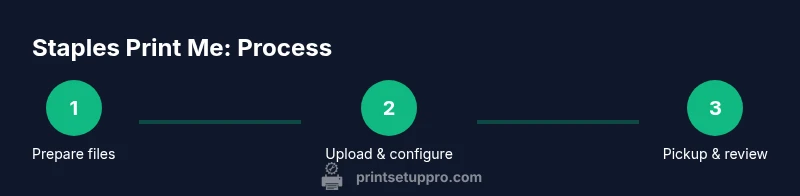
A typical staples print me workflow involves four main stages: prepare your files, upload and configure, choose your store and pickup options, and finally review and collect. Start by confirming file formats and print dimensions, then upload through the Staples Print Me portal. You’ll select paper type, color vs. black-and-white, finishing options (such as binding or lamination), and finally a pickup location and time. After payment, you’ll receive a confirmation with an order number and pickup window. If you need to adjust anything, you can often modify the order before it’s sent to production. This streamlined flow emphasizes clarity and reduces the friction of in-store printing.
Print Setup Pro notes that keeping a consistent file-prep routine and saving preferred settings will dramatically speed future Staples Print Me orders.
Common mistakes and how to avoid them
Rushing through the file-prep stage is the most common pitfall. Always run a preflight check to catch font missing, low-resolution images, and color-space mismatches. Forgetting bleeds can leave white slivers on edges; always addBleed and ensure margins accommodate binding or finishing. Another frequent error is uploading multiple versions of a file without consolidating to a single master; this creates confusion at the store and can cause delays. Finally, assuming color will match your monitor—color calibration is essential. Use a color-managed workflow and proof prints when color fidelity matters. By avoiding these mistakes, you’ll improve reliability of staples print me orders.
Tips for cost control, speed, and quality
To balance cost and speed, consider ordering in bulk for similar projects and optimizing color vs. black-and-white outputs. Batch processing frequently reduces per-unit pricing and shortens processing time. When color is not critical, switching to black-and-white can save both time and money. For photos or marketing materials where color accuracy matters, confirm the store’s printer model capabilities and offer to print a proof first if the option is available. Finally, keep a library of standard settings (paper type, finish, color vs. monochrome) so you can reproduce consistent results with minimal configuration.
Accessibility and design considerations for Staples Print Me
For home offices and students, accessibility-friendly design improves readability and impact. Choose clear typefaces, high contrast color schemes, and ample margins. Ensure fonts are legible at final print size and avoid overly intricate graphics that may not scale well in older printers at Staples stores. This approach not only benefits people with visual impairments but also improves overall comprehension for all readers. Print Setup Pro encourages you to consider accessibility early in the design phase to minimize reprints and delays.
Final checks before pickup
Before leaving for pickup, verify your order number, store location, and pickup window. Double-check file names and confirm that the correct options—paper type, color, size, and finishing—are set. If you notice discrepancies on the confirmation screen, contact Staples Print Me support or cancel and re-submit the order if allowed. At pickup, inspect a few sheets first to confirm color and alignment match your expectations, then review a larger batch. If any issues arise, request a reprint promptly to avoid delaying your project delivery.
Tools & Materials
- Computer or smartphone with internet access(To access the Staples Print Me portal and upload files)
- Print-ready files (PDF, PNG, JPG, PPTX)(Embed fonts in PDFs; ensure 300 dpi or higher for images)
- Staples account(Needed to place and track orders)
- USB drive (optional)(Some stores support printing from USB if portal is unavailable)
- Knowledge of desired options(Paper type, finish, color vs b&w, size, binding)
Steps
Estimated time: 15-25 minutes
- 1
Prepare your print files
Collect all files for the job and export them in print-ready formats. If possible, embed fonts and ensure images are high-resolution. Save a master copy with a clear name to avoid confusion.
Tip: Use PDFs with embedded fonts to prevent font substitutions at the store. - 2
Access Staples Print Me portal
Open the Staples Print Me page on your device and sign in to your Staples account. If you don’t have an account, create one to save preferences for future orders.
Tip: Enable notifications for order updates and pickup reminders. - 3
Upload files and preview
Upload your files and use the portal’s preview tool to confirm layout, margins, and bleed. Check that pages align correctly and that color looks as intended.
Tip: Always review a 1:1 preview to catch any misalignment before printing. - 4
Choose print options
Select printer options: paper type, size, color, finishing, and whether you want proofs or binding. Confirm the total estimate before proceeding.
Tip: Choose a finishing option that matches your use-case (e.g., laminating for posters). - 5
Select pickup location and time
Enter or select the nearest Staples store for pickup and choose a convenient time window. Some orders are ready the same day; others may take longer.
Tip: Pick a store with ample parking and easy accessibility to reduce pickup friction. - 6
Review and place order
Double-check selected options, review the final price, and submit the order. Save the order confirmation number for tracking.
Tip: Keep proof of payment and order number accessible in case of delays. - 7
Pickup and inspect
When you arrive, present the order number, collect the prints, and perform a quick quality check for color, alignment, and finish.
Tip: Inspect a few sheets first to catch any issues before leaving the store. - 8
Handle issues promptly
If something isn’t right, contact the store promptly for a reprint or a resolution per Staples’ policies.
Tip: Document issues with photos and contact customer support if needed.
People Also Ask
What is Staples Print Me?
Staples Print Me is Staples’ in-store printing service that lets you print documents and marketing materials by uploading files online and picking them up at a nearby location.
Staples Print Me is Staples' in-store printing service for online upload and in-store pickup.
What file formats does Staples Print Me accept?
Common formats include PDF, JPG, PNG, and select Office formats; check the portal for accepted formats before ordering.
PDF, JPG, PNG, and some Office formats are accepted; verify in the portal.
Can I print from a USB drive at Staples?
Some Staples locations support USB printing; confirm with your store or use the online portal to upload files.
Some Staples stores accept USB drives; confirm before you go.
How long does pickup take?
Pickup times vary by location and service level; most orders are ready within the day when submitted early.
Pickup times vary; many prints are ready later the same day.
How can I ensure color accuracy?
Use color-managed workflows, export in the correct color space (like CMYK for print), and review proofs before printing.
Color accuracy comes from proofs and correct color settings.
Watch Video
Quick Summary
- Prepare print-ready files before uploading.
- Choose options that match your project’s needs.
- Verify pickup location and time before ordering.
- Review proofs and color settings for accuracy.
- Save templates for faster future Staples prints.