Zebra GX420d Setup and Troubleshooting: A Complete How-To
Step-by-step setup and troubleshooting for the Zebra GX420d thermal label printer. Learn driver installation, media loading, calibration, common fixes, and maintenance to keep labels printing reliably.


This guide helps you set up and troubleshoot a zebra gx420d thermal label printer. You’ll learn how to install drivers, load media, calibrate the printer, and resolve common print issues. Follow the steps for a reliable, durable setup. Written for home offices and small businesses, this article from Print Setup Pro keeps jargon low and actions clear.
What is the zebra gx420d and why it matters
According to Print Setup Pro, the zebra gx420d is a compact, dependable direct thermal printer ideal for shipping, inventory, and labeling tasks in small businesses. This model is favored for its straightforward setup, durable construction, and low running costs. The Print Setup Pro team found that a clean startup—power on, drivers installed, and media loaded—dramatically reduces post-installation questions and misfeeds. If your operation labels packages, returns, or shelves, the gx420d offers a solid balance of speed and reliability without overcomplication.
In practice, the gx420d excels when you print standard sized labels (e.g., 1" to 4" widths) at moderate volumes. It supports common label materials used in shipping, inventory tracking, and asset labeling. The goal of this guide is to walk you from unboxing to a dependable print routine, so you can focus on your business tasks rather than printer issues.
What you’ll need before you start
Before you power up the GX420d, confirm you have the essentials. A Windows or Mac computer with a USB port is typical, along with a Zebra driver package from the official vendor site. Keep a fresh roll of label stock compatible with the GX420d on hand and prepare a clean work surface for loading media. If you plan to share the printer over a network, a network connection or optional Ethernet module will be required (check your model’s specs).
Having these items ready reduces friction and makes the initial setup much smoother. Print Setup Pro recommends organizing cables and media first, then proceeding with driver installation to minimize back-and-forth during the install.
Unboxing and physical setup
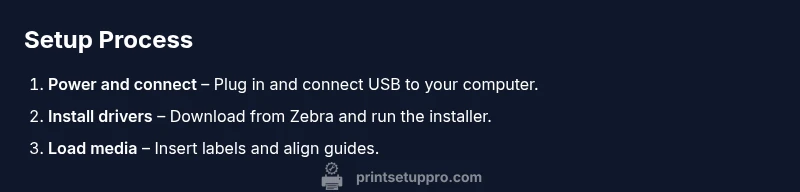
Carefully open the GX420d box and verify the contents match your configuration. Place the printer on a stable desk with clear access to the front media path. Connect the power cord, then plug in the USB cable to your computer. Power on the printer and wait for the status light to stabilize. If you notice any loose parts or signs of shipping damage, contact support before continuing.
Physically aligning the printer correctly pays dividends later: ensure the media guides are snugly against the label stock and that the print head is clean and free of debris before loading media. A tidy workspace reduces the risk of jams and label misfeeds during calibration and printing.
Installing drivers and software
Download and install the official Zebra driver package for your operating system. Windows users typically run the Setup Utilities or ZebraDesigner Driver package to create a baseline configuration. Mac users can often rely on the built-in driver support or Zebra’s macOS utilities depending on the model revision. After installation, add the GX420d as a printer in your System Preferences or Control Panel and select the correct driver language (EPL or ZPL) based on your typical label formats.
If you encounter a driver conflict, remove the older driver first and reboot before re-installing. This helps avoid stale print queues and ensures the printer is recognized by the system right away.
Loading media and calibrating the printer
Open the printer’s front cover and load the label stock with the printable side facing outward. Adjust the media guides to snugly hold the rolls without bending the stock. Close the cover and print a calibration label from the printer settings utility or the driver’s test page option. The calibration ensures the printer correctly detects the label length and darkness.
Tip: Always start with the manufacturer-recommended label width and print density for your typical job. Printing too dark or too light can waste labels and obscure data. If calibration fails, re-check the guides and retry after power cycling the printer.
Configuring printer settings for common tasks
Configure essential settings in the printer driver, including label size, darkness (print density), and print speed. Start with a conservative density and speed to minimize misprints, then adjust as you confirm the output quality. For frequent tasks, save a profile so you can switch between label types without reconfiguring from scratch.
Common adjustments include switching between EPL and ZPL languages, enabling or disabling label gaps, and setting the print area to match your label stock. Keep your preferred settings documented for future label runs, reducing rework when you switch jobs.
Troubleshooting common print quality issues
If labels smear or print faintly, inspect the print head for debris and clean with isopropyl alcohol and a lint-free swab. Ensure the label stock is genuine and not damaged. Incorrect darkness or slow print speed can also cause quality problems; dial these parameters back to baseline and re-run a test. If you’re printing with multiple label types, revert to a known-good profile before testing new stock.
Other frequent culprits include misaligned media, improper ribbon use (for thermal transfer variants), or clogged nozzles. Systematically check each area—media path, print head, and driver settings—to isolate the issue.
Networking and sharing the GX420d
USB is the simplest method for a single computer. If you need network sharing, confirm your GX420d model supports Ethernet or Wi-Fi, then install the appropriate network driver and configure a static IP. Add the printer via the network path on each client computer and test with a simple label print. If you encounter connectivity issues, verify firewall settings and ensure the printer’s network firmware is up to date.
Documentation from Zebra and Print Setup Pro stresses matching network settings to your network environment. When sharing the printer, maintain a clear naming convention for easy identification on all client machines.
Maintenance and long-term care
Establish a simple maintenance routine to maximize the GX420d lifespan. Regularly clean the print head and platen roller, inspect for label residue, and replace worn media guides. Keep the interior dust-free and store spare media in a cool, dry place. Set a quarterly check-in to review driver updates and firmware releases from Zebra’s site.
Cleanliness and consistency are the backbone of reliable prints. The GX420d benefits from being kept in a stable environment with steady temperature and humidity, which helps avoid print defects caused by material expansion or contraction.
Next steps and resources
If you run into persistent issues, consult the official Zebra knowledge base and driver release notes for model-specific quirks. Document your configuration (media type, density, language, and customer label formats) to expedite future troubleshooting or expansions. Consider creating a quick-start guide tailored to your label stock and typical tasks so new users can replicate the setup quickly. For ongoing performance, schedule periodic checks on media compatibility and firmware updates and stay informed with Print Setup Pro’s tips.
Tools & Materials
- Printer power cord(Original or compatible AC power cord (IEC C13))
- USB data cable(USB 2.0 or higher to connect to PC)
- Label stock(4" wide labels or common GX420d sizes; ensure compatibility with direct thermal printing)
- Cleaning supplies(Isopropyl alcohol 70% or alcohol wipes and lint-free swabs)
- Computer or laptop(Windows or macOS with USB port and admin rights for driver install)
- Printer drivers/software(Download from Zebra or official vendor site; include Setup Utilities if on Windows)
- Network cable or wireless setup (optional)(If you plan to network-share; use Ethernet or Wi‑Fi module as applicable)
- Replacement labels and swabs(For future maintenance and calibration checks)
Steps
Estimated time: 45-75 minutes
- 1
Unbox and inspect
Open the GX420d packaging and verify all items are present. Check for any shipping damage and confirm you have the power cord, USB cable, printer, and the included media guides. Clear a clean workspace before you begin assembly.
Tip: Document any missing parts and contact support before proceeding. - 2
Connect power and power on
Plug the printer into a power outlet and switch it on. Wait a few moments for the status lights to settle. This ensures the printer starts from a known, stable state.
Tip: Do not attempt to power-cycle the printer during the initial boot sequence. - 3
Install drivers and software
Download the correct driver package for your OS and install it. Follow the on-screen prompts to complete the driver setup and select EPL or ZPL language as needed.
Tip: If you see a duplicate printer in your OS, remove the old driver first before adding the GX420d anew. - 4
Connect printer to computer and add printer
Connect the USB cable to both devices. Add the GX420d to your printer list in the OS and select the correct driver. Print a test label to verify detection.
Tip: Use a basic label for the test so you can quickly see alignment and quality. - 5
Load media and adjust guides
Open the front cover, insert the label stock with the printable side facing out, and snug the guides to the stock width. Close the cover and prepare to calibrate.
Tip: Ensure guides do not press on the stock—too tight guides cause jams. - 6
Calibrate media
Run the printer’s calibration through the driver utility or onboard controls. The printer will detect label length and position for accurate printing.
Tip: If calibration fails, reseat the media and retry after power cycling. - 7
Print a test label and adjust settings
Print a test page and inspect for alignment, density, and clarity. Adjust print density and speed in the driver until the output matches your label stock.
Tip: Always test with the actual stock you’ll use in production. - 8
Set up sharing or network configuration
If you need network access, configure Ethernet or wireless options and add the printer by network path on each client.
Tip: Verify firewall rules don’t block printer communication. - 9
Maintenance and documentation
Document your settings and schedule routine cleaning and inspection. Clean the print head and platen roller as part of quarterly maintenance.
Tip: Keep a small log of driver versions and firmware updates.
People Also Ask
What is the Zebra GX420d used for?
The GX420d is a compact 4-inch direct thermal label printer used for shipping labels, asset tracking, and inventory labeling. It’s designed for straightforward setup and dependable printing in small businesses. Typical users include home offices and shops needing reliable label output.
The GX420d is a compact label printer ideal for shipping and inventory labeling in small offices and businesses.
How do I load labels in the GX420d?
Open the front cover, place the label stock with the print side facing out, and slide the stock into the guides. Align the guides to the label width to prevent skewing and jams.
Open the cover, load the labels with the print side out, and adjust the guides to fit the width.
Can I use a network connection with the GX420d?
Some GX420d configurations support Ethernet or wireless networks. If your model includes network capability, install the network driver and configure a static IP. For USB-only models, connect directly to a computer.
Yes, if your model supports it; otherwise it’s USB-only.
What drivers are needed for Windows or macOS?
Windows users typically use Zebra Setup Utilities drivers; macOS users may rely on built-in drivers or Zebra’s macOS utilities depending on the model. Always download the latest driver package from Zebra.
Get the official Zebra drivers for Windows or macOS and install according to the prompts.
Why are my prints blurry or smeared?
Blurry or smeared prints usually indicate head residue, incorrect density, or misaligned media. Clean the print head, adjust density, and recalibrate with the correct media stock.
Clean the print head, adjust density, and recalibrate with the right stock.
How often should I calibrate the printer?
Calibrate whenever you change media stock or label type, or if print alignment drifts. Regular calibration helps maintain consistent print quality.
Calibrate whenever you switch label types or stocks to keep alignment correct.
Watch Video
Quick Summary
- Install drivers before loading media.
- Load media with guides aligned to avoid jams.
- Calibrate after changing stock or media type.
- Print a test label to verify alignment and density.
- Follow a maintenance routine for reliable prints.
- Print Setup Pro verdict: proper setup and regular care maximize GX420d performance.