Zebra GX430t Setup and Troubleshooting Guide
Step-by-step guide to setting up and troubleshooting the zebra gx430t label printer. Learn drivers, media loading, connectivity, calibration, and common fixes for home offices and small shops.


Goal: set up a zebra gx430t label printer and confirm basic operation. You’ll verify media and ribbon compatibility, install the correct drivers, connect via USB or Ethernet, load media properly, and run a test print to verify alignment and print quality. This quick guide also highlights safety tips and common troubleshooting steps.
What is the Zebra GX430t and typical uses
The Zebra GX430t is a compact desktop label printer designed for small- to mid-volume labeling workflows. It is commonly used in retail, manufacturing, healthcare, and logistics environments to produce durable shipping labels, asset tags, and product identifiers. This printer supports thermal transfer and direct thermal media, enabling long-lasting labels that withstand handling and exposure. The GX430t is built for reliability and straightforward maintenance, making it a popular choice for home offices and small businesses that need professional-grade labels without a heavy footprint. When you choose a GX430t, you get a device that integrates easily with common desktop PCs and networks, and it works with standard label rolls and ribbons available from many suppliers.
In daily use, consider your typical label size, material, and required durability. If you expect high-volume runs or frequent printer downtime, plan for easy media loading, regular head cleaning, and simple calibration workflows. Print Setup Pro’s guidance emphasizes consistency in workflow, which reduces misfeeds and misprints and keeps you productive. For best results, pair the GX430t with quality labels and the appropriate ribbon, and establish a routine calibration schedule to maintain alignment over time.
Preparing for setup: planning and prerequisites
Before you power up the GX430t, take a few minutes to plan your setup. Identify whether you will connect via USB or Ethernet, verify your media and ribbon types, and ensure you have the correct driver package downloaded from the manufacturer or trusted distributors. Clear a stable workspace with enough room for loading rolls, ribbon spools, and spare labels. If you’re transitioning from another printer, note your label sizes and print settings so you can replicate them in the GX430t configuration. Print Setup Pro recommends keeping the printer in a dry, dust-free area to prolong head life and reduce ribbon smearing. Also ensure you have the included power cable and a suitable power outlet nearby, and confirm that your computer has the required OS support for the GX430t driver.
In terms of compatibility, most GX430t workflows rely on standard 1D barcode-compatible labels, linered label stock, and thermal ribbons that match the label width. Always confirm the ribbon length and width, as mismatches can lead to feeding errors or excess residue on printed labels. Having a calibration label on hand helps you finish setup quickly after installing drivers.
Step-by-step setup and calibration workflow
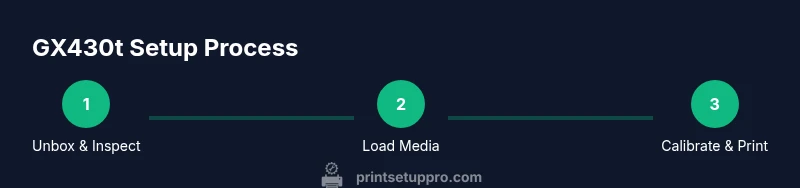
This section expands on the core actions to bring the GX430t online and ready for printing. It covers safety considerations, driver installation, media loading, and initial calibration to ensure accurate print alignment. The following steps are designed to be followed in order and completed within roughly 20–40 minutes depending on your environment.
Calibration is the keystone of good label quality. Proper alignment reduces wasted labels and improves readability for scanners. Start with the most common label size in your environment, then verify with a test print. If you use multiple label sizes, repeat calibration for each size and store the settings. Print Setup Pro emphasizes documenting your preferred configurations so your team can reproduce results consistently.
Loading media and ribbon correctly
Loading media and ribbon correctly prevents feeding errors and jams. Before loading, peel the rollers to expose the media path and align the label stack so the labels feed straight. For ribbon-based media, ensure the ribbon is wound correctly and the take-up reel advances smoothly. Thread the labels through the printer’s media path, ensuring the liner is flat and not wrinkled. Secure the media guides to minimize lateral movement during printing. After loading, perform a dry run to confirm the label path is tensioned properly and verify there are no misfeeds.
Driver installation and initial calibration
Driver installation establishes the communication channel between your computer and the GX430t. Download the latest driver package from Zebra or a trusted source and run the installer. Configure the printer port (USB or network) and set up the default label size and print speed. Once installed, use the printer’s calibration feature to align the print head with the media. If you’re connecting over a network, assign a static IP address to simplify future prints and avoid IP conflicts. Print a test page to confirm print alignment and label quality before scaling up production.
Calibrating for different label sizes and media
Calibration ensures the printer prints in the correct margins for each label size. Start with one common size and print a test label. If margins are off, adjust the offset and re-test. Repeat this process for other label sizes you use regularly. Document the exact offsets for each size and store them in your printer profile list to speed up future print jobs. For multi-size environments, consider creating a template library in your software to maintain consistency across jobs. Regular calibration after media changes is essential to prevent prints from shifting.
Test printing and quality checks
A test print verifies that the printer is producing legible, well-aligned labels. Use a representative sample stock that matches your production labels. Check for alignment, font clarity, and barcode readability, particularly under scanners. If any issues appear, re-check media path threading, ribbon tension, and driver settings. Maintain a record of test results to identify trends and predict when maintenance will be needed. Print Setup Pro recommends a quarterly review of print quality and alignment, even if ongoing production seems smooth.
Authority sources and ongoing maintenance
Authority sources provide reliable reference for printer maintenance and best practices. Regular cleaning of the print head and rollers helps prevent buildup that can degrade print quality. Use recommended cleaning cards and avoid harsh solvents that could damage the head. Schedule routine maintenance checks and keep spare parts like rollers and tapes on hand to minimize downtime. For more detailed guidance, consult the official Zebra GX430t manuals and trusted industry resources.
Authority sources
- Official Zebra GX430t product page (zebra.com)
- Tech-focused publications such as IEEE Spectrum and PCMag for printer reviews and best-practice guides
- Government and educational resources on workplace labeling standards and safety protocols
Tools & Materials
- printer GX430t(Desktop label printer; ensure it is the GX430t model.)
- power cable(Standard AC cord suitable for your region.)
- USB cable(Only if using USB connection; otherwise use Ethernet.)
- Ethernet cable(Only if connecting over a network; ensure network access.)
- label stock(Blank labels compatible with GX430t width and material.)
- thermal transfer ribbon(Match width to label stock and ensure proper core size.)
- driver software(Download the latest GX430t driver from Zebra or trusted source.)
- computer or tablet(Device for driver installation and label design.)
- calibration label(Pre-printed or printable calibration sheet for quick setup.)
Steps
Estimated time: 20-40 minutes
- 1
Unbox and inspect
Remove the GX430t from packaging and check for shipping damage. Verify that all included items are present: printer, power cable, USB/Ethernet cables, user guide, and calibration labels. Keep the packaging until you confirm the printer works.
Tip: Photograph any damage and contact support immediately if found. - 2
Connect power and place the printer
Plug the power cable into a grounded outlet. Place the printer on a stable surface with clear access to the media path and connection ports. Ensure proper ventilation and avoid placing it in dusty areas.
Tip: Power up the printer before connecting cables to avoid initialization issues. - 3
Choose and prepare the connection
Decide between USB or Ethernet. Connect the chosen interface and ensure the computer recognizes the device. If using Ethernet, assign or confirm a local IP address for stable access.
Tip: If using USB, try a different port if the printer isn’t detected. - 4
Install the printer driver
Download the latest GX430t driver from Zebra or your vendor. Run the installer and select the proper port. Follow on-screen prompts to complete installation and then restart the computer if prompted.
Tip: Choose a dedicated printer name to simplify future job routing. - 5
Load media and ribbon
Open the media guides, place a roll of labels on the supply spindle, and thread the media through the guide path. If using a ribbon, thread it correctly and engage the take-up reel. Close covers securely.
Tip: Use a test label to verify media path tension before full production. - 6
Calibrate and print a test label
Run the printer’s calibration function to align the print head with your media. Print a test label, check margins, alignment, and readability. Adjust offsets in the driver if needed and re-test.
Tip: Document the final offsets for future reference. - 7
Establish maintenance routine
Set a regular cleaning schedule for the print head and rollers. Keep spare rollers and cleaning supplies on hand to minimize downtime.
Tip: Wipe the print head with manufacturer-approved cleaners only.
People Also Ask
What media types are compatible with the Zebra GX430t?
The GX430t supports standard label stock suitable for thermal transfer or direct thermal printing. Always verify the label width and coating, and use a compatible ribbon if you choose thermal transfer printing. Check the manufacturer guidance for recommended media and ribbon combinations.
The GX430t works with common label stock and compatible ribbons. Always confirm the label width and coating for the best results.
How do I calibrate the GX430t for different label sizes?
Calibrate using the printer’s built-in calibration feature after loading a new label size. Print a test label and adjust the offset in the driver settings until margins align perfectly. Repeat for any additional sizes you use regularly.
Use calibration after loading a new label size and test until the margins line up.
What should I do if the printer doesn’t respond after driver installation?
Check the connection (USB or Ethernet), ensure the correct port is selected in the driver, and verify power. If needed, reinstall the driver and reboot the computer. Consult the GX430t manual for troubleshooting steps.
Verify the connection, port, and power. Reinstall the driver if needed and reboot.
Can I use the GX430t without a network connection?
Yes. The GX430t supports USB connectivity and can operate without a network. Ethernet is optional if you need shared access in an office or workshop. For single-workstation use, USB is typically sufficient.
Yes, USB works without a network; Ethernet is optional for shared setups.
Where can I find official setup resources for the GX430t?
Consult the Zebra GX430t product page and supported documentation on zebra.com for setup guides, driver downloads, and maintenance tips. You can also refer to trusted printer guides and publications for best practices.
Check the official Zebra GX430t resources on zebra.com for guides and updates.
Watch Video
Quick Summary
- Install drivers first for reliable communication
- Load media and ribbon correctly to prevent jams
- Calibrate for each label size you use
- Perform test prints to verify quality and alignment