Zebra ZT411 Setup and Troubleshooting Guide
Comprehensive, step-by-step setup and troubleshooting guide for Zebra ZT411 printers. Learn installation, calibration, network setup, label stock selection, and common fixes with Print Setup Pro guidance.


This guide walks you through setting up the Zebra ZT411 printer for reliable label printing. It covers unboxing, driver installation, network configuration, media calibration, and common troubleshooting tips. Perfect for home offices and small businesses seeking practical, hands-on steps for a smooth start with the zebra zt411.
What is the zebra zt411 and why it matters for your labeling workflow
The zebra zt411 is a mid‑volume thermal label printer designed to produce durable barcode labels and shipping tags. For home offices, small businesses, and DIY projects, it offers a balance of performance and value. When you’re choosing a printer for labels—whether for inventory tracking, shipping, or asset labeling—the Zebra ZT411 delivers consistent print quality, reliable media handling, and flexible connectivity. In this guide, Print Setup Pro outlines practical steps to maximize uptime and minimize headaches, helping you get the most from your zebra zt411 from day one.
Key considerations before you begin with the zebra zt411
Before you power up, map out your labeling needs: label width, stock type, print density, and network access. Having a clear plan reduces rework and ensures the printer is configured for your environment. Also confirm you have the right drivers (ZDesigner for Windows, compatible macOS support) and a stable workspace with space for loading stock and performing maintenance. This preparation is especially important if you work with varied label sizes or materials.
Choosing label stock and understanding calibration needs
Label stock quality has a direct impact on print clarity and scanability. Select stock with compatible core sizes and diameters, and ensure you have a mix of stock to handle different labeling tasks. Regular calibration of the sensor ensures accurate top-of-form detection and reduces misfeeds. Record your typical stock types and densities to quickly reproduce successful setups in future jobs.
Driver installation and driver‑level settings you should know
Install the Zebra ZDesigner drivers to enable full functionality in Windows or macOS. After installation, select the correct port or network IP, and configure default label width, speed, and density. If your environment uses multiple printers, consider giving each device a unique hostname or IP to avoid misroutes. Driver-level settings can dramatically affect readability of barcodes and text, so tune them with sample labels.
Network configuration versus USB: choosing the right connection
USB offers straightforward local printing, while Ethernet or Wi‑Fi (if supported) connects the ZT411 to broader networks. For consistent multi‑user access, a wired Ethernet connection is often preferred for stability, while a wired setup reduces interference from wireless traffic. If you must use wireless, verify network credentials and ensure a robust signal in your printing area.
Calibrating media, sensors, and print quality basics
Calibration aligns the media sensor, the top-of-form sensor, and the media gap sensor for accurate label detection. Run automatic calibration after loading a new stock, changing label types, or adjusting the guides. Start with a conservative density setting and gradually increase until text and barcodes render clearly without smearing. Keep a log of successful densities for each stock type.
Step-by-step printing: test labels and adjustments you can make on the fly
Print a test label and review for alignment, margins, and barcode readability. If the barcodes fail to scan, verify the label stock, adjust the gap sensor as needed, and recalibrate. Small changes in label width or stock can require driver-side adjustments to ensure consistent results across jobs.
Common issues and practical fixes you’ll thank yourself for knowing
Misfeeds, faint printing, or misalignment are common but solvable with a few targeted checks. Confirm you’re using the correct stock and core size, verify the media guides are snug, run a head-cleaning, and recalibrate. If problems persist, test with a known-good stock and compare results to identify whether the issue is stock-related or printer hardware.
Maintenance routines to extend life and maintain quality
Regular cleaning reduces buildup on the printhead and sensors. Schedule routine maintenance: wipe the printhead area with isopropyl alcohol and a lint-free cloth, inspect for residue, and replace worn labels as needed. Keeping a maintenance log helps you spot trends and prevent avoidable downtime.
Safety, warranty, and getting support when you need it
Follow the manufacturer’s safety guidelines for electrical components and avoid attempting repairs beyond your training. Document issues, search official resources, and contact support if the problem persists. A simple preventive maintenance routine can help protect your warranty and keep your zebra zt411 running smoothly.
Tools & Materials
- ZT411 printer (with power supply)(Model: ZT411 4-inch print width; ensure compatibility with your stock.)
- AC power cable(Use a compliant power cord and surge protection.)
- USB cable(Optional for direct USB setup.)
- Ethernet cable(Required for wired network setup.)
- Computer with admin rights(Windows or macOS; ready to install drivers.)
- Label stock (various sizes)(Include labels with proper cores and diameters.)
- ZDesigner driver/software(Download from Zebra’s official site.)
- Cleaning supplies (isopropyl alcohol, lint-free cloth)(Used for printhead and sensor maintenance.)
- Calibrated cleaning swabs(For precise sensor and head cleaning.)
- Static-free workspace(Helpful during maintenance.)
Steps
Estimated time: 90-120 minutes
- 1
Unbox and position the printer
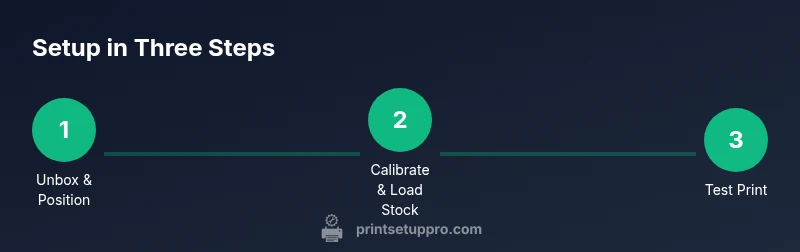
Unbox the Zebra ZT411 and place it on a sturdy desk. Remove protective films and confirm there’s space for loading stock and accessing the maintenance area. Check for any shipping damage before proceeding.
Tip: Photograph the setup area for quick reference if you need returns or warranty assistance. - 2
Connect power and boot the device
Connect the power cable firmly and turn on the printer. Allow the startup sequence to complete and confirm the display is active. If the screen is dim, check connections or brightness settings.
Tip: Power through a surge protector to avoid voltage spikes. - 3
Load label stock and align guides
Open the media compartment, place a fresh stack of labels, and snugly fit the left/right guides to the label width. Ensure labels feed without catching, and that the core is stable.
Tip: Use labels with a consistent core size and beadless edges for smooth feeding. - 4
Calibrate media and sensors
Run the printer’s automatic calibration to set the sensors. This step is crucial when stock changes or if you notice misfeeds. Avoid skipping calibration after large stock changes.
Tip: If calibrating fails, reseat the stock and retry. - 5
Install drivers and software on your computer
Download and install the Zebra ZDesigner drivers for your OS. Connect via USB or network and authorize any additional components required by the installer.
Tip: Restart the computer after installation to ensure drivers load properly. - 6
Connect by USB or network
If using USB, select the correct port in your printer settings. For network setups, locate the printer IP address from the display and configure the driver to use that IP.
Tip: For network stability, assign a static IP to the printer. - 7
Configure basic print settings
In the driver, set the label width to match your stock, adjust print density, speed, and darkness. Start with conservative density to avoid smearing and increase gradually.
Tip: Document settings for each stock to simplify future jobs. - 8
Run a test print and fine‑tune
Print a test label and inspect for alignment, margins, and barcode readability. If needed, recalibrate or tweak density and margins until the test label passes a scan test.
Tip: Keep a log of successful settings for different stock types.
People Also Ask
What is the Zebra ZT411 best used for?
The Zebra ZT411 is a mid‑volume thermal label printer designed for business and home office workflows, capable of printing durable barcodes and shipping labels. It supports standard label formats and multiple interfaces.
A mid‑volume thermal label printer for durable barcodes and shipping labels, with flexible interfaces.
How do I calibrate labels on the ZT411?
Load the labels, access the calibration option from the printer's control panel or driver, and run automatic calibration. This aligns the sensor and ensures accurate label detection.
Load labels and run automatic calibration from the control panel or software.
Can I connect the ZT411 to Wi‑Fi?
Wireless connectivity is optional on many configurations. If your model supports it, enable Wi‑Fi via the printer settings and connect to your network. Otherwise, use Ethernet or USB.
If your model supports wireless, enable Wi‑Fi in the printer settings; otherwise use Ethernet or USB.
Which drivers do I need for Windows or macOS?
Install Zebra's ZDesigner drivers for Windows and Zebra-compatible drivers for macOS. These drivers enable full printer features, including label formats and fonts.
Install Zebra's ZDesigner drivers for Windows and compatible drivers for macOS.
What should I do if prints are faint or blurry?
Check label stock, verify media calibration, adjust density in the driver, and ensure the printhead is clean. Recalibrate if needed.
Check stock, calibrate, adjust density, and clean the printhead.
Watch Video
Quick Summary
- Follow a structured setup to minimize misfeeds
- Regular calibration improves accuracy
- Install the official Zebra drivers for best compatibility
- Document stock settings to simplify future workflows