How to Add a Printer to iPhone: A Complete Guide
Learn how to add a printer to iPhone with AirPrint and manufacturer apps. This educational guide covers compatibility, setup, troubleshooting, and best practices for home offices, students, and DIY printers.


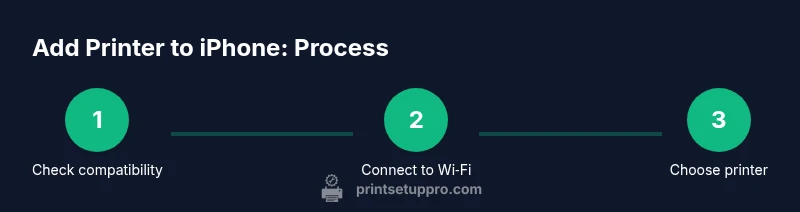
This guide shows you how to add a printer to iPhone, covering AirPrint setup, Wi-Fi pairing, and using the iOS Print dialog. You'll learn when AirPrint is available, how to connect non-AirPrint printers via manufacturer apps, and how to troubleshoot common printing issues on iPhone. This quick answer outlines the essential steps and prerequisites so you can print from anywhere.
Getting Started: Your Printing Goals
According to Print Setup Pro, millions of home and small-office users rely on iPhone printing to save time and stay organized. The core objective is simple: get a printer connected to your iPhone so you can print photos, documents, and web pages without fiddling with cables. Start by defining your typical use cases (cost-conscious photo prints, fast document copies, or color Marketing PDFs) and the environment where you’ll print (home, dorm, or a shared workspace). This alignment helps you pick the right printing path—AirPrint-capable printers for universal compatibility, or a vendor app-based route for specialty printers. Print Setup Pro’s guidance emphasizes reliability, so choose devices that support standard print features (duplex, color, borderless options) and keep firmware up to date. By setting clear goals, you’ll avoid overbuying features you won’t use and simplify future maintenance. The broader takeaway is to treat iPhone printing as a two-path problem: AirPrint for broad compatibility and apps for non-AirPrint printers.
Understanding AirPrint and Alternatives
AirPrint is Apple’s built-in wireless printing technology that requires no extra drivers on the iPhone. In most homes and classrooms, AirPrint-enabled printers appear automatically in the Print dialog when both devices share the same network. The advantage is no extra app setup, fast discovery, and consistent output across apps like Photos, Mail, Safari, and Pages. However, some printers, especially older models or budget models, rely on companion apps or firmware updates to bridge the gap. If your printer supports AirPrint, you’ll typically see it listed as an available option after tapping Share or Print. If not, check the manufacturer’s app—this app often configures the printer, sets up a direct wireless connection, or adds a virtual driver that the iPhone can leverage. Print Setup Pro’s analysis shows broad AirPrint support across modern printers, yet the practical path depends on your specific model.
Verifying Printer Readiness and Network
Before attempting to print, confirm several crucial readiness checks. First, verify both devices are on the same Wi‑Fi network, preferably a stable 2.4 GHz network known for broader coverage with printers. If you’re using a dual-band router, ensure the printer is connected to the same band as the iPhone. Next, verify the printer is powered on and has paper, ink, or toner replenishment as needed. On the iPhone, test connectivity by opening a print-capable app and looking for your printer in the Print dialog. If the device doesn’t appear, perform a soft reboot of both the router and the printer, and update firmware if a newer version exists. This reduces the likelihood of stubborn printer availability issues and creates a reliable baseline for future print tasks.
How to Add a Printer to iPhone: The Core Path
For most users, the core path to add a printer to iPhone is straightforward: ensure AirPrint compatibility and network alignment, then initiate a print from a supported app. Open a print-capable app (Photos, Safari, Pages), tap the Share icon or the three-dots menu, and select Print. If AirPrint recognizes your printer, you’ll be able to configure options (copies, color, paper size) and send the job. If the printer doesn’t appear, you’ll need to switch to the manufacturer’s app or consider using a direct printing workflow via Bluetooth or a temporary direct link if supported by the printer. Remember to test print a simple page to confirm fidelity before printing important documents. This is where the two-path model shines: AirPrint for quick, universal printing, and vendor apps for devices that require extra configuration.
Using the Manufacturer App: Extending Capabilities
When AirPrint isn’t available or discovery is inconsistent, the manufacturer’s app becomes your ally. Download the official app from the App Store, sign in if required, and follow the guided setup to add the printer to the iPhone. These apps often provide more granular control (ink usage, printer status, firmware updates) and can enable direct print features beyond AirPrint. After adding the printer in the app, you can usually print by selecting the app’s Share option or using the app’s built‑in print feature. A key tip is to ensure the printer is connected to the same network as your iPhone when using the app’s printing functions.
Practical Printing Tasks: Everyday Scenarios
From a practical perspective, you’ll want to print simple documents quickly and without surprises. For a smooth experience, stick to standard file types (PDFs, images, and common Office formats) that reliably render in the Print dialog. In Safari or Mail, the print flow remains the same: open, tap Print, select the printer, adjust settings, and print. If you routinely print from different apps, consider keeping the most-used printers favorited in the iPhone’s Print dialog or the manufacturer’s app for one-tap access. With AirPrint, you can often print directly from Photos or Notes with minimal steps. If you rely on high-volume printing, verify the printer’s memory and page-per-minute ratings to set expectations and avoid bottlenecks.
Troubleshooting Common Printing Scenarios
No matter the path, some issues are common. If the printer doesn’t appear in the iPhone’s print dialog, confirm both devices share the same network, reboot the printer, and update firmware. If you get a flaky connection, temporarily disable VPNs and optimize router settings (enable multicast, ensure QoS is not overly restrictive). If print quality is poor, check ink or toner levels, paper type, and print settings (grayscale vs color, photo vs draft). For non-AirPrint printers, always check the manufacturer’s app for compatibility notes and setup steps. Print Setup Pro emphasizes documenting your network name and printer model for faster troubleshooting in the future.
Security, Privacy, and Best Practices
Printer setup intersects with home network security. Keep your router firmware up to date, use a strong Wi‑Fi password, and enable guest network isolation if your office shares devices with guests. When installing third-party apps, review permissions and ensure the vendor’s app is from a trusted source. Periodically check for firmware updates to close security vulnerabilities and improve compatibility. For small offices or shared spaces, consider creating a dedicated printing VLAN or network segment to protect sensitive documents. Finally, back up printer configurations and keep a simple one-page print policy for household members.
Advanced Tips for Power Users and Small Offices
If you manage multiple devices, create consistent print workflows by standardizing the printers you allow and setting default paper sizes. Use AirPrint shortcuts where possible to minimize steps, and reserve the vendor app for tasks requiring advanced features (duplex printing, secure print queues, or maintenance alerts). Consider enabling firmware alerts and auto-updates to reduce downtime. For students and DIY enthusiasts, frequent firmware checks can unlock experimental features that improve performance on niche papers or unusual sizes. Print Setup Pro’s guidance suggests regularly auditing your devices to maintain compatibility and performance, especially after iOS updates or printer firmware upgrades.
Tools & Materials
- iPhone (iOS 14+ recommended)(Ensure Bluetooth and Wi-Fi are enabled; keep device charged)
- AirPrint-enabled printer(Prefer printers with documentation on AirPrint compatibility)
- Printer's manufacturer app (optional)(Use if AirPrint is unavailable or for advanced features)
- Stable Wi‑Fi network(2.4 GHz preferred for broader printer coverage)
- Printer power cable and basic supplies(Power on and loaded with the correct paper type)
- Firmware updates available(Check manufacturer site or app store for latest versions)
Steps
Estimated time: 15-30 minutes
- 1
Verify network and AirPrint support
Ensure both iPhone and printer are on the same Wi‑Fi network and that the printer supports AirPrint. If AirPrint is unavailable, plan to use the manufacturer's app for setup. Keep both devices nearby to minimize discovery delays.
Tip: If the printer doesn’t appear, restart the router and printer before rechecking. - 2
Open a print-capable app and access Print
In Photos, Safari, or another supported app, tap the Share icon or Options and select Print. Look for your printer in the list of available printers. If you see it, skip to printing a test page; if not, move to step 3.
Tip: Use a simple image or PDF for the first test print to confirm output quality. - 3
Select your printer and print a test page
Tap Printer, choose your AirPrint-enabled printer, pick settings (color, copies, paper size), and print. Verify the result on the paper and adjust settings if needed.
Tip: Confirm color vs. grayscale and page orientation to avoid misprints. - 4
Install the manufacturer app if needed
If AirPrint isn’t working or the printer isn’t discovered, download the official app from the App Store and follow setup prompts to add the printer to your iPhone. This app often handles network configuration and firmware updates.
Tip: Use the app’s built‑in diagnostics to verify connectivity before printing. - 5
Test again after app setup
Return to the Print dialog in a test document and ensure the printer appears. Print a second test page to confirm reliability after the app-based setup.
Tip: If you still don’t see the printer, re-open the app or reboot the printer and iPhone. - 6
Optimize everyday printing
Establish a default printer in your frequently used apps and set standard print options (duplex, color, size) for consistent results across tasks.
Tip: Document your preferred settings so you can reproduce the same results quickly.
People Also Ask
Can I add a printer to iPhone if it is not AirPrint-enabled?
If the printer isn't AirPrint-enabled, you’ll typically need the manufacturer’s app to enable printing from the iPhone. Some printers support direct Wi‑Fi or Bluetooth printing via their app. Always check the printer’s compatibility notes before purchasing.
If your printer isn’t AirPrint-enabled, use the manufacturer’s app to print from your iPhone. Check the printer’s compatibility notes in the app store or the manufacturer’s site.
How do I know if AirPrint is supported by my printer?
Check the printer’s manual or product page for AirPrint branding. You can also test by attempting to print from an iPhone app; if AirPrint is supported, the printer appears in the Print dialog.
Look for AirPrint on the product page or try printing from your iPhone; if it shows up in the Print dialog, AirPrint is supported.
Will adding a printer to iPhone share across all apps?
Yes. Once the printer is available in the iPhone’s print dialog, any compatible app can send print jobs to it. Some apps may offer app-specific print options.
Once it's available in the iPhone’s print dialog, most apps can print to that printer.
What should I do if the printer doesn’t show up in the Print dialog after setup?
Verify both devices are on the same network, reboot the printer and iPhone, and ensure firmware is up to date. If using a non-AirPrint printer, re-run the manufacturer app setup.
Make sure the devices share a network, reboot them, and try again; update firmware if available.
Can I print with Bluetooth from iPhone?
Some printers support Bluetooth direct printing, but AirPrint over Wi‑Fi remains the most common and reliable method for iPhone printing. Check your printer’s documentation for Bluetooth options.
There are some printers that print over Bluetooth, but most iPhone printing uses Wi‑Fi with AirPrint.
How do I reset printer network settings if printing fails?
Use the printer’s control panel or app to reset network settings, reconnect to Wi‑Fi, and re‑pair with the iPhone. After a reset, re-run the setup steps from the beginning.
Reset the printer network, reconnect, and re-run the setup to restore printing.
Watch Video
Quick Summary
- Use AirPrint for seamless iPhone printing
- Manufacturer apps expand capabilities when AirPrint isn’t available
- Keep devices on the same reliable Wi-Fi network
- Test with simple tasks to confirm reliability
- Regularly update firmware and iOS for best results