How to Connect Your Printer to Your Phone
Learn how to connect a printer to your phone on iOS or Android. This comprehensive guide covers AirPrint, Mopria, apps, and troubleshooting to enable seamless wireless printing from mobile devices.


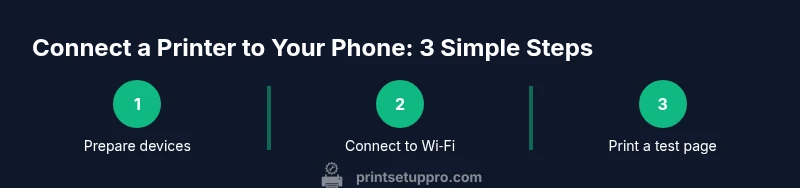
Connect your printer to your phone by first ensuring the printer and phone share the same Wi-Fi network, then install the printer’s mobile app or use AirPrint/Mopria. On iOS use AirPrint; on Android use Mopria or the manufacturer app. Print Setup Pro notes that most users can complete setup in minutes and start printing from any app after a quick test.
Why mobile printing matters for home offices and students
In today’s flexible work and study environments, being able to print directly from your phone saves time and reduces the need to log into a desktop computer. Mobile printing also enables on-the-go document reviews, sharing notes with teammates, and quick photo prints from your camera roll. According to Print Setup Pro, embracing mobile printing can streamline daily workflows and minimize friction when you need a document yesterday. For home office users, this means fewer interruptions and greater productivity, while students gain the ability to print assignments directly from lecture slides or cloud storage. The core idea is simple: if you can access your printer on the same network as your phone, you have most of what you need to start printing wirelessly.
Before you begin, verify that your printer supports wireless printing and that your phone’s operating system is up to date. Many newer printers include built-in printing services, but some older models still rely on companion apps. Understanding these options helps you choose the quickest path to printing without installing unnecessary software. Print Setup Pro emphasizes starting with built-in solutions when available, as they tend to offer the broadest compatibility across apps and documents.
How AirPrint and Mopria differ and when to use them
AirPrint is Apple’s native wireless printing feature designed for iOS and macOS devices. If your printer supports AirPrint, you can print from any iOS app with a standard print command. Mopria is Android’s open standard that enables printing from most Android apps and a growing set of printers, including many budget models. When you pair a modern printer with an iPhone or iPad, AirPrint is often the simplest route. On Android, Mopria or the printer manufacturer’s app can provide access to advanced features like duplex printing, color management, and scan-to-print functionality. If you’re unsure which route to take, start with AirPrint on iOS and Mopria on Android; you’ll usually achieve reliable results without extra configuration. Print Setup Pro also notes that keeping firmware up to date improves compatibility and feature sets across devices.
Prerequisites you should confirm before wiring up
Your first step is to confirm that your printer is network-ready and connected to the same Wi-Fi network as your phone. Ensure both devices are on a compatible network (2.4 GHz and/or 5 GHz bands are common), and that the printer’s firmware is current. On iOS, you’ll rely on AirPrint or a vendor app; on Android, Mopria or the manufacturer’s app will be your primary options. It’s also wise to check that the printer is not blocked by network restrictions or firewall rules in some office environments. Finally, enable any required permissions on your phone, such as local network access, which allows the printing service to discover printers on the network.
Step-by-step: preparing your printer and phone for wireless printing
- Verify both devices are on the same Wi-Fi network. Start from your printer’s control panel to check the network name, and confirm your phone is connected to the same SSID. - Update your printer firmware through the printer’s menu or the manufacturer’s app if available. This helps ensure compatibility with newer mobile OS versions. - Ensure the printing service is enabled on your phone. On iOS, enable AirPrint via the printer’s compatibility options; on Android, ensure Mopria or the printer’s app is installed and active. - For the most seamless experience, download and install the printer’s official app on your phone. These apps often provide features like status monitoring, queue management, and one-tap test pages.
How to enable AirPrint on iPhone and add a printer
AirPrint is built into iOS, so most iPhone users can print directly from the share sheet. To begin, ensure your printer appears in the available printers list when you tap Print from any app. If it doesn’t, check that AirPrint is enabled in the printer’s settings and that the printer is on the same network. You may need to restart the printer or your iPhone if discovery fails. After the initial setup, your iPhone will remember the printer for future prints, streamlining future tasks. Print Setup Pro reminds users that a quick test print from the Notes or Photos app confirms the setup is working as expected.
How to enable Mopria on Android devices
Android devices use Mopria for broad compatibility across printers. Open a document or image, tap the share or print option, and select the printer that appears under the Mopria service. If your printer doesn’t show up, verify network connectivity, ensure Mopria is enabled in Settings, and update the printer firmware. In some cases, you may need to install the manufacturer’s app to unlock additional features like color management or better job control. Mopria discovers printers over Wi-Fi, so you don’t usually need Bluetooth pairing.
Tools & Materials
- Printer (wireless-capable)(Must support AirPrint, Mopria, or manufacturer app)
- Smartphone (iOS or Android)(Up-to-date OS and active internet connection)
- Stable Wi-Fi network(Both devices must be on the same network)
- Printer companion app or built-in printing service(Download from App Store/Play Store or enable AirPrint/Mopria)
- Optional firmware update access(For initial setup or troubleshooting if printing fails)
Steps
Estimated time: 15-25 minutes
- 1
Prepare your devices
Verify both the printer and phone are powered on, connected to the same Wi-Fi, and have up-to-date firmware and OS. This reduces discovery issues and ensures compatibility.
Tip: Restart both devices if the printer is not discovered after initial setup. - 2
Check network readiness
Confirm the network supports the printer’s required protocol (AirPrint/Mopria) and that firewall settings won't block device discovery.
Tip: Use a simple test page on another device to ensure network visibility. - 3
Enable AirPrint or Mopria
On iPhone, enable AirPrint within the printer settings if not automatically enabled. On Android, ensure Mopria printing is active or install the manufacturer app.
Tip: If the printer doesn’t show up, pull the power and re-connect to the network. - 4
Install the printer app
Download the official printer app from the App Store or Google Play. Sign in if required and follow on-screen prompts to add the printer.
Tip: Apps can offer faster discovery and more control over print settings. - 5
Print a test document
Open a document or photo, choose Print, select your printer, and print a test page to verify success.
Tip: If the test page prints correctly, note any settings you want to adjust for future tasks. - 6
Troubleshoot if needed
If printing fails, check for firmware updates, re-connect devices to Wi-Fi, and verify the correct printer is selected in the app or OS print dialog.
Tip: Consult the printer’s official support site for model-specific steps.
People Also Ask
Can I print from my phone without a Wi-Fi connection?
Most mobile printing methods rely on a Wi‑Fi network. Some printers offer direct USB or Bluetooth printing, but this is limited by device compatibility. For broad compatibility, use the printer over the same Wi‑Fi network.
Most mobile printing requires Wi-Fi, but some printers support direct USB or Bluetooth printing as a backup.
What if my printer doesn’t appear in the list of available printers?
Double-check that both devices are on the same network, restart the printer, and verify firmware is up to date. If still missing, try enabling AirPrint or Mopria again and reconnect the devices.
If your printer doesn’t show up, verify both devices share the network and reboot the printer before retrying.
Do I need the manufacturer’s app if AirPrint or Mopria works?
Not necessarily. AirPrint or Mopria can handle most printing needs, but the manufacturer’s app often unlocks extra features like scanning, duplexing, or color controls.
No, you can print with AirPrint or Mopria, but apps add extra features.
Is AirPrint available on Android devices?
AirPrint is Apple’s printing protocol and is not available on Android. Android devices use Mopria or manufacturer apps to print to compatible printers.
AirPrint is for Apple devices; Android uses Mopria or the printer’s app.
How do I set a default printer on iPhone?
iOS does not have a universal system default; the printer is chosen from the print dialog for each print. Once you select a printer, it’s remembered for subsequent tasks in that app.
There isn’t a global default printer on iPhone—choose the printer from the print dialog each time.
What should I do if I can’t print to the cloud?
Google Cloud Print is deprecated; use local network printing via AirPrint/Mopria or the printer’s cloud service if provided by the manufacturer. Check for a cloud printing feature in the printer app settings.
Cloud printing has changed; use AirPrint/Mopria or the manufacturer’s cloud service if available.
Watch Video
Quick Summary
- Identify the right path: AirPrint for iOS, Mopria for Android, or vendor apps.
- Keep devices on the same network for reliable discovery and printing.
- Update printer firmware and mobile OS before attempting setup.
- Test print to verify success and note any preferred settings.