Using a Regular Printer with Sticker Paper: A Practical Guide
Learn how to print stickers on a regular home printer. This guide covers sticker paper types, printer settings, drying times, and practical tips for crisp, durable results.


Can you use a regular home printer with sticker paper? Yes, for light-duty labeling and crafts, but you must choose compatible sticker sheets and set the printer correctly. According to Print Setup Pro, many inkjet printers handle sticker paper well when you use the right coating, avoid overly thick sheets, and run a test print first. The Print Setup Pro team found that proper alignment and drying time matter for durability.
Understanding sticker paper and regular printers
Sticker paper comes in several varieties, each with a distinct coating, adhesive strength, and finish. The two most common types are inkjet-compatible sheets and laser-compatible sheets. Inkjet sticker paper relies on ink absorption and quick-drying coatings, while laser sheets require compatibility with high heat and toner adhesion. When you print on regular paper stock, you must account for whether the sheet is designed for inkjet or laser use. Using a non-compatible sheet can lead to smudging, poor adhesion, or printer jams. In practice, home offices often find success with medium-weight inkjet sticker stock for labels, decals, or craft projects.
For best results, keep expectations aligned with the printer’s capabilities. Most standard inkjet printers handle light coatings and matte surfaces well, while laser printers may struggle with certain sticker papers that are not rated for heat. Print quality matters: glossy or clear sheets tend to show color shifts more dramatically if the printer profile is off. Always read the paper packaging and printer manual before starting a project, and consider performing a small test print on plain paper or a scrap sticker sheet to check alignment, color fidelity, and drying time.
Choosing sticker paper and how it interacts with your printer
Different sticker papers are designed for various surfaces and adhesion strengths. Before you buy, define your use case: are these indoor-only labels, outdoor decals, or decorative stickers for scrapbooking? Then pick a sheet type that matches your printer. Inkjet sheets are typically best for home printing, with finishes ranging from matte to glossy. Laser sheets are designed to withstand higher heat and are often more durable for everyday items like mail labels or product stickers. If you’re unsure, start with a neutral, mid-weight inkjet paper and upgrade after testing. For best results, avoid extremely thick sheets that won’t feed reliably. Also consider the finish: a clear or white base changes how colors render on the finished sticker. A matte surface can reduce glare and improve legibility, especially for small text.
Matching sticker paper to your printer (inkjet vs laser)
Compatibility begins with the printer type. Inkjet printers spray liquid ink that dries by absorption and evaporation, making inkjet sticker papers a natural fit for many home setups. Laser printers use heat and toner, which requires sticker sheets rated for high-temperature fusing. If you print on the wrong type, you risk smearing or not bonding the ink or toner. Check the paper packaging for a clear statement like “for inkjet printers” or “for laser printers.” If your printer is a shared device, ensure all family members or colleagues know which paper to use to avoid misfeeds.
Printer settings and print profiles for sticker sheets
Printer settings are the difference between a vibrant, accurate print and a disappointing smear. Start by selecting the correct media type in the printer driver, such as “Sticker Paper,” “Coated Paper,” or “Glossy Paper.” Choose a high-quality print setting and a non-borderless option if your printer tends to misalign on the edges. For most inkjet sticker sheets, turning off background printing can reduce ink bleed and help colors stay crisp. If your sheet has a glossy finish, you may want to enable photo print quality to improve color density. Always print a test page before committing to a full sheet, and adjust color balance if you notice a color shift after the test.
A step-by-step example: printing labels for envelopes
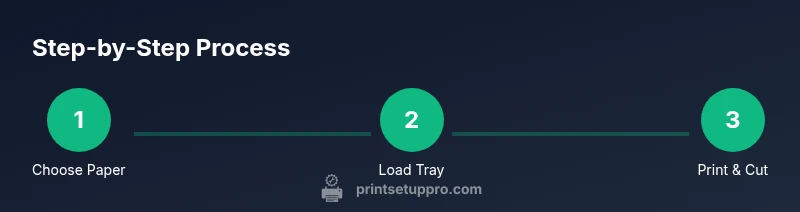
This example walks through a typical small-batch job. Prepare your sheet, load it correctly, and print a test page. If you are printing a text-heavy label, set the font size large enough for readability. Align the page margins to the label sheet’s grid, and ensure you’re printing on the correct side of the sticker paper. After printing, allow the sheet to dry completely before handling to prevent smudges. Finally, cut the stickers along the grid lines if you’re using pre-scored sheets, or with a ruler and craft knife for accuracy. A test run with scrap material can save money and ink.
Troubleshooting common issues: jams, smudges, and misalignment
Printer jams often occur when the sheet is fed incorrectly or isn’t aligned with the feed path. Ensure the sticker paper is properly aligned to the tray guides and that the page orientation matches the grid on the label sheet. Smudging typically happens if the ink hasn’t dried yet or if humidity is high; increase drying time or print in a controlled environment. Misalignment can be minimized by aligning the sheet with the printer’s feed mechanism and using test sheets. If misalignment persists, try a different brand or finish, or adjust the printer’s paper guides to reduce lateral movement. Dust and residue on rollers can also cause feeding issues, so perform a gentle cleaning following the manufacturer’s guidelines.
Durability and sealing: when to laminate or seal printed stickers
Durability depends on the sticker stock, ink type, and exposure conditions. For indoor labels, a sealed coating or lamination can significantly extend life by protecting against humidity and handling. If you’re making outdoor decals or items exposed to moisture, laminated sheets or clear acrylic spray can improve resistance. Be mindful that sealing a sheet can slightly alter color fidelity and drying times. Always test the finish on a sample before completing a full run. If you plan frequent outdoor use, consider purpose-built outdoor sticker stock.
Final checks before a full run: ensure you’re ready
Before committing to a larger print run, recheck your printer’s paper tray settings, alignment, and the finished size of each sticker. Confirm that your cutting method matches the sheet’s design—pre-scored sheets simplify trimming. Verify color accuracy and drying time on a small batch. If you’re using an adhesive-heavy stock, allow extra curing time away from heat sources. Finally, document your workflow for future projects to reduce trial-and-error time.
Tools & Materials
- Regular printer (inkjet or laser)(Ensure your printer supports the sticker paper type and weight.)
- Sticker paper (inkjet- or laser-compatible)(Choose matte, satin, or glossy finish based on project needs.)
- Ruler or measuring tool(Used for alignment and trimming accuracy.)
- Sharp scissors or craft knife(For clean, straight cuts along label outlines.)
- Printer settings guide or user manual(Reference for media type and print quality options.)
- Test print sheet (plain or scrap sticker paper)(Validate alignment and color before full run.)
- Optional laminating sheets or clear sealant(Adds water/damage resistance for durable use.)
- Soft microfiber cloth(Used to clean rollers if needed before loading.)
Steps
Estimated time: 60-90 minutes
- 1
Confirm sticker paper compatibility
Check packaging to ensure the sheet is rated for your printer type (inkjet vs laser) and note the weight and finish. Confirm that the adhesive is appropriate for your intended surface. If in doubt, start with a mid-weight inkjet sheet and test.
Tip: Read the packaging thoroughly; a quick scan saves misfeeds. - 2
Match printer settings to the sheet
Open your printer driver and select the correct media type (e.g., 'Sticker Paper' or 'Coated Paper') and high-quality print. Disable borderless printing if your sheet is grid-based to avoid edge cropping. Set orientation to match how your design is laid out.
Tip: Always run a test print first to catch color or alignment issues. - 3
Load the sticker sheet correctly
Fan the stack lightly to prevent sticking and place the sheet in the correct feeding tray. Align the sheet with the tray guides and ensure the printable side faces the print head. Use single-sheet mode if your printer supports it.
Tip: Avoid forcing sheets; let the tray feed smoothly. - 4
Print a test page
Print a small test page on plain paper or scrap sticker paper to verify that alignment, margins, and color are correct. Inspect for ink bleed and ensure the sheet feeds without jams. Adjust if necessary.
Tip: If colors look off, recalibrate color balance before printing more. - 5
Print your final design
Print the full sheet once the test looks good. Use the recommended print quality and avoid heavy ink deposition that could bleed. Let the prints rest undisturbed for a few minutes to dry completely.
Tip: Handle the sheet by the edges to avoid fingerprint smudges. - 6
Cut and finish
Cut the stickers along the grid or use a craft knife for precision. If you used pre-scored sheets, align with the fold lines and snap. Remove any debris from the edges.
Tip: Use a sharp blade and a metal ruler for straight, clean cuts. - 7
Drying, sealing, and storage
Allow adequate drying time before handling; curing times vary with finish. If sealing, apply a light, even coating and let dry per the product instructions. Store unused sheets in a cool, dry place to prevent adhesive degradation.
Tip: Keep finished stickers flat to avoid curling during storage. - 8
Review results and plan next steps
Assess the durability of the finished stickers, noting any issues to adjust in future runs (paper choice, settings, drying time). Document settings for repeatable results in future projects.
Tip: Create a simple checklist for next sticker projects.
People Also Ask
Can I print on glossy sticker sheets with a home printer?
Yes, many glossy sticker papers work with home printers, but you may need to adjust the printer profile and drying time. Glossy finishes can show more color shifts if the settings aren’t calibrated. Always perform a test print first.
Yes, glossy sticker sheets can work at home, but test first to adjust color and drying time.
Will my printer jam when printing sticker paper?
Jams usually happen when the paper isn’t aligned, is too thick, or the tray guides aren’t set properly. Load the sheet correctly, ensure it’s within the printer’s supported weight, and clean rollers if you notice feeding issues.
Jams happen if alignment or thickness isn’t right; fix alignment and reattempt.
How long should ink dry on sticker paper before handling?
Allow ink to dry fully in a dust-free area. Dry times vary by finish and humidity, but a minimum of a few minutes is common for matte stocks, longer for glossy surfaces.
Let the ink dry completely in a clean area before handling.
Are laser printers safe to use with sticker paper?
Only use sticker papers rated for laser printers. Incompatible stock can melt or burn and damage the printer. If you’re unsure, test with a single sheet first and consult the paper packaging.
Only use laser-rated sheets and test with one sheet first.
How can I cut printed stickers cleanly at home?
Use a sharp craft knife and a metal ruler for straight lines, or purchase pre-scored sheets for easier separation. Take your time to avoid ragged edges.
Use a sharp knife with a metal ruler, or pre-scored sheets for easy cutting.
Do I need to laminate or seal everything?
Lamination or sealing is optional and depends on exposure. For moisture-prone areas, a sealant can extend durability, but it may slightly alter color. Test first.
Laminate if you need moisture resistance; test first for color changes.
Watch Video
Quick Summary
- Verify paper compatibility before printing.
- Use the correct printer settings for sticker stock.
- Test before full production to prevent waste.
- Dry time and sealing influence durability.
- Cut carefully for clean, professional results.