How to Install Printer Driver on Windows 11
Learn how to install a printer driver on Windows 11 with a clear, step-by-step approach. This guide covers USB and network printers, driver downloads, Windows Update, and troubleshooting tips to ensure reliable printing.


If you're wondering how to install printer driver windows 11, this guide walks you through USB and network setups, driver downloads, and completing installation via Settings or the printer setup wizard. It covers driver discovery, compatibility checks, and how to verify printing performance after installation. You'll also find troubleshooting steps for common errors and quick maintenance tips to keep your printer happy.
how to install printer driver windows 11: overview and importance
In today’s home offices and small workplaces, printers are essential. Getting the right driver installed on Windows 11 ensures you can access all printer features, receive status updates, and print reliably. According to Print Setup Pro, starting with the official driver from the manufacturer minimizes compatibility issues and reduces the risk of corrupt or unstable installations. This guide walks you through the core tasks, from identifying your connection type to post-install maintenance. Expect practical steps, clear checks, and pro tips that help you avoid common pitfalls. If you want a concise path, you’ll find a dedicated STEP-BY-STEP section later in this article that you can follow line by line.
Identify your printer connection type and prerequisites
Before you download anything, confirm how your printer is connected. USB-connected printers typically install automatically via Plug and Play, while network or Wi‑Fi printers rely on your local network and may require you to enter the printer’s IP address. If you own a USB printer, ensure the USB cable is intact and directly connected to a live USB port on your PC. For wireless printers, ensure the printer and PC are on the same network. Having the printer model, the exact driver name, and an active internet connection will speed up the process and help you choose the correct driver from the manufacturer’s site.
Prepare your computer and printer for installation
Power both devices on, check for pending Windows updates, and temporarily disable antivirus if you encounter installation hiccups (re-enable after you finish). Make sure you have administrative access on Windows 11, as driver installation often requires elevated permissions. It’s also wise to create a system restore point in case you want to revert changes later. If you’re upgrading from an older driver, you may want to uninstall the previous driver first to avoid conflicts.
Find and download the correct driver from the manufacturer
Always use the official manufacturer’s website or OS-specific pages to download the driver. Look for the exact model number and a Windows 11-compatible driver. If your printer supports a universal or generic driver, this can be a temporary workaround, but for full feature support, the official driver is preferred. Keep a note of the driver version and release date for future reference. If the manufacturer provides a companion utility, consider installing it as well to simplify future updates.
Install the driver on Windows 11 (manual path)
Run the downloaded installer and follow the on-screen prompts. You may be asked to grant administrator rights; accept them to proceed. The installer may offer components such as printer utilities or status monitors—select any you need. After installation, you should see the printer listed in Windows 11 Settings > Bluetooth & devices > Printers & scanners. If prompted, allow Windows to complete the installation and set the printer as default if desired.
Add the printer via Windows 11 Settings or the printer wizard
If the automatic path doesn’t add the printer, use the Add a printer option in Settings or the Devices and Printers control panel. Choose USB or network printer, select the printer from the list, and complete the pairing process. You may be asked to print a test page; this confirms successful communication. For network printers, a small note on the printer’s IP address can help if you need to re-run discovery later.
Windows Update and driver maintenance after installation
After a successful install, check Windows Update for driver updates periodically. Manufacturers release new drivers to fix bugs, add features, or improve compatibility with Windows updates. Keeping your driver current reduces print errors and enhances performance. Print Setup Pro’s guidance emphasizes regular checks and using official channels for updates to preserve system stability.
Troubleshooting common issues during installation
If the printer isn’t detected, verify cable connections or network configuration, re-run the installer, or restart both devices. If you get a “driver signature” warning, enable testsigning or install using an administrator account. In some cases, temporarily disabling firewall/Security software can help, but re-enable protection afterward. If printing remains unavailable, try removing the device and re-adding it, or consult the manufacturer’s support site for known issues.
Post-installation care: testing and ongoing maintenance
Print a test page to verify that alignment, color balance, and print quality are correct. Keep your driver up to date, and avoid installing third-party utilities that aren’t needed. Regularly check for firmware updates from the printer vendor, as firmware and driver updates often go hand-in-hand for optimal performance.
Tools & Materials
- Computer or laptop with Windows 11(Ensure OS is up to date and connected to the internet.)
- Printer (USB or network-connected)(Powered on and ready for installation.)
- Internet connection(Needed to download the official driver.)
- Printer USB cable or access to network/Wi‑Fi(USB or wireless setup depending on your printer.)
- Printer model and manufacturer driver URL(Exact model ensures correct driver choice.)
- Administrative access on Windows 11(Required to install drivers.)
- Optional: Driver CD(Only if you received a physical disk.)
- Optional: Previous driver uninstalled(Useful when upgrading from older software.)
Steps
Estimated time: 30-45 minutes
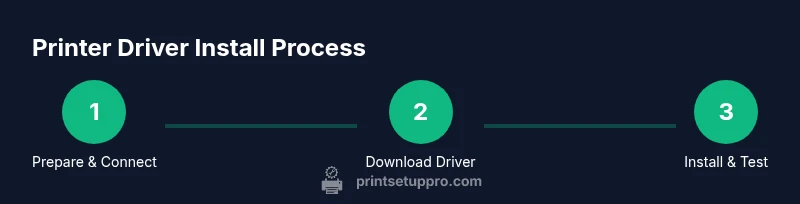
- 1
Prepare the devices
Power on both the PC and printer. Ensure Windows 11 is up to date and you have administrative access. Gather your printer model details and the exact driver URL from the manufacturer.
Tip: Having the exact model number avoids misdownloads. - 2
Connect the printer
For USB, plug directly into a USB port. For network printers, connect to the same router as your PC and note the printer’s IP address if required.
Tip: A reset of the printer’s network settings can help in some cases. - 3
Download the official driver
Visit the manufacturer’s site and download the Windows 11 version of the driver. Avoid generic drivers when possible to ensure full feature support.
Tip: Prefer the latest release dated for Windows 11. - 4
Run the installer
Execute the downloaded file and follow prompts. Grant admin rights if requested and select any desired components (utilities, status monitors).
Tip: Choose a clean install if upgrading from an old driver. - 5
Add the printer in Windows 11
Go to Settings > Bluetooth & devices > Printers & scanners and add the printer. If it’s networked, Windows may discover it automatically.
Tip: If not listed, use the “Add a printer” wizard and manually enter the IP for networked devices. - 6
Print a test page
After installation, print a test page to confirm alignment, color, and print quality. Adjust settings if needed.
Tip: A test page helps catch issues early. - 7
Update and maintain
Check for driver updates via Windows Update or the manufacturer’s utility. Reboot if prompted to finish updates.
Tip: Regular maintenance reduces future errors. - 8
Document and back up
Record the driver version and the date of installation. Keep the installer safe for future reinstallation if needed.
Tip: Backups prevent downtime during upgrades.
People Also Ask
Do I need to download a driver if Windows 11 automatically installs one?
Windows 11 can install a generic driver automatically, but official manufacturer drivers provide full functionality and best compatibility. If you encounter issues, install the manufacturer driver.
Windows can install a generic driver by default, but for best results, download and install the official driver from the printer maker.
What should I do if Windows can't find a driver?
Check the printer’s connection, verify model accuracy, and try the Add a printer wizard. If needed, download the driver directly from the manufacturer’s site and reinstall.
If Windows can't find a driver, check connections, use the official site to download the correct driver, and re-run the setup.
Is it safe to download drivers from third-party sites?
Avoid unofficial sources. Use the official manufacturer site or trusted distributors to reduce malware risk and ensure compatibility.
Stick to official manufacturer sites for drivers to stay safe and ensure proper compatibility.
Will this process work for wireless printers?
Yes. Network/Wi‑Fi printers follow the same steps, with the added requirement to be on the same network and possibly enter the printer's IP.
Wireless printers use similar steps, just ensure they’re on the same network and discovered by Windows.
How long does installation typically take?
Most installations take 15–30 minutes, depending on driver size and network speed. A slower connection may extend this window.
Typical installation takes around 15 to 30 minutes.
What if the printer still doesn’t print after installing?
Restart the printer and PC, re-check cables or network settings, and verify the correct driver is installed. Consider re-adding the printer via Windows wizard.
If printing fails after installation, reboot devices, verify connections, and re-add the printer if needed.
Watch Video
Quick Summary
- Verify you’re using the official Windows 11 driver
- Use the exact printer model for the driver
- Test print after installation to verify success
- Keep drivers updated for best performance