How to Clean Printer Head Epson: A Practical Guide
Learn how to clean printer head Epson with a safe, practical approach. This guide covers built-in cleaning, manual methods, troubleshooting, and maintenance to restore print quality and prevent clogs.


This guide shows you how to clean printer head Epson using safe built-in tools first, then targeted cleaning if needed. You’ll learn nozzle checks, standard cleaning cycles, and when to try more thorough methods—all while protecting your printer and ink system.
Why cleaning the printer head matters for Epson users
If you own an Epson inkjet printer, regular print head maintenance is essential to keep colors vibrant and lines clean. The process described here targets the most common causes of poor print quality, including dried ink and clogged nozzles that cause streaks and gaps. According to Print Setup Pro, the most reliable approach combines built-in cleaning features with careful nozzle checks to avoid unnecessary ink usage. A clogged print head can waste ink, shorten print life, and force you to reprint, increasing both cost and frustration. In many Epson models, blocked nozzles reveal themselves as missing lines, color smears, or white gaps in text. The recommended starting point is a nozzle check, followed by one or more cleaning cycles, then more advanced steps if necessary. This approach minimizes risk to the print head while restoring color accuracy and alignment, especially for frequent home-office users who rely on consistent prints.
Quick checks before starting
Before you begin, confirm you have access to the printer’s maintenance menus and that the printer is powered on and connected to your computer or network. Check ink cartridge levels; a low black or color cartridge can masquerade as a clogged head. Place a clean, lint-free cloth under the printer to catch any drips and avoid staining your workspace. If you’re using an Epson model with a removable print head, ensure the device is cool and unplugged when performing any manual steps. Keep distilled water or Epson-approved cleaning solution handy, and gather soft swabs or micro-fiber cloths. Finally, review your printer manual for model-specific cautions about cleaning frequency, especially for older Epson printers that may be more sensitive to aggressive cleaning.
Built-in cleaning options on Epson printers
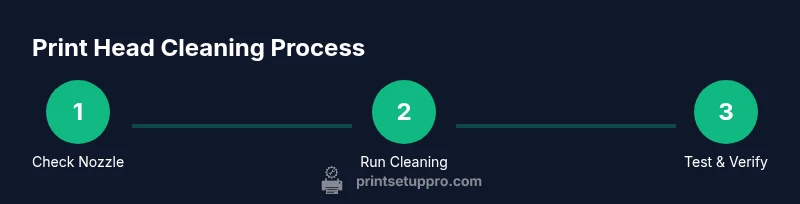
Most Epson printers offer a nozzles check and cleaning cycle from the onboard control panel or printer software. Start with a nozzle check page to see if lines are missing or broken. If gaps appear, run a standard cleaning cycle and then print another nozzle check. If the problem persists, you may repeat the cycle once or twice more, but avoid excessive cycles which waste ink and can stress the print head. In many cases, a simple cleaning + nozzle check resolves minor clogs and aligns colors accurately. Some models also provide a “head alignment” feature which can improve results after cleaning. Always use the printer’s own cleaning tools first rather than external fluids to minimize risk to the print head and cartridges.
Manual cleaning for stubborn clogs ( Epson-specific guidance )
If built-in tools don’t restore quality, you can attempt a careful manual cleaning, but proceed with caution and follow the printer’s manual for your exact model. Remove all ink cartridges and power down the printer; let it cool. Dampen a lint-free swab with distilled water or Epson-approved cleaner, then gently dab around the outside edges of the print head, avoiding electrical contacts. Do not spray liquids directly into the ink ports or into the ink cartridges. Wipe away excess moisture and reinsert cartridges. Power on, run a nozzle check, and, if needed, repeat the cleaning cycle. Manual cleaning is riskier than built-in cycles and should be used only when recommended by Epson.
Deep cleaning vs. basic cleaning: when to choose
Basic cleaning cycles handle most minor clogs that affect color consistency or line gaps. Deep cleaning is a more intense procedure that can consume a lot of ink and may stress the head; it is typically reserved for persistent clogs after multiple basic cleanings. If nozzle checks continue to show gaps after two standard cleanings, consider running a deep cleaning cycle or scheduling service if your model supports it. Always follow the device’s guidance on how many deep cleanings are safe for your print head. If you’re unsure, consult Epson support or Print Setup Pro for model-specific recommendations.
Best practices to avoid clogs and maintain print quality
Prevention is better than cure. Use high-quality ink, print regularly to keep the nozzles from drying, and perform routine nozzle checks every few weeks depending on usage. Keep the printer in a dust-free environment and avoid leaving cartridges empty for long periods. Store and handle cleaning solutions as instructed by Epson and never mix fluids. When you store the printer, remove cartridges and store the print head with care if your model permits. Regular maintenance saves time and ink in the long run.
When to seek professional help or service
If the nozzle check shows persistent lines missing after repeated cleanings and a deep cleaning, or if the printer is still producing poor quality despite efforts, it may require professional service or a print head replacement. Do not attempt invasive disassembly or fluid injections beyond the manufacturer’s guidance. Contact Epson support or an authorized service center, especially for warranty-covered devices or printers with integrated print heads.
Common mistakes to avoid
Avoid using tap water or household cleaners that contain minerals, oils, or additives in any cleaning test. Do not force the print head or cartridge carriage during cleaning attempts and never operate the printer with exposed electronics. Skipping nozzle checks after cleaning leads to wasted ink and missed opportunities to confirm improvement. Lastly, never ignore warning lights or error codes; they guide you toward the right maintenance action and protect your device from further damage.
Tools & Materials
- Distilled water or Epson-approved cleaning solution(Use only distilled water or the official cleaning solution recommended by Epson.)
- Lint-free swabs or microfiber cloth(Soft, non-abrasive fabrics to avoid fiber residue.)
- Small bowl or lid for solution(For soaking swabs; avoid cross-contamination with dirty fluids.)
- Clean, dry microfiber cloth(For blotting and drying surfaces.)
- Printer manual (model-specific guidance)(Check model-specific cautions before proceeding.)
- Gloves (optional)(Protect skin if using fluids; not strictly necessary.)
Steps
Estimated time: 30-45 minutes
- 1
Prepare printer and materials
Power on the printer, unplug from the wall, and open the printer cover. Remove cartridges if the model allows safe removal. Lay a protective towel and gather distilled water or Epson-approved cleaner, lint-free swabs, and a clean cloth. This reduces mess and prevents accidental liquid contact with electrical components.
Tip: Always unplug before disassembly and work on a clean, dry surface. - 2
Print a nozzle check page
From the printer menu, select Maintenance > Nozzle Check. Review the printed pattern for gaps or missing colors. This establishes a baseline before any cleaning and helps you judge whether cycles are effective.
Tip: If you see gaps in all colors, a head cleaning is likely needed. - 3
Run a standard cleaning cycle
Use the printer’s Maintenance menu to run a standard cleaning. This pushes ink through the nozzles to dislodge dried ink. After the cycle completes, print another nozzle check to measure improvement.
Tip: Run cleanings in a well-ventilated area to avoid ink splatter. - 4
Evaluate results and repeat if needed
Compare the new nozzle check with the baseline. If lines improve, consider one more cycle to confirm. Don’t exceed three consecutive standard cleanings; excessive cycles waste ink and could stress the head.
Tip: If there’s partial improvement, stop after a couple of cycles and test again later. - 5
Perform a deeper cleaning (if required)
If gaps persist, perform a deep cleaning cycle (if your model supports it). This uses more ink and can dislodge stubborn clogs but should be used sparingly and only after standard cleanings.
Tip: Deep cleanings can stress the head; use only when necessary. - 6
Optional manual cleaning for stubborn clogs
If allowed by your model’s manual, dampen a lint-free swab with distilled water or Epson-approved cleaner and gently dab near the print head edge. Do not apply liquid to print head contacts, ports, or cartridges. Re-seat cartridges and run a test page.
Tip: Never drench the head; moisture should be minimal and localized. - 7
Final test and reassembly
Reinsert cartridges, power on, and print a full color test page. Check for uniform text and solid color blocks. If the test fails, consult Epson support; avoid repeated aggressive cleaning if results don’t improve.
Tip: Keep a record of cycles used to avoid over-cleaning in the future.
People Also Ask
Can cleaning the print head damage the printer?
Proper cleaning using the printer’s built-in tools or Epson-approved fluids minimizes risk. Avoid forcing parts or using aggressive liquids that aren’t recommended for your model. If unsure, consult the manual or Epson support.
If you follow the manual and use the official cleaner, cleaning is safe. Don’t force components or use unknown liquids.
How many times should I run the cleaning cycle?
Start with one standard cleaning and print a nozzle check. If lines remain imperfect, run another cycle once or twice at most before trying deeper cleaning. Excessive cleaning wastes ink and may harm the head.
Begin with one cycle, check, then decide if you need another cycle or deeper cleaning.
What if nozzle check shows gaps after cleaning?
If gaps persist after basic cleaning, run a deep cleaning if your model supports it, then check again. If problems remain, consider professional service or print head replacement.
Persistent gaps after cleaning may require deep cleaning or professional service.
Is manual cleaning safe for all Epson models?
Manual cleaning is model-dependent. Always consult the printer’s manual before attempting. Some models discourage manual contact with the print head.
Manual steps depend on the model—check the manual first.
Does cleaning affect warranty coverage?
Using manufacturer-approved methods generally doesn’t void a warranty, but follow the manufacturer’s guidelines. Misuse or tampering may affect coverage.
Stick to approved methods to avoid warranty issues.
Should I use distilled water or tap water?
Distilled water or Epson-approved cleaning solution is recommended. Tap water can leave mineral deposits that clog nozzles.
Use distilled water or Epson-approved cleaner, not tap water.
Will cleaning fix color misalignment?
Sometimes misalignment is due to clogged nozzles; cleaning can help. If misalignment persists after cleaning, run a printer alignment utility or consult support.
Cleaning can fix misalignment if caused by clogs; otherwise, run alignment.
When should I seek professional service?
If nozzle checks remain poor after multiple cleanings and deep cleaning attempts, or if there are hardware concerns, contact an authorized service provider.
If cleaning doesn’t help, seek professional service.
Watch Video
Quick Summary
- Test nozzle health first, before cleaning.
- Use only Epson-approved cleaners or distilled water.
- Avoid excessive cleaning cycles to conserve ink.
- Manual cleaning should follow manufacturer guidance.
- If issues persist, seek professional support.