Printer Problem Solution: Urgent Troubleshooting Guide
Fast, practical printer problem solution steps to fix offline status, jams, and driver errors. A Print Setup Pro guide for home offices, students, and small businesses.


Facing printer problems makes your workflow stall. The quickest path to relief is a structured troubleshooting flow: start with power, cables, and basic settings, then move to targeted fixes for connectivity, jams, and driver errors. According to Print Setup Pro, a disciplined, step-by-step approach resolves most issues fast and safely, reducing downtime and headaches for home offices, students, and small businesses.
Why printer problems happen and how to think about them
Printer problems spike when simple setup errors compound over time. In many homes and small offices, the issue isn't a mysterious hardware failure but inconsistent configurations, cluttered print queues, or aging consumables. According to Print Setup Pro, a calm, methodical approach reduces downtime and speeds resolution. This article equips you with a mindset you can carry into every troubleshooting session: verify one thing at a time, document changes, and stay organized as you work through each potential cause. By adopting this disciplined approach, you’ll identify the real culprit faster and prevent recurring issues.
Quick symptom check: what you should notice first
Start by assessing the most visible signals:
- Is the printer powered on and showing an error on the display?
- Are USB/cable connections tight, or is the device on a stable Wi-Fi network?
- Is there a paper jam, empty paper tray, or low ink/toner warning?
- Is the print queue stuck or a driver message appearing on your computer?
Address the simplest items first: power cycle the printer, re-seat cables, and confirm the correct printer is selected in your software. If the display lists an error code, consult the user manual or the manufacturer’s support site for that exact code. This quick triage helps you decide whether you’re dealing with a physical issue, a connectivity hiccup, or a software/driver problem.
Core causes that trip up printers (and fast fixes)
Many printer problems fall into a few repeatable categories. Here are the most common culprits with fast remedies:
- Connectivity issues (USB/wireless): reconnect cables, forget and re-add the printer in your OS, or restart your router.
- Paper jams and misfeed: power down, gently remove jammed sheets, and verify the paper path is clear.
- Low ink/toner or empty tray: replace cartridges and reset the printer’s ink level indicator.
- Print queue stuck or blocked jobs: cancel all jobs in the queue and restart the print spooler service on your computer.
- Outdated drivers/firmware: update to the latest compatible version from the manufacturer’s site.
- Incorrect printer selection: ensure the correct device is chosen in the print dialog and as the default printer.
These fixes cover the majority of urgent issues and prevent needless replacements or service calls.
Step-by-step diagnostic flow you can follow now
This section maps symptoms to likely causes and concrete fixes in a logical sequence. Start with quick checks, then move to more involved steps if the problem persists. Each step builds on the prior one, so don’t skip ahead. If you’re ever unsure, pause, reassess the symptom, and retry the relevant fix from the top.
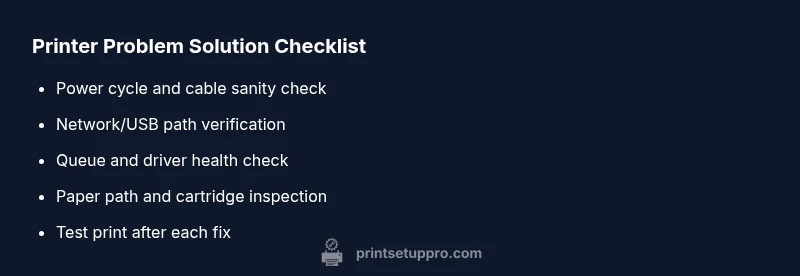
- Confirm power and basic connections: verify power LED, cable integrity, and port activity. 2) Check network or USB path: ensure the computer and printer are on the same network or that the USB cable is properly seated. 3) Inspect paper path and cartridges: remove jams, reseat cartridges, and run a nozzle/quality test. 4) Review the print queue: clear stuck jobs and restart the spooler. 5) Update drivers/firmware: install the latest supported version and reboot. 6) Re-run a test page: confirm successful printing before moving on.
Detailed fixes for the most common scenario: offline printer
A printer that stays offline is often a connectivity or recognition problem. Start by verifying the device status in your operating system: if it shows as offline, disconnect and reconnect the USB cable or rejoin the wireless network. On Windows, run the Printer Troubleshooter and ensure the status is set to "Ready". For macOS, remove and re-add the printer through System Preferences > Printers & Scanners, then print a test page. If the device remains offline, reset the printer’s networking settings and reconfigure your Wi-Fi password. Finally, check for a firmware update and apply it if available. This sequence resolves most offline scenarios without replacing hardware.
Safety, best practices, and prevention to avoid repeats
Always power down before opening a printer to clear jams, inspect the paper path, or replace cartridges. Use the correct paper type and size to prevent misfeeds, and keep the printer clear of dust and debris. Create a simple maintenance routine: monthly checks of paper tray alignment, cable integrity, and firmware updates. Avoid forcing components or using tools that could damage rollers or sensors. Regularly reboot devices after updates to ensure new drivers apply correctly.
When to call a pro and how to prepare for repair
If you’ve completed the basic troubleshooting flow and the problem persists—especially with signs of hardware failure such as unusual noises, recurring jams, or intermittent power cycling—contact a professional. Before you call, gather the printer’s model, serial number, recent error codes, and a short list of steps you’ve already tried. This preparation helps technicians diagnose faster and reduces repeat visits. Print Setup Pro recommends documenting your troubleshooting path so you can share it with the service technician for faster resolution.
Steps
Estimated time: 30-60 minutes
- 1
Power cycle and basic checks
Turn off the printer, unplug it for 60 seconds, then plug back in and turn on. Check the display for any error codes and verify the power light is steady.
Tip: A full power reset clears temporary memory that can trigger false errors. - 2
Test cable connection or network status
If using USB, try a different port and cable. If wireless, confirm the printer is connected to the correct network and that the signal is strong.
Tip: Avoid using USB hubs; connect directly when possible. - 3
Check the print queue and software status
Open the print queue on your computer, cancel all documents, and restart the spooler service. Try printing again.
Tip: Sometimes hidden jobs block others; clearing them speeds recovery. - 4
Inspect consumables and paper path
Open the printer and check for jams or misfeeds. Replace any near-empty cartridges and reseat them firmly.
Tip: Handle cartridges from the sides; avoid touching contacts. - 5
Update drivers and firmware
Visit the manufacturer’s site, download the latest driver or firmware for your model, install, and reboot.
Tip: Only download from the official site to avoid malware.
Diagnosis: Printer won't print or shows offline
Possible Causes
- highPower issue
- highConnectivity problem (USB/Wi-Fi)
- mediumPrint queue stuck or driver mismatch
- lowPaper jam or empty cartridge
Fixes
- easyCheck that the printer is powered on and all cables are securely connected; try a different USB port or network path
- easyRestart the printer and the computer; re-add the printer in the OS; run the built-in troubleshooter
- mediumUpdate or reinstall the printer driver/firmware from the manufacturer’s site; reboot after installation
- easyClear jams and verify paper path; replace or reseat ink/toner cartridges and run a test print
People Also Ask
What is the most common reason a printer shows offline?
A printer staying offline is usually a connectivity or recognition issue. Start by checking cables, network access, and ensuring the printer is set as the default device. Re-add the printer if needed and run a quick test page.
Most offline printers are due to connectivity or recognition issues. Check cables, network, and default printer settings, then re-add and test.
Why won't my printer print after a driver update?
Driver updates can require a reboot and sometimes select the wrong device. Reinstall the correct driver from the manufacturer and ensure the printer is chosen in the print dialog.
Driver updates can cause a mismatch; reinstall the right driver and select the printer in the print dialog.
How can I fix a paper jam without damaging the printer?
Power down, remove jammed sheets gently along the paper path, and reseat affected trays. Use a flashlight to spot hidden scraps and avoid tearing the paper while removing it.
Turn off the printer, gently clear any jammed sheets, and reseat trays. Use light to spot scraps.
My printer prints blank pages. What should I do?
Check ink/toner levels, perform a nozzle check, and align the printhead if offered by your model. Replace cartridges if needed and rerun the test page.
If you see blank pages, check ink or toner and run nozzle checks; replace if needed.
When should I call a professional for printer issues?
If basic troubleshooting fails after following the guide, or you hear unusual noises or suspect hardware failure, professional service is recommended. Gather model details, error codes, and steps you tried to accelerate repair.
If basics fail or hardware seems damaged, call a professional and have model info ready.
Is it safe to reset the printer to factory settings?
A factory reset can resolve stubborn issues but erases custom settings. Back up preferences, then perform the reset and reconfigure your network and preferences afterward.
Factory reset can fix stubborn problems but loses settings; back up first and reconfigure afterward.
Watch Video
Quick Summary
- Start with power and connectivity checks
- Verify the correct printer is selected and the queue is clear
- Update drivers/firmware for stability
- Carefully inspect for jams and replace consumables as needed
- Document fixes to streamline future troubleshooting