Camera and Instant Printer: A Practical Setup Guide
Learn how to pair a camera with an instant printer, optimize your printing workflow, and print high-quality photos at home or on the go with this step-by-step guide.


Goal: Learn how to pair a camera with an instant printer and produce high-quality photos quickly. Essential prerequisites include a compatible camera, the correct instant printer, and stable connectivity (Bluetooth, Wi‑Fi, or cable). According to Print Setup Pro, a streamlined workflow minimizes waste and speeds up on-the-spot printing for home offices, classrooms, and workshops.
Why a camera and instant printer deliver fast, tangible memories
A camera paired with an instant printer lets you turn digital shots into physical prints in minutes, without a lab visit. This setup is especially appealing for home offices, classrooms, and DIY projects where quick feedback and hands-on projects matter. The immediacy of prints encourages experimentation and sharing, turning casual snapshots into tangible keepsakes. According to Print Setup Pro, a thoughtfully chosen pairing and media choice can simplify your workflow and improve results. The Print Setup Pro team found that aligning device ecosystems—camera compatibility, printer media, and app support—minimizes wasted sheets and color mismatches. In this section we’ll lay the groundwork for practical, repeatable results and then guide you through a full workflow from capture to print.
Compatibility and connectivity basics
Instant printers come in a few core technologies (e.g., dye-sub, ZINK). Connectivity is typically wireless, via Bluetooth or Wi‑Fi, with occasional USB options for direct transfers. Before you buy, confirm that your camera can send JPEGs or raw-converted images to the printer’s companion app or direct host connection. Consistency across the ecosystem matters: if your camera stores color profiles that don’t translate well to the printer media, you’ll see color shifts. Print Setup Pro notes that the simplest setups avoid adapters and third-party apps, favoring official apps that maintain color fidelity and reliable media detection. This foundation keeps print quality high and reduces troubleshooting time later.
Choosing the right camera and instant printer pairing
Selecting a compatible camera-printer pairing reduces friction in the print process. Look for a printer that supports the same media type your camera is photoshared to export (e.g., sticker-sized sheets or classic 2x3 inches). Consider the file workflow: can you transfer directly from an SD card or do you need wireless transfer via a phone? Reading reviews that discuss color accuracy, boundary cropping, and ease of use helps. The goal is a smooth handoff from capture to print, not a battle with cables and apps. The right pairing saves time and improves outcomes in everyday tasks—from classroom projects to family albums.
Understanding print media and color management
Print media choices directly influence print quality, durability, and color reproduction. Dye-sub papers are known for stable colors and water resistance, while ZINK papers offer peel-and-peel convenience with no ink ribbons. Media choice should align with your printer’s capabilities and the intended use of the prints (photos, labels, collage projects). Color management involves basic steps like ensuring consistent white balance while shooting, then letting the printer’s color engine do the color translation. If your printer supports ICC profiles, apply the manufacturer’s recommended profile to minimize color drift across lighting conditions.
Step-by-step workflow from capture to print
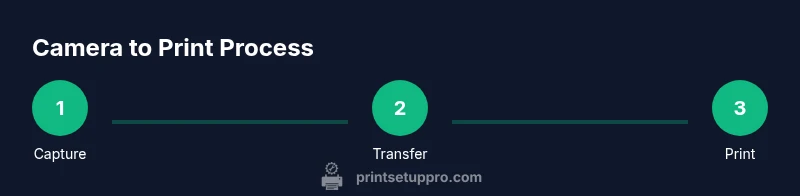
A repeatable workflow reduces waste and delivers consistent results. Start by charging devices and loading fresh media. Capture in bright, diffuse lighting to avoid harsh shadows. Transfer the image to the printer’s companion app, select the correct media size, and choose borderless printing if supported. Preview the print and adjust exposure if needed before printing. After printing, allow the image to set for a few seconds before handling. Store finished prints in a cool, dry place to preserve color and prevent curling.
Mobile workflows: printing from smartphones and tablets
Smartphones often serve as the central hub for camera-to-printer workflows. Use the official app to import, edit lightly, and push to the printer with one tap. Mobile workflows highlight the importance of network stability; a weak Wi‑Fi signal can cause partial transfers or failed prints. If you frequently print on the go, consider enabling cloud backups so you can reprint photos from your gallery without re-transferring data. Print Setup Pro recommends enabling automatic media detection in the app to streamline setup and reduce errors.
Lighting, color, and troubleshooting prints
Lighting conditions when you capture a photo influence its eventual print. Whenever possible, shoot with diffuse light to avoid blown highlights and harsh shadows. If colors look off in prints, verify that the camera’s white balance is appropriate for the scene, then reprint with the printer’s color correction option enabled. Common issues include banding, misalignment, or border artifacts, often caused by media misfeed or incorrect print settings. Reset the printer, reinsert the media, and retry with default settings to isolate the problem.
Creative uses and projects
Printing from a camera and instant printer opens up numerous creative paths: mini-albums, travel journals, educational flashcards, and collaborative art projects. Create themed photo sets, then arrange prints into quick scrapbooks or wall collages. Laminating prints or applying removable adhesive backing can turn prints into durable magnets or labels for organizing a workspace. Regularly revisiting your workflow with fresh media types and layouts keeps the process engaging and productive for home office users, students, and DIY enthusiasts.
Maintenance, care, and data safety
Regular maintenance protects print quality and device longevity. Clean the printer feed path lightly with manufacturer-approved wipes, remove dust from all vents, and keep media in a sealed bag to prevent moisture. Back up your digital originals before printing and consider preserving color-critical files in a separate archive to prevent accidental loss. If you notice consistent color drift, recheck the color profile and update firmware if available. Routine checks help prevent avoidable downtime.
Budgeting, where to buy, and bundles
Pricing for camera and instant printer bundles varies with features, media quality, and media packs. Plan for essential items: a printer compatible with your camera, an appropriate media pack, and a spare battery or power supply. Compare bundles that include starter media and a basic case to protect prints. Remember to account for ongoing media costs, since print media is a recurring expense. This planning reduces sticker shock and ensures you can maintain regular output without interruption.
Advanced tips for speed and quality
For speed, keep the media loaded and firmware up to date. Establish a dedicated workflow on your device so you minimize taps and settings changes during transfers. When color fidelity matters, shoot in RAW if your camera supports it and let the printer’s software handle tone mapping rather than trying to post-process extensively. Experiment with different lighting setups and media types to discover the sweet spot where color, density, and durability align with your needs.
Tools & Materials
- Camera(Any camera that can export JPEGs or transfer images to a printer app)
- Instant printer(Model compatible with your chosen media type (ZINK or dye-sub))
- Media packs (paper sheets)(Manufacturer-approved media for best results)
- Smartphone or computer(Used for app control and transfer)
- USB cable or wireless connection(For initial setup or wired transfer if supported)
- Power adapters/batteries(Keep spares charged for longer sessions)
Steps
Estimated time: 45-60 minutes
- 1
Prepare and inspect gear
Charge all devices, verify media is loaded correctly, and inspect for any packaging residue that could cause feed problems. Align the camera card or memory source so the media reader can access images smoothly.
Tip: Use fresh media and avoid handling media edges to prevent jams. - 2
Install and open the app
Install the printer’s official companion app and pair the printer with the controlling device. Confirm that the printer shows as connected and media detection is active before proceeding.
Tip: Enable auto-connect if you frequently print from mobile devices. - 3
Select image and edit lightly
Pick a photo with good lighting, crop if needed, and apply light exposure adjustments to optimize print quality. Keep edits non-destructive so you can revert if needed.
Tip: Avoid heavy edits that can exaggerate noise in small prints. - 4
Choose print settings
Select the correct media size, enable borderless printing if supported, and choose print quality (high, normal). Preview the print and confirm the orientation.
Tip: If the app offers color correction, test both with and without to see which yields truer colors. - 5
Print and inspect
Send the print job and observe the feed. When the print completes, hold it for a moment to let the surface set before handling.
Tip: If the image curls, rest it flat under a weight for a few minutes. - 6
Store and protect prints
Lay prints on a clean surface dried and away from moisture. Use a binder or album to organize physical copies for easy access.
Tip: Avoid stacking prints until fully cool to prevent sticking. - 7
Back up originals
Save digital originals to a reliable storage location or cloud archive. This ensures you can reprint or re-edit later without losing quality.
Tip: Create a repeatable folder structure for easy retrieval.
People Also Ask
Can I print from any camera with an instant printer?
You can print from many cameras, provided the device can transfer images to the printer's app or direct connection. Check compatibility lists from the printer manufacturer and ensure your file format is supported.
Yes, as long as your camera can export JPEGs and connect to the printer's app or wired link.
Do I need special media for every print?
Most instant printers require media packs specific to the model (e.g., dye-sub or ZINK). Using the correct media ensures color accuracy, durability, and proper feed.
Yes, use the media designed for your printer for best results.
Why do colors look off on prints sometimes?
Color shifts can occur from lighting during capture, incorrect white balance, or mismatched color profiles. Recheck lighting, re-shoot if needed, and apply the printer's color profile if available.
Check lighting and color settings, then reprint with the correct profile.
What is the typical print speed?
Most instant prints complete within a minute, depending on media and model. If you’re printing in batches, allocate time accordingly and avoid overloading the tray.
Most prints finish in under a minute per photo.
How should I store prints after printing?
Let prints cool slightly, then store them in a dry environment away from direct sunlight. Use albums or sleeves to prevent fingerprints and moisture exposure.
Cool and protect photos in dry sleeves or albums.
Watch Video
Quick Summary
- Pair devices with compatible media for best results
- Use manufacturer-recommended media to maintain color accuracy
- Prefer gentle lighting and minimal edits for print quality
- Back up digital originals before printing
- Maintain equipment regularly to avoid downtime