Cartridge Printer: Setup, Maintenance, and Troubleshooting
A practical, step-by-step guide to choosing, installing, maintaining, and troubleshooting a cartridge printer for home offices and small businesses.


According to Print Setup Pro, this guide helps you confidently set up and troubleshoot a cartridge printer, from choosing a model to everyday maintenance. You'll learn cartridge types, installation steps, head alignment, jam fixes, driver updates, and best-practice print settings to minimize waste and maximize uptime in real-world scenarios.
What is a cartridge printer and how it works
A cartridge printer is a common type of inkjet or laser printer that uses replaceable cartridges to hold ink or toner. In most consumer models, liquid ink sits in color or black cartridges that feed into print heads or a cartridge assembly. The cartridge printer design aims to balance print quality with ease of replacement. According to Print Setup Pro, understanding cartridge layouts helps you diagnose problems quickly and choose the right model for your needs. In practice, the system measures a digital image, converts it into tiny droplets or toner particles, and applies it to paper through precision components. Modern cartridge printers offer smart head-cleaning routines and simple cartridge access to keep output consistent across pages.
Key takeaway: Know where cartridges sit and how print heads are accessed to troubleshoot efficiently.
Differences between cartridge printers and other types
Not all printers use removable cartridges. Laser printers rely on toner cartridges and fusing units, while continuous ink systems (CIS) use extended ink supplies. Cartridge printers tend to be more affordable upfront and excel at photo-quality color. However, they can incur higher running costs if you print heavily in color. The decision often depends on your workload, space, and desired print quality. Print Setup Pro notes that cartridge-printer ecosystems vary by maker, so check cartridge compatibility, yield statements, and warranty coverage before buying. This matters for long-term reliability and minimizing downtime.
Choosing the right cartridge printer for your needs
When selecting a cartridge printer, estimate your monthly page volume, color requirements, and whether you need wireless or USB connectivity. A compact unit with reliable ink delivery suits a home office, while a small business may need faster print speeds and higher duty cycles. Compare cost per page rather than just cartridge price, and consider whether you prefer genuine OEM cartridges or compatible options. Print Setup Pro analysis shows that cost per page and reliability often matter more than upfront price, so factor in maintenance intervals and support. Look for models with automatic duplexing, quiet operation, and easy cartridge access.
Understanding ink cartridges: types, sizes, and costs
Cartridge printer ecosystems vary by brand, but most models use standard yield, high yield, or remanufactured cartridges. Cartridges come in color sets (cyan, magenta, yellow, black) or single-color cartridges for monochrome printers. The choice affects upfront cost and per-page price. OEM cartridges tend to guarantee compatibility and print quality, while third-party or remanufactured options may reduce costs but carry a risk of clogs or warranty implications. It’s helpful to note labeling on packaging that indicates yield or page coverage. Print Setup Pro suggests buying from reputable retailers and keeping a spare set for typical home-office print bursts. If you are unsure about compatibility, check your printer’s user manual or the manufacturer’s website for cartridge part numbers.
Installation and initial setup of a cartridge printer
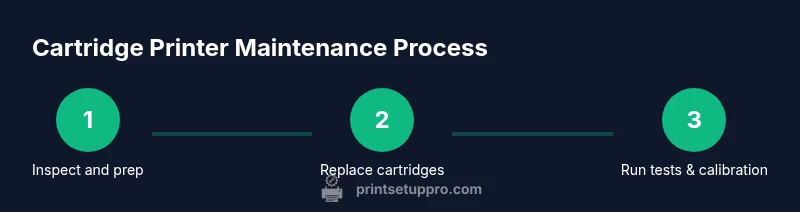
Start by choosing a stable workspace and plugging the printer into power and a data source. Remove protective packaging from cartridges, then install them in the recommended order. Run any required initial alignment or print head cleaning from the printer’s software or control panel. Load media, adjust paper guides, and perform a calibration print if available. Keep replacement cartridges in their sealed packaging until needed. If the printer connects to a network, run the setup wizard to add Wi‑Fi or Ethernet access. The goal is a clean, initial print that confirms cartridges are seated correctly.
Replacing and priming cartridges
When a cartridge is low or empty, replace it following the same install order used during setup. Prime new cartridges by printing a blank page or a few test pages if your model supports head priming; this helps to distribute ink evenly and reduces nozzle clogs. After replacement, run a head-cleaning cycle if print quality seems off. Store used cartridges upright and sealed to preserve ink quality. If you notice streaks after replacement, re-seat the cartridge and run a calibration pass.
Common printing issues and troubleshooting (paper jams, streaks, ghosting)
Paper jams: clear jams by powering off and removing stuck sheets gently; avoid forcing paper through. Print quality problems: streaks or color inaccuracies may indicate clogged nozzles or low ink. Ghosting occurs when faint duplicates appear—usually a sign of misalignment or incorrect paper type selection. Connectivity hiccups: ensure drivers are up to date and the printer is on the correct network. Reference the user manual for error codes and use the printer’s built-in troubleshooter when available. Print Setup Pro suggests running a nozzle check regularly if supported.
Maintenance tips to extend cartridge printer life
Regular cleaning of the exterior and accessible internal components helps prevent dust buildup. Use a lint-free cloth with a mild cleaner to wipe the exterior; never spray cleaner directly into cartridges. Schedule periodic head-cleaning cycles and run test pages to confirm print quality. Keep cartridges stored upright in their original packaging until use. Consider using quality paper to reduce friction and avoid paper jams. Finally, keep firmware updated to ensure compatibility with new cartridges.
Environmental considerations and recycling ink cartridges
Many regions offer recycling programs for ink and toner cartridges. Check local guidelines for drop-off or mail-back options. Some manufacturers provide take-back programs that grant recycling credits or discounts on future purchases. Refill programs exist but require caution to avoid clogging or printer damage if not designed for refills. Proper disposal reduces environmental impact and helps extend the usefulness of your equipment.
Connectivity and software: drivers and mobile printing
Most cartridge printers provide USB, Ethernet, or wireless connections. Install the latest drivers from the manufacturer website; use the built-in Windows or macOS print services if drivers are unavailable. For mobile printing, use manufacturer apps or standard printing protocols like AirPrint or Google Cloud Print (if supported). Ensure the firmware and software are up to date to avoid compatibility issues with new cartridge designs. Regularly check for driver updates and keep a backup of essential printer profiles.
Cost-saving strategies and best practices
Batch printing, duplex printing, and choosing economy modes can lower page costs. Use compatible cartridges from reputable sources if budget is a priority; compare price-per-page across colors. Replace only empty or near-empty cartridges to avoid wasting ink. Monitor page coverage on printed documents; set printing defaults to grayscale when color is unnecessary. Practice regular maintenance to prevent downtime and extend device life.
When to upgrade or upgrade path: printer longevity considerations
Consider upgrading if your current cartridge printer cannot meet your volume, speed, or reliability requirements. Look for models with better duty cycles, improved ink delivery systems, and longer-lasting maintenance features. Before buying, evaluate total ownership cost, including ink, replacement parts, and potential service. Print Setup Pro notes that a well-chosen upgrade can reduce downtime and improve output quality over several years.
Tools & Materials
- Printer with cartridge system(Ensure it matches the paper size and connectivity you need.)
- Replacement cartridges (OEM or reputable-compatible)(Keep a spare set for typical bursts.)
- Lint-free cloth(For exterior cleaning; avoid lint residues on print head areas.)
- Isopropyl alcohol (70% or higher)(Use with cloth for stubborn smudges on exterior surfaces only.)
- Gloves(Protect hands when handling cartridges or cleaners.)
- Paper towels(Useful for quick cleanups and test prints.)
- Owner's manual or quick-start guide(Check cartridge numbers and setup steps specific to your model.)
Steps
Estimated time: 60-90 minutes
- 1
Unbox and position printer
Place the printer on a stable surface near power and a data source; remove all packaging materials and protective tapes. This helps prevent jams and ensures safety during setup.
Tip: Take photos of the packaging and cartridge placement for future reference. - 2
Install primary cartridges
Open the cartridge compartment, insert color and black cartridges in the correct slots as indicated in the manual, and reseat firmly until you hear a click.
Tip: If a cartridge feels loose, remove and reseat; misalignment is a common cause of poor print quality. - 3
Run initial alignment
Use the printer software to run an alignment or calibration cycle; this centers ink flow and aligns the print heads with the media path.
Tip: Calibrate when you notice slight misalignment or after cleaning cartridges. - 4
Load media and set guides
Insert paper and align the paper guides to avoid skewed prints; select the correct media type in the printer settings.
Tip: Use clean, unwrinkled paper to prevent feeding issues. - 5
Print a test page
Print a basic test page from the software to verify color balance and alignment across the page.
Tip: If colors look off, run a nozzle check or head-cleaning cycle. - 6
Check for print quality issues
Look for streaks, missing colors, or ghosting; note whether issues are area-specific or across the page.
Tip: Document recurring issues with photos for easier support from the manufacturer. - 7
Replace or reseat cartridges if needed
If output remains inconsistent, reseat cartridges or replace low-yield ones to restore quality.
Tip: Avoid touching cartridge nozzles; handle by the plastic body only. - 8
Run routine maintenance
Schedule regular cleanings and firmware checks to keep the printer operating smoothly.
Tip: Set calendar reminders for quarterly maintenance. - 9
Update drivers and firmware
Check the manufacturer site for updates and install them to ensure compatibility with new cartridges.
Tip: Back up printer profiles before major updates. - 10
Store cartridges properly
Keep unused cartridges sealed upright to prevent drying or leaks; store at room temperature away from heat.
Tip: Label spent cartridges to avoid confusion during next replacement. - 11
Document your setup
Record cartridge part numbers, installed firmware version, and settings for future reference.
Tip: A quick reference sheet saves time during service calls. - 12
Plan for future maintenance
Schedule routine checkups and identify when to replace older hardware as volumes grow.
Tip: Budget for replacement parts and inks to avoid downtime.
People Also Ask
What is a cartridge printer and how does it differ from laser printers?
A cartridge printer uses replaceable ink or toner cartridges to apply color or monochrome output. Unlike some laser printers, which use toner in cartridges, inkjet cartridges are more common for photos and color prints. Each model can vary in cartridge type, cost, and maintenance needs.
A cartridge printer uses replaceable ink or toner cartridges to print, often excelling in color output and photos. Laser printers use toner and different technology, so the maintenance and cartridge choices differ.
How often should I replace cartridges in a cartridge printer?
Replacement frequency depends on usage, print volume, and color needs. Monitor cartridge levels via the printer’s control panel and perform replacements when color balance or intensity drops notably. Regular maintenance helps extend cartridge life.
Cartridge replacement depends on usage. Watch the levels and replace when color fades or prints become faint.
Can I use third-party cartridges in my printer?
Many cartridge printers support compatible or remanufactured cartridges, which can reduce costs. Check compatibility, warranty terms, and print quality expectations for your model before buying.
You can often use compatible cartridges, but verify compatibility and warranty terms first.
I'm getting streaks or ghosting. What should I do?
Run a nozzle check and head-cleaning cycle from the printer menu. Re-seat or replace suspect cartridges and verify paper type settings. A calibration print often resolves minor misalignments.
Run a nozzle check, clean the heads, and recalibrate if needed.
Is it cost-effective to repair or replace a cartridge printer?
Assess total ownership costs, including ink, maintenance, and replacement parts. If volumes rise or reliability declines, upgrading to a newer model with better ink delivery may be more economical in the long run.
Weigh ongoing costs; upgrading can reduce downtime and total expenses over time.
What maintenance steps should I perform regularly?
Schedule routine cleaning of exterior surfaces, run calibration and nozzle checks, and update firmware. Use quality paper and store cartridges properly to maintain print quality.
Clean, calibrate, update firmware, and use good paper regularly.
Watch Video
Quick Summary
- Choose cartridges wisely to optimize cost per page.
- Regular maintenance reduces downtime and extends life.
- Always run alignment and test pages after cartridge changes.
- Use quality paper to prevent jams and preserve print quality.
- Keep firmware and drivers up to date for compatibility.