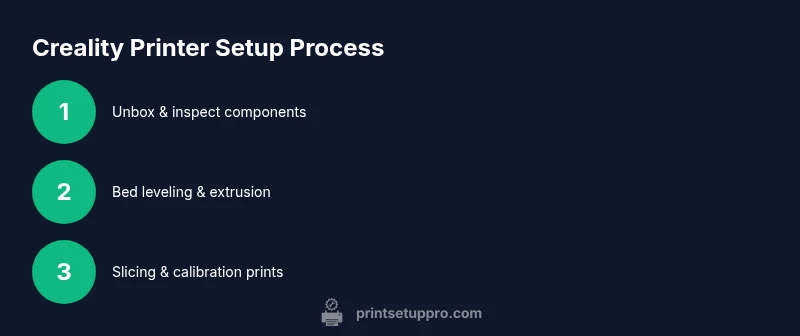
Creality 3D Printer Setup Guide: From Box to Print
Learn how to unbox, assemble, level the bed, calibrate extrusion, slice models, and troubleshoot a Creality 3D printer with clear, step-by-step guidance from Print Setup Pro.


You will learn how to set up a Creality 3D printer for reliable, high-quality prints. The quick guide covers unboxing, bed leveling, extrusion calibration, slicer setup, and common troubleshooting for PLA and PETG. Perfect for home offices, students, and maker spaces. Follow the step-by-step steps to reduce errors and save material.
Understanding the Creality 3D printer ecosystem and model selection
The Creality brand spans a wide range of entry-level to mid-range 3D printers, from compact budget models to larger, more capable platforms. When choosing, consider build volume, bed type, Power Supply Unit (PSU) quality, and upgrade paths for hotend or motion systems. According to Print Setup Pro, selecting a Creality model should align with your intended projects, budget, and workspace. For beginners, an Ender-series or smaller CR-series printer is typically a good starting point, offering a balance of affordability and community support. In contrast, for frequent prototypes or larger parts, a mid-sized CR or Pro model can save time and reduce maintenance overhead. This section helps you map your needs to the right Creality option, so you can print with confidence from day one.
Brand note: Print Setup Pro emphasizes matching your workflow with printer capabilities, not just the latest spec sheet. Keeping expectations realistic will save you time and frustration as you scale up your printing projects.
Unboxing and initial setup checklist
After unboxing, inspect every part carefully: the frame for squareness, the bed surface for scratches, the hotend for secure fittings, and the belts for tautness. Verify that all components are present per the manual: printer frame, power supply, spool holder, user manual, tools, spare nozzles, and the build plate. Create a clean, stable workspace with good lighting and ventilation. Power on at a grounded outlet and connect to the interface to confirm firmware responds. Preheat the hotend and bed to safe temperatures before loading filament, then perform a basic physical check: move the axes, verify smooth travel, and confirm protective enclosures or guards are in place if applicable. This initial sweep reduces surprises during calibration and first prints.
Spacer tip: Keep a small parts tray handy to prevent loss of tiny screws during assembly, and document any missing items with the supplier for a quick replacement.
Bed leveling: manual vs automatic and first layer basics
Bed leveling is the foundation of first-layer success. Manual leveling requires aligning the nozzle to the print surface at multiple corners using a standard piece of printer paper or a feeler gauge, while automatic bed leveling uses a sensor and firmware to map the bed surface. Creality printers typically ship with a heated glass or PEI bed that prefers consistent temperatures to prevent warping. Start by preheating the bed to print temperature, then adjust the leveling springs at each corner until the nozzle barely scrapes the paper with a slight resistance. For beginners, practice leveling on a small bed area and verify consistency across the build area. The goal is a uniform first layer height so filament adheres evenly without gaps. Keep a log of your bed-tramming results to reproduce reliable prints over time.
Extrusion calibration and first layer quality
Calibration of extrusion ensures the printer extrudes the correct filament volume per layer. Start with a calibrated filament diameter (usually 1.75 mm for Creality) and set the flow rate in your slicer to 100% as a baseline. Print a 20 mm calibration cube to inspect wall thickness, layer adhesion, and surface finish. If lines appear under- or over-extruded, adjust extrusion multiplier in your slicer by small increments (1–2%). A clean, well-primed nozzle helps avoid blobs on the first layer; consider a slight retract and wipe strategy before the first layer to prevent oozing. Document your best extrusion settings for future prints to streamline calibration across materials.
Pro tip: Use a digital caliper to verify printed part dimensions against model specifications and adjust your E-steps per millimeter if needed for precise scaling.
Slicing and model optimization for Creality printers
Slicing translates a 3D model into printer instructions. Start with a reliable slicer such as Cura or Creality’s own slicer and load a proven profile for PLA or PETG. Key settings to tune include layer height (0.1–0.2 mm for standard quality), initial layer height (0.2–0.24 mm), print speed (50–60 mm/s as a starting point), and temperature (print and bed temperatures vary by filament). Enable supports judiciously and use the brim or raft strategies for challenging prints. Save calibrated profiles with material-specific presets for rapid future prints. If you see stringing, adjust retraction distance and temperature. Document your favorite profiles for different filaments to speed up future projects.
Troubleshooting common issues (warping, stringing, under-extrusion)
Warping is often caused by poor bed adhesion or rapid cooling; ensure a clean bed, proper bed temperature, and a brim or raft when necessary. Stringing results from excessive retraction or high printing temperature; lower temperature slightly and adjust retraction settings. Under-extrusion may arise from clogged nozzles or inconsistent filament diameter; clean the nozzle, inspect filament quality, and recalibrate extrusion multiplier. Keep a log of recurring problems and the fixes you implement to build a personal knowledge base. When in doubt, print a calibration model and compare with expected dimensions to isolate the issue quickly.
Best practice: run calibration prints regularly, especially after switching filaments or making hardware changes so you maintain consistent results.
Maintenance routine and upgrades
A predictable maintenance routine helps prevent surprises. Wipe and clean the bed with isopropyl alcohol after prints to maintain adhesion surfaces. Lubricate X and Y rails periodically, inspect belt tension, and tighten screws on the frame to maintain rigidity. Replace worn parts—nozzles, PTFE tubes, and fans—according to usage, not just time, to reduce print quality degradation. Consider upgrades that fit your workflow: a quieter stepper driver, a sturdier enclosure to minimize drafts, or a higher-quality hotend if you’re printing with high-temp filaments. Upgrades should be chosen to fit your primary use cases and warranty considerations.
Maintenance mindset: set a quarterly checklist, inventory spare parts, and keep a simple log of what you replaced and when.
Safety, environment, and responsible printing practices
3D printing involves high temperatures and moving components; always observe safety protocols. Keep hot surfaces away from kids and pets, use in a well-ventilated area, and avoid leaving printers unattended for long durations. Use proper enclosure when working with ABS or other fumes, and manage power supply cords to prevent tripping hazards. Maintain a clean workspace to prevent dust and debris from entering the mechanics or hotend. Responsible printing also means disposing of failed prints and support materials properly and recycling filament spools when possible. Following these practices helps protect users and extends your printer’s life.
Authoritative sources
This guide references reputable safety and standards resources. For workplace safety guidelines and general printing best practices, see:
- https://www.osha.gov
- https://www.nist.gov
- https://extension.illinois.edu
Note: Always cross-check guidelines against your local regulations and manufacturer recommendations for your specific Creality model.
Tools & Materials
- PLA or PETG filament (1.75 mm)(Choose a known brand; store in a dry, sealed container)
- Spatula/print removal tool(For safe removal and to avoid bed damage)
- Calipers or a ruler(For precise dimensional verification)
- Hex wrench set (various sizes)(Used for assembly and belt adjustments)
- Isopropyl alcohol (70% or higher)(Clean bed surfaces before prints)
- Digital scale or calipers to measure filament diameter(Helpful but optional; ensures extrusion accuracy)
- Spare nozzles and PTFE tubing(Useful for upgrades or clogged-nozzle scenarios)
Steps
Estimated time: 60-90 minutes
- 1
Unbox and inspect components
Unbox the printer and verify all parts are present against the packing list. Check the frame for squareness, the bed for scratches, and the wiring for secure connections. Clean the workspace and remove any protective films from contact surfaces before assembly. Confirm you have tools ready and spare parts available.
Tip: Take photos of the setup process to reference if you need to redo steps later. - 2
Assemble the printer on a stable surface
Mount the printer on a sturdy desk or table, ensuring level footing. Attach any modular components per the manual, tighten screws gradually in a criss-cross pattern, and verify belt tension is firm but not overly tight. Route cables neatly to avoid snagging during prints.
Tip: Use thread-locking compound sparingly on any exposed screws near the drive system. - 3
Power on and perform basic checks
Connect to a grounded outlet and power up the printer. Confirm the display boots correctly, firmware shows the expected version, and axis moves respond to controls. If the screen freezes or motors squeak, power cycle and recheck cable connections.
Tip: Run a quick jog of all axes to ensure smooth motion before touching the bed. - 4
Level the bed manually (or start with auto-leveling if available)
Preheat the bed to typical printing temperatures and gently slide a sheet of standard printer paper between the nozzle and bed. Adjust corner nuts or screws until there is slight resistance on the paper. Repeat across corners until a consistent feel is achieved.
Tip: Document your calibration pattern and repeat steps for future material changes. - 5
Load filament and prime extruder
Insert filament into the extruder, feed it until it flows smoothly from the nozzle, and purge a small amount onto a scrap area. Confirm there is no excessive grinding and that the filament feeds consistently through the PTFE tube.
Tip: Pre-heat to printing temperature before loading flexible filaments to avoid jams. - 6
Print a calibration test model
Load a small cube or benchy-like calibration model into the slicer and print at a conservative speed. Observe layer bonding, edge accuracy, and any artifacts. Stop the print if you see extreme adhesion issues or obvious misprints and re-check bed level and extrusion multiplier.
Tip: Keep a calibration log with model, filament, temperature, and results. - 7
Tune slicer settings and save profiles
Set layer height, wall thickness, infill, print speed, and temperatures appropriate for your filament. Save material-specific profiles for PLA and PETG to speed up future prints. Ensure supports are configured as needed and test with a small model before large prints.
Tip: Keep a copy of baseline profiles on a USB drive or cloud storage for recovery. - 8
Maintain and prepare for future prints
Wipe the bed between prints, inspect nozzle condition, and check belt tension periodically. Plan for upgrades that improve reliability and match your use case, then update firmware if needed. Maintain a simple log of maintenance tasks and observations.
Tip: Schedule monthly checks to prevent escalations in print quality issues.
People Also Ask
What is the first thing I should do after unboxing a Creality 3D printer?
Verify all parts, inspect for damage, and set up a clean workspace. Confirm you have the basic tools and follow the manual for initial assembly before powering on.
Inspect the box contents and assemble in a clean workspace before powering on.
How do I properly level the bed on a Creality printer?
Preheat the bed, place a sheet of paper between nozzle and bed, and adjust corner screws until the paper has slight resistance. Repeat at multiple points to ensure uniform spacing.
Preheat, then adjust the corners with a sheet of paper until it just resists movement.
What slicer settings are recommended for Creality printers?
Use a reliable slicer (e.g., Cura) with a baseline profile for PLA or PETG: 0.1–0.2 mm layer height, 50–60 mm/s print speed, and appropriate temperatures per filament. Save profiles for different materials and calibrate with calibration prints.
Start with a standard PLA profile with modest layer height and speeds, then tailor for each filament.
Why is my first layer not sticking and how can I fix it?
Check bed leveling, surface cleanliness, and bed temperature. Use a brim or raft if needed, and ensure the nozzle is at the correct height relative to the bed. Re-run a test print after adjustments.
Verify the bed is level, clean, and properly heated; add a brim if necessary.
Is it safe to print with PLA at home, and what precautions should I take?
PLA is generally safe for home use, but ensure proper ventilation and avoid leaving printers unattended for long periods. Use a well-ventilated area and manage hot surfaces and moving parts responsibly.
PLA is usually safe at home; ventilate the area and watch hot parts and belts.
How often should I replace the nozzle or hotend?
Replace nozzles or inspect the hotend based on usage, filament type, and quality of prints. Signs include decreased extrusion, clogs, or poor layer adhesion; maintain a replacement schedule that fits your print volume.
Change the nozzle as needed based on print quality and clog signs.
Can I upgrade the hotend on Creality printers?
Many Creality models support hotend upgrades, but check compatibility with your specific frame and drive system. Upgrades can improve temperature stability and support higher-temp materials, but may affect warranty or calibration needs.
Upgrades are possible, but verify compatibility and impact on warranty.
What maintenance schedule should I follow?
Set a monthly checklist for belt tension, lubrication, bed cleaning, and nozzle inspection. Do a full calibration print quarterly or after major changes to filament or settings.
Create a monthly maintenance routine and a quarterly calibration check.
Watch Video
Quick Summary
- Choose the right Creality model based on build volume and budget.
- Complete unboxing and basic assembly on a stable surface.
- Level the bed accurately and calibrate extrusion for clean first layers.
- Fine-tune slicer profiles and run calibration prints regularly.
- Maintain safety, plan upgrades, and log maintenance for reliability.