How to Print on MacBook: The Easy Step-by-Step Guide
A comprehensive, education-focused guide on how to print on MacBook including AirPrint, USB and network printers, driver considerations, and troubleshooting tips for macOS users.


Whether you’re at home or in a small office, printing from a MacBook is straightforward. This quick answer outlines the core approach: connect your printer via USB or Wi‑Fi, use AirPrint when available, install any required drivers, and verify your print queue in System Settings. With these steps, you’ll be ready to print from macOS in minutes.
Why Print on
Prerequisites and Compatibility Checks
Before you print on macbook, confirm you have a compatible printer and a functioning network. AirPrint-capable printers are the easiest path, but many non-AirPrint devices work with
Connecting via USB: Step-by-Step
To connect via USB, plug the printer’s USB cable into your MacBook and power on the printer. Open System Settings (or System Preferences) and navigate to Printers & Scanners. If the printer appears automatically, select it and click Add. If you don’t see it, try reconnecting the cable or using a different USB port. USB connections are typically the most reliable for single-user setups, with minimal configuration required. After adding, print a test page to confirm the connection is active and that the printer is the default for your chosen app.
Connecting via Wireless and AirPrint
Wireless printing offers flexibility for shared spaces. If your printer supports AirPrint, you can print without installing extra drivers. On
Adding and Managing Printers in
Printing From Common Mac Apps
Printing from
Page Setup and Print Dialog Explained
The Print dialog in
Troubleshooting Common Issues
If your printer isn’t detected, check that both devices are on the same network (for wireless) or that the USB cable is properly connected (for USB). Ensure AirPrint compatibility or install the correct
Print Quality, Paper, and Settings
Print quality depends on the paper type, printer calibration, and correct driver settings. Use appropriate paper for your project—glossy photo paper for images, plain paper for documents. Calibrate color through the printer’s preferences to ensure accurate hues. For best results, select the correct Paper Size, set the appropriate Print Quality (Draft, Normal, or High), and avoid excessive scaling. If you notice streaks or misalignment, run a printer head cleaning (usually via the printer’s maintenance menu) and check for clogged nozzles. Proper paper handling reduces jams and improves output.
Quick Reference Keyboard Shortcuts and Dialogs
Familiarize yourself with a few quick shortcuts to speed up printing on MacBook. Use Command-P to open the Print dialog, Command-S to save a document before printing, and Command-Shift-P to print with current settings from the app. In many apps, you can access the Print dialog from the app menu under File > Print. If you forget a setting, rely on the default that
Authoritative Sources and Additional Reading
For further guidance, consult official documentation and reputable sources on Mac printing. Apple’s official support covers
Tools & Materials
- Mac computer with macOS (latest or supported version)(Ensure OS is up to date for driver compatibility)
- Printer (USB or network/wireless)(Check AirPrint capability if possible)
- USB cable or network/Wi‑Fi access(For wireless, ensure both devices are on the same network)
- Printer drivers or vendor software (if AirPrint not available)(Download from the manufacturer site compatible with macOS)
- Paper and ink/toner appropriate for print job(Match paper size to settings)
- Power cables and adapters as needed(Keep printers powered during setup)
- Optional: USB-C to USB-A adapter(If MacBook uses USB-C only ports)
Steps
Estimated time: 35-60 minutes
- 1
Prepare printer and Mac
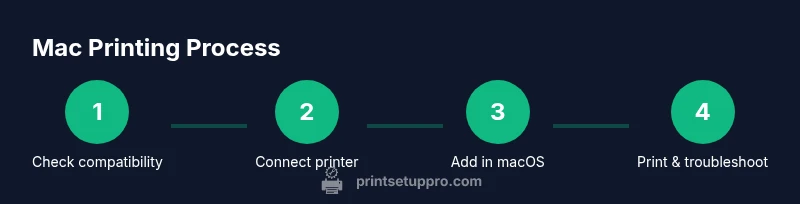
Power on the printer and check it has paper and ink/toner. Confirm the printer model and macOS version, and locate any manuals or drivers you might need later. If you’re unsure about AirPrint support, note the model and check the manufacturer’s site for compatibility with your macOS version.
Tip: Having the model number handy speeds up driver checks and installation. - 2
Connect via USB or confirm wireless readiness
If using USB, plug in the cable and ensure the Mac recognizes the device. For wireless, ensure both devices are on the same network and the printer is discoverable. If you’re using AirPrint, these steps are minimal; if not, prepare to install drivers.
Tip: Try a quick print test after connection to verify the link. - 3
Add the printer on macOS
Open System Settings (or System Preferences) and go to Printers & Scanners. Click Add Printer and select your device from the list. If using USB, it often appears automatically; for wireless, select it by name or IP. Complete any on-screen prompts to finish.
Tip: If the printer doesn’t appear, refresh the list or restart the printer and Mac. - 4
Install or update drivers if needed
If AirPrint isn’t available, download the macOS driver from the printer manufacturer. Install the driver following the on-screen instructions, then re-open Printers & Scanners to ensure the printer shows as ready.
Tip: Restart the Mac after driver installation to ensure changes take effect. - 5
Print a test page
Open a document or image and select Print (Command-P). Verify that the correct paper size, orientation, and color settings are chosen. Print a test page to confirm print quality and alignment.
Tip: If color looks off, test with a known color image and adjust the printer’s color settings. - 6
Set defaults and preferences
In Printers & Scanners, set the preferred printer as default. Configure duplex printing or color options if the printer supports them. This saves time for future print jobs.
Tip: Define paper size and print quality as the default for common tasks. - 7
Print from common apps
Use Command-P to access the Print dialog in Preview, Pages, Safari, and other apps. Adjust per-app settings as needed and print from a subset of pages to test results.
Tip: In Preview, you can select a specific page range to minimize waste on proofs. - 8
Troubleshoot if issues arise
If the printer is not detected, verify network settings and firewall permissions. Reset the printing system if necessary and re-add printers. Check for jammed paper or low ink as simple cause checks.
Tip: Resetting the printing system can clear stubborn issues; re-add printers afterward. - 9
Fine-tune for print quality
Experiment with paper type, quality settings, and color calibration to optimize output. For photos, choose appropriate photo paper and ensure proper margins so content fits.
Tip: Keep a log of settings you liked for future tasks. - 10
Review sources and stay updated
Periodically check for macOS and driver updates. Review authoritative sources to stay informed about best practices for Mac printing.
Tip: Subscribing to vendor update notes helps prevent surprises after OS upgrades.
People Also Ask
Do I need to install drivers to print on a MacBook?
Not always. If your printer supports AirPrint, macOS can print without extra drivers. If AirPrint isn’t available, you’ll need the manufacturer’s driver to enable full functionality.
Often you don’t need drivers thanks to AirPrint. If AirPrint isn’t supported, install the printer’s driver from the manufacturer’s site.
How do I know if my printer supports AirPrint?
Check the printer specifications on the manufacturer’s site. Apple’s support pages also list AirPrint compatibility for many models.
Look up your printer model to confirm AirPrint availability in the specs.
Why isn’t my Mac seeing my printer over Wi-Fi?
Ensure both devices are on the same network, reboot the router if needed, and verify there are no firewall blocks. Re-adding the printer can solve many discovery issues.
Make sure the printer and Mac are on the same network, then re-add the printer if needed.
Can I print duplex or color from a MacBook?
Duplex and color options depend on your printer’s capabilities. If available, select them in the Print dialog or the printer preferences.
Yes, if your printer supports it, set duplex and color options in the Print dialog.
What should I do if printing is slow or stalls?
Cancel stalled jobs, check for paper jams, update drivers, and reset the printer if necessary. A busy print queue can also cause delays.
If printing slows, cancel the job and check the printer queue or reset the printer.
Is it okay to reset the printer queue?
Yes, a system reset clears all pending jobs and printers. You’ll need to re-add printers afterward, but it often resolves stubborn issues.
Resetting the queue can fix stubborn issues; you’ll re-add printers afterward.
Watch Video
Quick Summary
- Check printer compatibility first and use AirPrint if possible.
- Add and manage printers in macOS without third-party apps.
- Print from common apps using Command-P and verify settings.
- Troubleshoot by resetting the printing system if needed.