How to Use a Printer in a Computer: A Step-by-Step Guide
A comprehensive, step-by-step guide to connecting and using a printer with your computer, covering USB and wireless setups, driver installation, printing from apps, and troubleshooting.


By the end of this guide you will know how to connect a printer to your computer, install the correct drivers, add it to your OS, and print a test page from common apps. This covers USB and wireless setups, basic troubleshooting, and how to adjust default printer settings. You’ll also learn practical tips to keep printing smooth and secure.
Prerequisites for Using a Printer with Your Computer
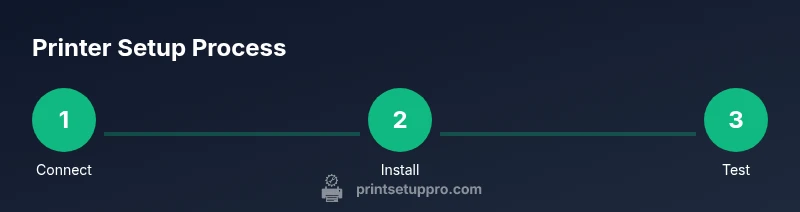
Learning how to use printer in computer starts with a simple planning step. Gather the printer, power cable, data cable (or confirm your wireless network), and a computer or tablet to manage tasks. Make sure the printer is plugged in, powered on, and not in a sleep state during setup. According to Print Setup Pro, starting with a clear connection plan saves time and reduces frustration. Review your model’s manual for any model-specific quirks, but keep this formula in mind: connect, install, configure, and test. A calm start helps avoid common issues like misidentified ports or incompatible drivers. If you’re supervising others’ devices, label cables and note the network name or USB port used for quick reference.
USB vs. Wireless: Choosing Your Path
One of the first decisions when learning how to use printer in computer is whether to use a USB cable or a wireless connection. USB tends to be reliable, simple to set up, and ideal for single-user desks. Wireless printing offers flexibility, lets multiple devices print without cables, and works well in a shared office. In practice, many users opt for USB for initial setup and switch to wireless once drivers are confirmed. Print Setup Pro recommends testing both methods if your network is busy or if you need mobile printing capabilities.
Installing Printer Drivers and Software
Driver installation is a core part of learning how to use printer in computer. Start by connecting the printer to the computer, then download the latest driver package from the manufacturer’s website, or use the operating system’s built-in driver database. Avoid using outdated discs from old printers, as they may not support your current OS. After installation, restart your computer and let the OS recognize the device. If you encounter conflicts, uninstall previous drivers for the same model before re-installing.
Adding the Printer to Windows and macOS
Both Windows and macOS require you to add a printer to make it available to print from applications. On Windows, open Settings > Devices > Printers & Scanners, choose Add a printer, and follow the prompts. On macOS, go to System Settings > Printers & Scanners, click the plus sign, and select your printer from the list. If your printer is on a network, you may need to enter its IP address or ensure it appears in the shared devices list. After adding, set it as the default printer if needed.
Configuring Default Printer, Quality, and Preferences
Configuring the default printer ensures your prints go to the right device by default. Check print quality, page size, orientation, and color settings to match your common tasks. In most programs you can access these options from the Print dialog, then save a preset for frequent jobs. If you print mixed media, create different presets for draft, normal, and high-quality settings to balance speed and output.
Printing from Common Applications: Word, PDF, and Browsers
Printing from documents, PDFs, and web pages should be straightforward once the printer is installed. In Word or Google Docs, use File > Print, select the correct printer, and choose a preset. For PDFs, verify page size and margins before printing. Browsers offer built-in print options with previews and scale controls. Remember to preview pages to avoid surprises like cut-off margins, and consider using print-friendly versions of web pages when possible.
Troubleshooting Common Issues
If a job stalls, starts slowly, or prints with errors, approach systematically. Check power and cable connections, ensure the printer is online, and confirm there is paper and ink or toner. Restart the printer and the computer, then re-send the job. If the device shows an offline status, re-connect to the network or USB port, and re-install drivers if necessary. Keep a log of error codes for faster support.
Maintenance and Security Best Practices
Regular maintenance keeps printers reliable. Clean print heads, replace consumables promptly, and update firmware to close security gaps. Use a strong network password and enable encryption if supported. For sensitive prints, consider secure print options that require a PIN at the printer. Finally, keep your device documentation organized for quick reference.
Tools & Materials
- Printer device(Model you plan to use)
- Power cable(Official cable included with printer)
- USB cable or network access(If USB, use a suitable length; if wireless, ensure router visibility)
- Computer or mobile device(Windows/Mac/iPad/Android depending on setup)
- Latest driver/software(From manufacturer’s site or OS store)
- Paper and basic supplies(For test pages and drafts)
Steps
Estimated time: 45-60 minutes
- 1
Verify prerequisites and power up
Ensure the printer is plugged in, powered on, and within reach. Confirm your computer has enough disk space and is updated. This reduces misconfigurations and ensures drivers load properly.
Tip: Label the printer and its cables to avoid mix-ups with other devices. - 2
Connect the printer to the computer
Choose USB for a direct connection or set up Wi‑Fi for wireless. Use the correct port and avoid using a hub that can introduce latency. Update any firmware prompts if shown.
Tip: If using USB, avoid looping cables around sharp edges; a straight, short cable reduces signal issues. - 3
Install or update drivers
Download the latest driver from the manufacturer or use your OS’s automatic driver updater. Follow on‑screen prompts and restart when requested.
Tip: Prefer the official site over third‑party download mirrors to prevent malware. - 4
Add the printer to your OS
In Windows: Settings > Printers & Scanners > Add, then select your device. In macOS: Printers & Scanners > Add, then choose your printer.
Tip: If the printer doesn’t appear, try restarting the OS service or reconnecting the device. - 5
Set defaults and preferences
Choose the default printer and adjust default print quality, paper size, and color settings. Save presets for common tasks.
Tip: Create at least one “Draft” preset for quick, low‑ink drafts. - 6
Print a test page
Print a simple test page from the OS or a document to verify alignment, margins, and color. Adjust settings as needed.
Tip: If colors are off, run a print head alignment (often in printer properties). - 7
Print from a real application
Open a document or webpage and use File > Print. Confirm the correct printer is selected and choose a preset.
Tip: Use print previews to catch issues before printing. - 8
Troubleshoot common issues
If the printer is offline, re-check network/USB connections and verify driver status. Reinstall drivers if necessary.
Tip: Consult the printer’s status lights and error codes for targeted fixes.
People Also Ask
Do I need different drivers for USB and wireless printing?
Most printers use a single driver that supports both connections. If you encounter issues, check for a connection-specific setting in the printer properties and reinstall the driver.
Most printers share one driver; if you have trouble, recheck the connection settings and reinstall the driver.
Can I print from a mobile device without a computer?
Yes. Many printers support mobile printing through apps or cloud printing services. Ensure your printer is on the same network as your mobile device and install the vendor app if required.
Yes, you can print from a mobile device using the vendor app or cloud printing, as long as you’re on the same network.
How do I set a default printer in Windows or macOS?
Open your system settings for Printers, select the desired device, and choose 'Set as default' or the equivalent option in your OS. This ensures future print jobs go to the right printer.
Set your preferred device as default in your printer settings to ensure automatic selection.
My printer shows offline. What should I do?
Check cable connections or network status, restart the printer and computer, and verify the printer queue. If needed, run a network diagnostic or reconnect to the network.
If it shows offline, check connections, restart devices, and rejoin the network.
How can I improve print speed without sacrificing quality?
Select a lower quality preset for drafts, use efficient color settings, and enable printer’s 'fast draft' option when appropriate. Avoid high‑quality modes for quick jobs.
For faster prints, pick a draft preset and avoid high quality modes unless needed.
Is cloud printing secure for sensitive documents?
Use secure print options when available and enable encryption. Be mindful of sensitive data and local network security.
Cloud printing can be secure if you enable encryption and use secure options for sensitive documents.
Watch Video
Quick Summary
- Connect, install, and test in order.
- USB provides reliability; wireless offers flexibility.
- Keep drivers and firmware up to date.
- Test prints before critical tasks.