Printing from iPad with AirPrint: A Comprehensive Setup Guide
Learn how to print from your iPad using AirPrint-enabled printers. This step-by-step guide covers compatibility, setup, common scenarios, troubleshooting, and best practices for reliable wireless printing.


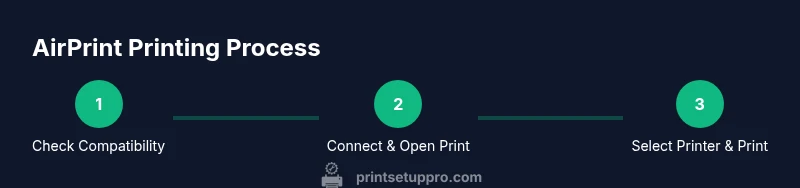
Print from your iPad to an AirPrint-enabled printer by ensuring both devices are on the same Wi‑Fi network, selecting Print in the app, then choosing your AirPrint printer and tapping Print. This process requires no extra drivers and works across common iPad apps that support AirPrint.
Why AirPrint Simplifies iPad Printing
According to Print Setup Pro, AirPrint is a built‑into‑iOS feature that lets you print wirelessly without installing printer drivers. When your iPad and a compatible printer are on the same local network, you can print from most apps with a built‑in Print option. This seamless workflow is especially valuable for home offices, students, and small businesses that rely on quick, reliable document sharing from mobile devices.
AirPrint support is common among modern printers and many legacy models have firmware updates to enable it. The gain is straightforward: fewer setup steps, fewer compatibility headaches, and a faster route from screen to physical page. If you’re unsure whether your printer supports AirPrint, check the manufacturer’s website or user manual for “AirPrint” or Bonjour discovery support.
In practical terms, AirPrint turns your iPad into a portable printing hub, reducing the friction between capturing content and producing a hard copy. Print Setup Pro’s analysis highlights how often users encounter driver issues on non‑AirPrint printers, making AirPrint a defensible first choice for mobile printing needs.
What You Need Before You Start (Compatibility Check)
- An AirPrint‑enabled printer that’s powered on and connected to the same Wi‑Fi network as your iPad.
- An iPad with iPadOS 13 or later and Wi‑Fi enabled.
- A stable network with Bonjour/mDNS discovery enabled on the router to help the iPad locate the printer quickly.
If your printer isn’t AirPrint capable, you can still print from iPad via manufacturer apps or third‑party print servers, but AirPrint provides the simplest, most consistent experience. If you share a network with smart devices, consider creating a dedicated printing network for better reliability.
-
Optional but helpful: know your printer’s network name (SSID) and password for initial setup.
-
Before you begin, ensure your printer has the latest firmware and that your iPad is updated to the latest iPadOS version for compatibility improvements.
How to Connect Your iPad to an AirPrint‑Capable Printer
- Make sure both devices are on the same Wi‑Fi network and that the printer is powered on.
- Open the content you want to print in any compatible app (Photos, Notes, Safari, etc.).
- Tap the Share icon or the app’s menu to access the Print option.
- In the Print Options, tap Printer and select your AirPrint printer from the list.
- Adjust copies, range, color options, and page setup as needed, then tap Print.
If your printer doesn’t appear, verify network visibility, restart the printer and iPad, and confirm that Bonjour discovery is not blocked by the router. Printing over AirPrint should work without additional software on the iPad.
Printing Scenarios: Photos, Documents, Web Pages, and More
AirPrint supports many content types directly from the source app. For Photos, you can print selected images; for Pages/Numbers/Keynote documents, you can print with layout fidelity preserved; for web pages, use the Print option from Safari to render a clean, page‑oriented printout.
- For photos, consider selecting multiple images for a photo album print or a contact sheet.
- For documents, check page orientation and margins if your printer’s default settings aren’t ideal.
- When printing from the web, use the Print dialog to control headers/footers and specific page ranges to minimize waste.
If you’re printing from apps that don’t expose a Print option, you may need to export to a printable format first (PDF or image) and use the Share/Print route from that export.
- Printing from iPad often yields consistent color results and layout positioning, particularly when you select the correct paper size and orientation.
Troubleshooting: When AirPrint Doesn’t Seem to Work
If your iPad cannot find the AirPrint printer, start with the basics: confirm both devices are on the same network, verify the printer is powered and connected, and check that there are no firewall rules blocking Bonjour discovery on your router.
- Turn Bluetooth off on the iPad temporarily if you notice device conflicts, as some environments cause interference with AirPrint discovery.
- Restart both devices and update firmware on the printer to improve compatibility.
- Reset the printer’s network settings and rejoin the network if discovery continues to fail.
For persistent issues, consult the printer’s manual and the manufacturer’s support site. Print Setup Pro recommends documenting your network changes to speed up future prints.
Security, Privacy, and Best Practices for Mobile Printing
Printing from an iPad over Wi‑Fi is generally secure on a protected home or office network, but you should follow best practices to minimize risk. Use a strong Wi‑Fi password, enable automatic firmware updates for your printer and router, and disable printer sharing when not in use. If you print sensitive documents, consider using app‑level protections or physical document handling procedures.
- Keep your iPad and printer on the same secure network instead of guest networks that isolate devices.
- Regularly review connected devices in your router’s admin panel to ensure only trusted devices have print access.
- For high‑security environments, limit printing to essential tasks and log print activity where possible.
Tools & Materials
- AirPrint-compatible printer(Must be on the same Wi-Fi network as the iPad)
- iPad with iPadOS 13+(Wi‑Fi enabled and up to date)
- Stable Wi‑Fi network (2.4 GHz or 5 GHz)(Ensures reliable AirPrint discovery and printing)
- Printer name/SSID and Wi‑Fi password(Needed for initial setup or re‑connection)
- Optional: Printing‑ready content (Photos/Notes/Safari pages)(Helps test printing flow quickly)
Steps
Estimated time: 5-15 minutes
- 1
Prepare devices and network
Ensure the iPad and printer are on the same Wi‑Fi network and powered on. Confirm AirPrint compatibility by checking the printer’s settings or user manual. This alignment is essential for discovery and print jobs to succeed.
Tip: Double‑check that both devices can reach the router; a quick network test helps. - 2
Open the document or app you want to print
Navigate to the content you want to print in Photos, Notes, Safari, or another app. Confirm the content displays correctly before sending to print.
Tip: If printing from a web page, use the app’s Share/Print option to access AirPrint. - 3
Open the print dialog
Tap the Share icon (square with an arrow) or the app menu to find Print. This opens the AirPrint dialog.
Tip: If you don’t see Print, update iPadOS or the app, or ensure the content supports printing. - 4
Select the AirPrint printer
From the Printer list, choose your AirPrint-enabled printer. If it doesn’t appear, verify the printer is on and on the same network.
Tip: Sometimes restarting the printer or iPad helps the discovery process. - 5
Set print options
Choose the number of copies, color options, paper size, and page range as needed. These settings vary by app and printer.
Tip: Print a single test page first to verify alignment. - 6
Tap Print
Confirm the print action. The job is sent to the printer over the local network. Monitor the progress indicator.
Tip: Keep the device near the router during first prints in case of delays. - 7
Troubleshoot discovery issues
If the printer doesn’t show up, check AirPrint compatibility, router discovery settings, and firewall rules that might block mDNS/Bonjour.
Tip: Switch to a 2.4 GHz band if mixed bands cause issues. - 8
Test print and save for quick access
Print a test page, then save the printer name in a note or screenshot for easy access next time.
Tip: Document any network changes to aid future printing sessions.
People Also Ask
What is AirPrint, and how does it work with an iPad?
AirPrint is built into iOS to print wirelessly over a local Wi‑Fi network to compatible printers. It requires no driver installation on the iPad and works from many apps.
AirPrint lets your iPad print wirelessly to a compatible printer over your home Wi‑Fi, without installing drivers.
Why can't my iPad see my AirPrint printer?
Ensure both devices are on the same Wi‑Fi network, the printer is powered on, and AirPrint is supported by the printer. If problems persist, restart devices and check for firmware updates.
Make sure both devices are on the same network and restart devices if the printer isn’t visible.
Can I print from apps other than Photos, Notes, or Safari?
Yes. Many apps support AirPrint, including Pages, Numbers, and third‑party apps. Look for the Share or Print option within the app.
Most apps with sharing features can print using AirPrint.
Is an internet connection required for AirPrint?
AirPrint uses your local network to send jobs to the printer and does not require an internet connection.
No internet is required; your local network handles the print job.
Watch Video
Quick Summary
- Verify AirPrint compatibility before starting
- Keep iPad and printer on the same network
- Use AirPrint from multiple apps for flexible workflows
- Update firmware for best compatibility
- Test print to confirm success