Printing from iPad: Complete Setup & Troubleshooting
Learn how to print from your ipad printer setup with AirPrint, USB, or network options. This comprehensive guide covers compatibility, step-by-step setup, troubleshooting, security, and best practices for mobile printing.


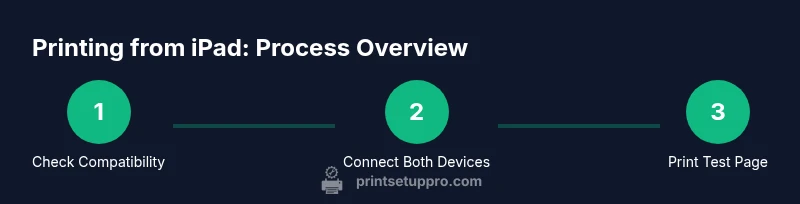
You can print from an ipad printer by using AirPrint where available, or by connecting through USB adapters or network printing apps. Start by checking printer support, ensuring both devices share a network, then print a test page and adjust settings as needed.
Introduction to iPad Printing and Why It Matters
Printing from an ipad printer is a common need for home offices, students, and small businesses. When you’re ready to print photos, documents, or receipts from your iPad, the most reliable path is typically AirPrint-enabled devices over a secure Wi‑Fi network. Even if your printer isn’t AirPrint-ready, you can often print via manufacturer apps, cloud printing, or a USB adapter for direct connection. In this guide, we’ll demystify how ipad printer printing works, what to check first, and how to set up a reliable workflow that minimizes conflicts on your wireless network. Per guidance from Print Setup Pro, the key is clear compatibility checks and predictable network access to your printer.
Printer Compatibility with iPad: AirPrint, USB-C, and Cloud Printing
Many modern printers support AirPrint, which means your iPad can send print jobs directly without installing drivers. If your printer isn’t AirPrint-enabled, you might still print through the manufacturer’s iPad app, or via USB if your iPad model supports a direct USB connection with the appropriate adapter. For those using shared or cloud printers, you can print through cloud print services or the printer’s web app. When evaluating ipad printer compatibility, verify AirPrint support, network accessibility, and firmware updates. Print Setup Pro’s analysis indicates that a simple AirPrint setup reduces errors and simplifies ongoing maintenance. Always confirm your printer’s compatibility list before purchasing or reconfiguring devices.
Ensure Your Setup is Ready
Before you begin, confirm that your iPad is on iOS with the latest updates and that your printer is powered on and connected to the same network. Disable VPNs or firewalls that might block local printing traffic during initial setup. If you’re attempting USB printing, ensure you have the correct adapter (such as USB-C or Lightning to USB) and that the printer supports direct USB connections for mobile devices. In most cases, the simplest route is AirPrint, but knowing alternatives helps when traveling or using older hardware.
Choosing the Right Printer for iPad Printing
When selecting a printer to use with an iPad, look for three core attributes: AirPrint compatibility, reliable wireless connectivity (Wi‑Fi 802.11ac or better), and robust mobile app support. If AirPrint is your primary goal, check the printer’s product page for AirPrint compatibility, and read reviews about how well it supports iPad printing tasks such as document printing, photo printing, and label printing where applicable. For environments with multiple users or devices, prioritize printers with consistent firmware updates and strong cloud print options. If you rarely print from iPad but still want flexibility, a USB-connected printer with a compatible adapter is a viable option. Print Setup Pro recommends thinking through your typical use-case (documents, photos, forms) to prioritize features like color accuracy, duplex printing, and app integration.
Network Considerations and Security
A stable network is essential for ipad printer workflows. Use a dedicated guest network for printers if possible, or at least a separate VLAN in larger offices. Keep printer firmware up to date and enable automatic updates when feasible. For sensitive documents, enable secure print options available on many printers, such as requiring a PIN at the printer to release a print job. These steps help protect data while keeping printing accessible from iPad devices. By planning your network layout and security settings, you reduce the risk of print-job failures or leakage.
Quick Setup: AirPrint, USB, and Network Printing
Starting with AirPrint is often the fastest path. Ensure both devices are on the same Wi‑Fi network, then on your iPad, open a document, tap the Share icon, and choose Print. If your printer is not AirPrint-enabled but supports it via its app, install the app, sign in, and use the app’s print feature. For USB printing, connect with the appropriate adapter, then use the iPad’s sharing menu to find the printer in the available devices.
Step-by-Step Print Tests and Verification
Perform small test prints from the iPad to confirm basic functionality before attempting long print jobs. If a test print fails, check the printer’s status, confirm network visibility, and re-run the setup steps. In many homes, simple re-connecting to the network resolves temporary handshake issues. Print Setup Pro notes that keeping a consistent network and documented steps reduces issues during busy periods.
Troubleshooting Common iPad Printer Issues
If your iPad can’t find the printer, check that the printer is on, on the same network, and not in sleep mode. Restart both the iPad and printer, then re-enable AirPrint from the printer settings if needed. If AirPrint isn’t available, try the manufacturer’s iPad app or cloud printing option. For USB-connected setups, ensure the adapter is supported and the cable is firmly connected. Firmware updates for both the printer and iPad improve compatibility and fix known issues.
Common Scenarios and Fixes
- iPad prints slowly or fails with a “printer unavailable” message: verify network QoS and ensure the printer has enough memory for spooling jobs. - Printer shows color drift: align color profiles in the printer settings and run a color calibration. - Documents print blank pages: check the document size, margins, and the printer’s paper setting; ensure you’re printing the correct pages. These steps, when done in sequence, eliminate a large share of ipad printer problems.
Best Practices for Secure Mobile Printing on iPad
Limit access to the printer on public networks and use strong Wi‑Fi passwords. Enable printer authentication features when available, and consider using a printing workflow that requires user authentication for sensitive documents. Regularly review printer logs if your device supports audit trails and disable legacy printing modes when not in use. Keeping your environment updated preserves compatibility and reduces security risks.
Final Recommendations and Next Steps
As you integrate ipad printer printing into your routine, document your preferred settings and create a quick-start guide for family members or teammates. Use AirPrint as your default approach for simplicity, but keep a path for USB or app-based printing when AirPrint is unavailable. Regularly check for firmware updates and test print tasks monthly to catch issues early. The Print Setup Pro team recommends establishing a small, repeatable workflow to keep mobile printing predictable and reliable.
Tools & Materials
- iPad with compatible iOS version(Ensure the latest iPadOS is installed)
- Printer with AirPrint or a supportive app(AirPrint-capable is preferred for seamless iPad printing)
- Wi‑Fi network with stable signal(Same-network access for iPad and printer)
- Appropriate adapters (USB-C or Lightning to USB, if using USB printing)(Only needed if AirPrint is not available)
- Printer manufacturer app (optional)(Helpful for non-AirPrint printers)
Steps
Estimated time: 25-45 minutes
- 1
Verify printer compatibility
Check that your printer supports AirPrint or has a dedicated iPad app. If it’s not AirPrint-enabled, confirm there is an alternative method such as a manufacturer app or cloud printing. This initial check prevents wasted setup time.
Tip: Consult the printer’s manual or the manufacturer’s site for an accuracy check. - 2
Connect both devices to the same network
Make sure the iPad and the printer are on the same Wi‑Fi network. If you’re using a guest network, consider switching to a standard network temporarily to complete setup. A stable connection minimizes print failures.
Tip: Test network speed with a quick film or photo transfer to ensure latency is acceptable. - 3
Add or select the printer on iPad
On iPad, go to Settings > Printers (or the print dialog in an app) and select the printer from the list. If the printer doesn’t appear, reboot both devices and re-open the print dialog.
Tip: If you’re using a third-party app, ensure it has permission to access printing services. - 4
Print a test page from iPad
Open a document or image, choose Share or Print, select the printer, and print a small test page. Confirm that the output matches the selected settings (color, duplex, page size).
Tip: Always verify page orientation and margins on the first test print. - 5
Try an alternate method if needed
If AirPrint fails, use the printer’s app or cloud printing option. Connect via USB only if a direct connection is supported by your device and printer.
Tip: Document any persistent issues and check for firmware updates on both devices. - 6
Troubleshoot persistent issues
Restart the printer and iPad, update iPadOS firmware, and ensure printer firmware is current. Re-run the steps from the beginning if problems persist.
Tip: Record the exact error message to speed up support calls.
People Also Ask
Can I print from iPad without AirPrint?
Yes. If your printer doesn’t support AirPrint, use the manufacturer’s iPad app or a cloud printing option provided by the printer. Some printers also work via USB when connected with the correct adapter.
Yes, you can print from iPad using the printer's own app or cloud printing options if AirPrint isn’t available.
Why isn’t my iPad finding the printer?
Ensure both devices are on the same network, the printer is on, and AirPrint is enabled on the printer when available. Reboot the devices and reattempt the print command.
Make sure both devices share a network, the printer is powered, and try again after rebooting.
Is it safe to print sensitive documents from public networks?
Printing on public networks can expose data. Prefer secure, private networks or enable printer authentication and encryption when available.
Public networks can risk privacy; use secure networks and printer security features.
Can I print from ipad to a USB-connected printer?
Only if your printer supports direct USB connections for mobile devices and you have the correct adapter. AirPrint remains the simplest method when available.
USB printing is possible with compatible printers and the right adapter, but AirPrint is usually easier.
What should I do if the test print is blank?
Check the document page selection, paper settings, and printer status. Confirm ink or toner levels and run a printer nozzle or head cleaning if required.
If a test print is blank, verify page selection, paper settings, and run a cleaning if needed.
Do I need to keep firmware up to date for ipad printer printing?
Yes. Regular firmware updates on both your iPad and printer help maintain compatibility and fix known issues that affect AirPrint and connectivity.
Keeping firmware updated helps with compatibility and fixes issues.
Watch Video
Quick Summary
- Verify compatibility before buying or changing printers
- AirPrint simplifies ipad printer workflows
- Use a stable network and keep firmware updated
- Have a fallback method (app or USB) ready
- Secure printing where appropriate