Is Printing the Same as Photocopy? A Practical Comparison
Explore how printing differs from photocopying in output quality, workflows, cost, and best-use scenarios for home offices and small businesses.


Is printing the same as photocopy? Not exactly. In short, printing and photocopying share core processes, but they differ in workflow, device capabilities, and output quality. According to Print Setup Pro, the answer depends on your task: print from digital files for customization, or copy physical pages for rapid bulk reproduction. This article breaks down the essential distinctions.
Definitions: Printing vs Photocopying
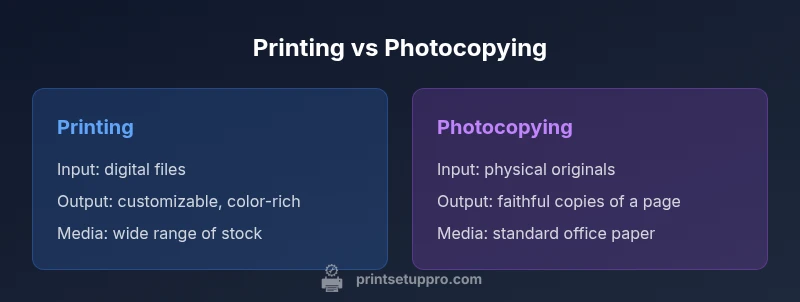
When people ask is printing the same as photocopy, they want to know if digital printing from a file yields the same result as a copy of a physical page. Printing relies on digital inputs and can involve inkjet or laser printers, using color management software and high-resolution output. Photocopying uses a dedicated copier that scans a page, reproduces its image, and deposits toner on blank stock. Many devices today combine both functions, but the fundamental difference is input source and control: printing starts from a digital file you edit, while copying reproduces what exists on the page before you. In a home office, a printer can render vibrant color graphics and complex layouts, while a photocopier shines for quick, faithful duplicates of a single page or a small stack. Print Setup Pro notes that understanding this distinction helps you choose the right tool for each task, reducing waste and frustration when accuracy matters.
Top Features to Consider for Any Print vs Copy Task
Key criteria include output quality, speed, media versatility, and cost of operation. For quality, color accuracy and sharpness matter; digital printing gives you easy color control, while photocopying maintains legibility of the source with consistent density. Speed is contextual: high-volume copying on a copier often beats a home printer for bulk work, but modern printers can match pace for duplex jobs. Media compatibility matters: printers support a wide range of papers, labels, and specialty media, whereas photocopiers are often optimized for standard office stock. Finally, consider maintenance and consumables: ink or toner costs, drum life, and energy usage. Print Setup Pro emphasizes testing print runs on the media you intend to use; this is especially important when your documents include fine lines, dense graphics, or mixed fonts. The goal is to predict whether your preferred workflow will rely on printing or photocopying in daily tasks.
How Printing Devices and Photocopiers Work
Printing devices translate digital data into physical output. In inkjet systems, droplets of pigment or dye are deposited onto paper; in laser printers, toner is fused to the page with heat and pressure. Photocopiers operate differently: they scan a physical page, convert the image to electronic data, and reproduce it on blank stock using a toner process. The key differences are input origin, calibration routines, and the ability to modify the document before output. Many modern devices offer both modes in a single chassis, with shared imaging engines, but the software stack and workflow priorities diverge. When considering is printing the same as photocopy, remember that both rely on xerographic principles for toner deposition, yet the path from source to sheet determines how much you can edit, resize, or reformat the document before reproduction.
Output Quality: Color and Detail
Color fidelity and detail depend on device type and media. Printing from digital files allows you to tune color profiles, select appropriate inks or toners, and proof-adjust before final output. Photocopying reproduces the page as it appears in the original, including any shadows, highlights, and imperfections, which can be advantageous for faithful restoration of historic documents or forms. Some documents require microtext or fine line reproduction; in those cases, choosing the right media and resolution is critical. In practice, the question is not simply 'is printing the same as photocopy' but which tool delivers the intended visual result: high-contrast text, accurate color, and legible lines for the document type. Print Setup Pro recommends validating results with a test page and adjusting brightness and contrast for consistent results across batches.
Speed and Throughput: How Fast Do They Really Go?
Copiers built for office use deliver high-speed copying with minimal warm-up, enabling rapid reproduction of multipage documents. Printers vary by model but can provide fast single-sided or duplex output, especially when using high-quality media. Throughput depends on page complexity, color content, and whether color printing is involved. For mass duplications of standard pages, a copier often wins on speed and reliability; for documents with personalized content or variable data, a modern printer with automation features (like page-level editing or mail-merge integration) can achieve faster overall results by eliminating manual rework. When evaluating is printing the same as photocopy, think in terms of workflow: do you need identical pages produced at high volume, or customized pages produced with design flexibility?
Media and Paper Options: What You Can Use and Why It Matters
Printers generally support a wider range of media than copiers, including glossy photo papers, matte presentation stock, label stock, transparencies, and heavier card stock. Copy machines tend to perform best on standard office papers but often have limited media versatility. The choice of media affects finish, drying time, and resistance to smearing or rubbing. For color work, photo-grade papers and calibrated media help achieve accurate tones. For archival or legibility, selecting bright white or optimized paper can improve contrast. Photocopying benefits from consistent stock to reduce misfeeds and ensure predictable density across copies. In many settings, a hybrid approach—printing on specialized media for design tasks and copying plain pages for bulk outputs—delivers the best balance of quality and throughput.
Use Cases: When to Print vs When to Copy
For documents requiring personalization, variable content, or rich graphics, printing is superior. Printing enables design flexibility and integration with digital workflows, cloud printing, and fonts that go beyond the original source. For serial duplication, simple retention of layout, or reproducing a large stack of identical pages, photocopying is efficient and economical. In education and business, teams often rely on both: scanned pages can be saved as PDFs for distribution, while original designs can be printed with branding and color management. Print Setup Pro notes that most workflows benefit from a hybrid approach, where daily operations use digital printing for customization and office copying for bulk reproduction.
Maintenance and Longevity: Keeping Devices Ready
Printer maintenance typically focuses on printhead condition, nozzle cleanliness, ink or toner levels, and regular calibration. Copiers require drum units, fuser assemblies, paper path maintenance, and toner replenishment, with their own service cycles. Both types demand routine cleaning to prevent jams and image degradation, along with firmware or software updates to keep compatibility with new media and file formats. The lifetime and reliability of each device depend on duty cycle, environmental conditions, and the quality of consumables. If you duplicate many pages from mixed sources, a copier’s durability can be advantageous; if you print critical documents that demand color fidelity and precise alignment, invest in a robust printer and routine calibration.
Practical Setup: Quick-Start Guide
To make the right choice quickly, start by defining the task. If you need color, customization, or variable data, plan to print from a digital file; if you need identical copies of a physical page at scale, photocopying is often faster. Next, select the device that matches the task: a printer for design-heavy work, a copier for bulk duplication. Prepare the material: ensure originals are clean and legible, and for printed outputs, set appropriate margins and bleed if needed. Calibrate and test: run a small sample to check color, density, alignment, and edge sharpness. Optimize your workflow by setting up presets for common jobs, and consider archiving templates or PDFs to reuse. With cloud printing support or mobile apps, you can streamline tasks from a home office or small business. Print Setup Pro emphasizes building a simple decision tree: use printing for creative, high-quality outputs; use copying for fast, mass duplication.
What Print Setup Pro Recommends for Everyday Tasks
The most efficient approach blends both techniques depending on the task. Start with a clear decision rubric: is the content variable or fixed? Are you prioritizing color accuracy or speed? Use digital printing for anything that benefits from customization and branding, and reserve photocopying for bulk duplication of static pages. Regular maintenance, correct media selection, and calibration are as important as choosing the device. In shared spaces, label devices to minimize cross-use errors and maintain consistent results. Finally, maintain a simple digital archive of templates and original sources to reduce rework and waste. Print Setup Pro's guidance is to optimize the workflow first, then invest in the hardware that best supports your daily tasks.
Comparison
| Feature | Printing (digital) | Photocopying (copier) |
|---|---|---|
| Output quality | High color control with printers | Faithful reproduction of source with consistent density |
| Speed | Varies by model; often quick for single pages | High-volume copies with minimal warm-up |
| Media options | Wide range including photo paper and labels | Typically standard office paper, limited media |
| Initial cost | Varies widely; mid-range for consumer printers | Often higher upfront cost for copiers |
| Maintenance | Ink/toner replacements; calibration | Drum/maintenance cycles with toner |
| Best for | Color design tasks; variable data printing | Bulk copies; fast duplicates of static pages |
Benefits
- Flexible for digital-first workflows
- Color control and design flexibility
- Media versatility for creative projects
- Better integration with scanners and cloud services
- Easy archiving of digital originals
Downsides
- Higher upfront cost for high-end copiers (in some cases)
- Ongoing maintenance and consumables can add up
- Copiers may be less flexible for complex color tasks
Printing is more flexible for design and color tasks; photocopying excels at bulk, fast reproduction of physical pages.
Choose printing for customization, branding, and digital workflows. Choose photocopying for quick mass duplication of static pages and forms.
People Also Ask
What is the core difference between printing and photocopying?
Printing starts from a digital file and uses ink/toner, while photocopying reproduces an existing page using a scanner and toner. The inputs and workflows differ, which affects flexibility and output.
Printing uses digital files; photocopying uses physical originals. The inputs drive the workflow and final results.
Can a home printer replace a copier for small businesses?
For occasional copying, a printer with a scanner can handle most tasks. For high-volume copying, a dedicated copier may be more efficient and reliable.
For light use, a printer is fine; for heavy copying, a copier is better.
Is color copying available on copiers?
Many copiers offer color copying, but color fidelity can vary. Printers often provide more flexible color control and calibration options.
Yes, many copiers copy in color, but results vary compared to dedicated color printing.
How can I improve print quality when printing from digital files?
Use correct color profiles, select appropriate paper, calibrate the device, and run test prints to verify density and alignment before a batch.
Calibrate, pick the right paper, and test print to ensure color accuracy.
Should I scan first and then print or print directly from a file?
Scanning creates editable digital copies for customization; printing directly from a finalized file is faster but less flexible for edits.
Scan to edit if you need changes; print from a ready file for speed.
Quick Summary
- Define task first: color/design vs bulk duplication
- Use printing for customization and media variety
- Opt for copying when speed and volume are critical
- Calibrate devices regularly to maintain quality
- Implement a simple hybrid workflow for mixed tasks