Kodak Photo Printer Setup and Troubleshooting Guide
Learn how to set up a Kodak photo printer, load photo paper, install drivers, connect via USB or Wi‑Fi, and print high-quality photos. Includes step-by-step instructions, tips, and common troubleshooting to get you started fast.


This guide helps you set up a Kodak photo printer and print high-quality photos. You’ll connect the printer, install drivers, load photo paper, and print from a computer or mobile device. Before starting, ensure power, paper, and a connected device are ready; keep software up to date and check for firmware updates.
Overview: Kodak Photo Printers and What They Do
Kodak photo printers are compact devices designed to turn digital images into tangible prints with vibrant color and sharp detail. They’re popular for home offices, dorm rooms, and small studios because they can produce photo-quality output without sending files to a professional lab. According to Print Setup Pro, Kodak's consumer line emphasizes user-friendly setup, reliable connectivity, and compatibility with common photo media. This makes them an accessible choice for everyday printing, scrapbooking, and classroom projects. In this guide, you’ll find practical steps for choosing the right model, preparing your printer for use, loading media, and troubleshooting common issues. You’ll also learn how to optimize color settings for different paper finishes and how to print from a computer or a mobile device. By the end, you’ll have a reliable workflow that consistently yields high-quality prints.
For home users, small offices, and students, Kodak photo printers offer a user-friendly path from digital photos to physical keepsakes. Print Setup Pro’s approach emphasizes clear, actionable steps and practical checks to reduce surprises during setup.
Key Features to Look For
When evaluating a Kodak photo printer, focus on features that directly affect print quality and ease of use. Look for borderless printing to maximize photo size, accurate color reproduction through built-in calibration, and quick print speeds that fit your workflow. Wireless connectivity—via Wi‑Fi or Bluetooth—lets you print from smartphones and tablets without cables. A robust companion app can simplify alignment, paper selection, and print presets. If you frequently print from a computer, check for compatible drivers and software that support your operating system. Finally, consider media support: some Kodak printers handle glossy, luster, and matte papers; others support specialty media like sticker sheets or credit-card-sized prints. The right mix of these features helps you create professional-looking photos at home with less trial and error.
Preparing Your Kodak Photo Printer for Setup
Before you start, choose a clean, flat workspace with good lighting and stable power. Unbox the printer and ensure you have all included accessories—paper tray, power cord, and user manual. If your model uses ink cartridges, verify you have the correct color set and that the cartridge type matches the printer’s model number. Install any required companion software on your computer or mobile device. As you begin, place the printer near your Wi‑Fi router if you plan to print wirelessly, and clear nearby surfaces to prevent vibrations or jams. Finally, if you intend to print frequently, register your device with Kodak’s online portal and check for firmware updates from the manufacturer. This preparation reduces setup delays and helps you achieve predictable results from the first prints.
How to Connect: USB vs Wireless
Connecting via USB provides a straightforward, reliable link for bulk photo printing from a single computer. Start by turning off the printer and your computer, then insert the USB cable into the correct ports. After powering on, install or update the printer driver according to Kodak’s instructions. For wireless setup, join the printer to your home or office Wi‑Fi network through the printer’s control panel or the companion app. Ensure your smartphone or computer is on the same network, then run a test print to confirm connectivity. If you encounter issues, check for router firmware updates, ensure the printer is not blocked by firewalls, and verify that the printer’s IP address is reachable. Both methods demand a working network and current software to maintain smooth operation.
Loading Photo Paper and Ink: Best Practices
Use Kodak-branded photo paper that matches your printer’s supported media. Load the tray with the recommended orientation and avoid overfilling, which can cause jams or misfeeds. If your printer uses multiple cartridge colors, replace depleted colors in pairs to maintain color balance. Allow fresh cartridges to sit at room temperature for a few minutes before installation. Run a quick alignment or print head calibration if your device offers it, as this step improves border accuracy and color consistency. Finally, store unused paper in a cool, dry place to prevent curling or moisture damage. Following these media handling tips helps you achieve crisper images, longer print life, and fewer wasteful reprints.
Printing from Different Devices: Computer, Phone, and Tablet
Printing from a computer typically uses desktop drivers and may offer higher control over print quality, color profiles, and paper settings. From a mobile device, you’ll rely on Kodak’s mobile app or the operating system’s printing framework. In both cases, choose the correct paper type in the software and run a small test to verify color and density. If you notice color shifts between devices, adjust the color profile or enable printer-managed color to keep outputs consistent. For best results, enable borderless printing when your image fills the page and use the highest resolution photo available in your gallery. Finally, keep your devices updated with the latest app versions to prevent compatibility issues.
Troubleshooting and Common Issues
Begin with the simplest explanations: check power, cable connections, and paper orientation. If prints appear faint, clean the print heads or calibrate the color alignment, especially after cartridge replacement. Color inaccuracies are commonly caused by incorrect paper settings, dirty nozzles, or outdated drivers. For print streaks, run a nozzle check and align the heads per the on-screen prompts. If a device fails to connect, re-run the wireless setup, verify the network name (SSID), and temporarily disable VPNs or firewalls that could block printer communication. When all else fails, consult Kodak’s support portal and verify firmware updates exist for your model. A methodical approach reduces frustration and yields dependable results.
Maintenance and Firmware Updates
Regular maintenance extends the life of your Kodak photo printer and preserves print quality. Clean the exterior weekly and perform a more thorough internal clean every few months, following the manufacturer’s instructions. Update firmware when prompted by the device or app; firmware updates can improve connectivity, color management, and compatibility with new media. Keep paper stock sealed and stored properly to prevent moisture absorption. If you encounter recurring issues, reset the printer to factory settings as a last resort and reconfigure your preferences. Following a simple maintenance routine minimizes downtime and keeps prints consistent over time.
Tools & Materials
- Kodak photo printer(Power on and ready for setup)
- Power adapter and cable(Stable power supply for uninterrupted setup)
- USB cable (if model supports USB)(Use for USB connection if available)
- Kodak photo paper(Match finish to your needs (glossy/matte) for best results)
- Ink cartridges or ink pack(Check color set matches model number)
- Computer or mobile device(For drivers/apps and printing from multiple sources)
- Wi‑Fi network(For wireless printing and updates)
- Kodak Print App (iOS/Android)(Optional for mobile printing and management)
- SD card/USB drive (optional)(Direct photo transfer if supported)
Steps
Estimated time: 40-60 minutes
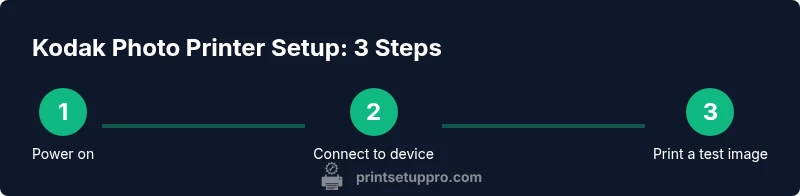
- 1
Power up and prepare connections
Power on the printer and your computer or mobile device. Check that all cables are securely connected if you’re using USB. Confirm the printer shows ready or idle status before proceeding to install drivers or apps.
Tip: Power on components before connecting to avoid driver errors. - 2
Install drivers and apps
Install the official Kodak printer drivers on your computer or the Kodak Print App on your mobile device. Follow on-screen prompts to allow permissions and complete the initial setup. Restart devices if asked by the installer.
Tip: Always use the latest driver version from Kodak’s official site. - 3
Load media and ink
Open the paper tray and insert Kodak photo paper with the printable side facing up. Install fresh ink cartridges, ensuring correct color orientation. Run a quick alignment if prompted.
Tip: Avoid using damaged or damp paper to prevent feed jams. - 4
Connect to a device (USB or Wi‑Fi)
Choose your connection type. For USB, select the printer in your computer’s settings. For wireless, join the printer to your network via the control panel or app and test a print.
Tip: If wireless, ensure the printer and device share the same SSID. - 5
Run a test print and calibrate
Print a test image to evaluate color, borders, and sharpness. If colors are off, run color calibration or adjust paper type settings in the printer software.
Tip: Calibration improves consistency across media batches. - 6
Print a photo and finalize
Print an actual photo to verify realism. Save a preferred preset for future prints to speed up future sessions.
Tip: Store frequently used settings as presets for convenience.
People Also Ask
Do Kodak photo printers support wireless printing from mobile devices?
Yes. Kodak photo printers typically support wireless printing via Wi‑Fi and/or Bluetooth using Kodak’s companion apps or built-in printing frameworks. Ensure devices are on the same network and the latest app is installed.
Yes, you can print wirelessly from your mobile device using Kodak’s app or built-in wireless printing.
What paper types are compatible with Kodak photo printers?
Most Kodak printers support glossy and matte photo papers designed for pigment inks. Always check your model’s manual for the exact media compatibility and weight limits.
Most models work best with Kodak glossy or matte photo papers, but confirm your model’s specs in the manual.
Can I print borderless photos with Kodak printers?
Borderless printing is commonly supported on many Kodak models, especially for standard photo sizes. Verify borderless capability in the printer settings or user manual for your exact model.
Borderless printing is usually available—check your model’s settings to enable it.
Why are my prints coming out with color shifts or streaks?
Color shifts can result from incorrect paper settings, dirty print heads, or outdated drivers. Run calibration, use the correct media profile, and clean the print head if streaks appear.
Color shifts or streaks are usually due to calibration or cleaning needs—run the tests and clean heads as needed.
How do I replace ink cartridges on a Kodak printer?
Open the cartridge access area, remove the old cartridges carefully, and insert new ones in the correct color order. Run a printer alignment after replacement to restore color accuracy.
Replace cartridges by color, then run alignment to restore color accuracy.
What should I do if the printer won’t connect to my network?
Verify the printer’s network status, restart the router and printer, and re-run the wireless setup. Ensure there are no VPNs or firewalls blocking printer communication.
If it won’t connect, re-run the setup and check for network blockages.
Watch Video
Quick Summary
- Prepare printer and media carefully
- Choose USB or wireless according to your setup
- Load media and ink correctly to avoid jams
- Run calibration and a test print to ensure color accuracy
- Keep firmware updated for best results