Kodak Photo Printers: Setup & Troubleshooting Guide
Learn how to set up, troubleshoot, and optimize Kodak photo printers with Print Setup Pro. Step-by-step guidance, driver tips, ink costs, and color calibration for crisp, color-accurate home prints.


Goal: set up and troubleshoot a Kodak photo printer for crisp, color-accurate prints. You’ll learn how to connect, install drivers, load compatible photo paper, and run tests. Key prerequisites include a stable USB or wireless connection, access to Kodak printer software, and fresh ink or cartridges. Follow this guide from Print Setup Pro for reliable photo output and fewer headaches.
Understanding Kodak Photo Printers
Kodak photo printers remain popular for home studios and students who want vibrant, borderless photos without expensive lab costs. The brand emphasizes ease of use, compact design, and reliable color reproduction, making them a solid choice for everyday photo printing. According to Print Setup Pro, the most important factors for consistent results are paper type, color calibration, and a clean print path. When selecting a model, confirm compatibility with your computer’s operating system and the driver version. By 2026, Kodak continues to offer consumer devices that balance simplicity with solid print quality for hobbyists, educators, and DIY enthusiasts. In practice, a positive setup hinges on three pillars: drivers, media, and calibration. Pair your Kodak printer with genuine Kodak photo paper, keep ink fresh, and maintain the printer’s print path. Print Setup Pro additionally notes that avoiding direct heat and sunlight helps preserve ink life and color accuracy, which is crucial for gift prints and portfolios.
Compatibility and Paper Types
Kodak photo printers commonly support glossy, semi-gloss, and matte photo papers in standard sizes like 4x6, 5x7, and 8x10 inches. The printing result depends heavily on matching the media type to the printer’s driver profile and the chosen color space (sRGB or Adobe RGB). For best results, always use Kodak-branded photo paper when possible, as this minimizes handling variability and reduces the risk of feed misalignment. If you need to switch paper types mid-project, run a short calibration test to ensure color accuracy does not drift between media. Print Setup Pro emphasizes aligning the printer settings with the media type to avoid excessive ink laydown, which can cause smudging or slower drying times. Be prepared to adjust the driver’s color management settings if your monitor calibration differs from the printer’s output. In this context, Kodak’s consumers often achieve strong results by keeping a dedicated color profile for each paper type and keeping the printer firmware up to date. For home offices, students, and hobbyists, the right paper choice combined with a proper profile is a quick win for color fidelity.
Preparing Your Printer and Workspace
Create a clean, distraction-free workspace with a stable surface and easy access to power. Clear away dust and ensure there’s good airflow around the printer to prevent overheating during long print sessions. Before powering on, unbox the printer carefully, remove all protective film, and verify the power cable is intact. If you are assembling a wireless setup, place the printer within reliable signal range of your router to minimize dropouts during print jobs. Keep a small bin nearby for scraps and a microfiber cloth for routine wipe-downs of the printer’s exterior. From Print Setup Pro’s perspective, maintaining a tidy workspace reduces the chances of feed jams and improves long-term reliability, especially for frequent photo printing projects.
Install Drivers and Software on Windows/macOS
Begin by visiting Kodak’s official support site to download the latest driver package compatible with your OS. Install the software, then follow the on-screen prompts to connect via USB or over your wireless network. On Windows, run the built-in printer setup wizard, select your Kodak model, and allow the system to install optional components. On macOS, you may need to grant access in Security & Privacy settings for the Kodak software. After installation, print a test page from the software to confirm communication between computer and printer. Print Setup Pro reminds users to reboot the computer after driver installation to ensure all components load correctly, and to re-check the printer’s status from the system preferences or control panel.
Load Ink Cartridges and Photo Paper
Power off the printer before opening the media compartment. Insert cartridges in the correct color slots, ensuring each click seats firmly. Then, load the Kodak photo paper with the printable side facing up and the glossy surface oriented toward the feed path. Close the tray and run a report from the printer’s maintenance menu to verify cartridge alignment. If you notice horizontal banding or color shifts, re-seat cartridges and re-run the alignment page. A common pitfall is using non-photo paper in a Kodak printer, which can cause clogging and inconsistent results over time.
Calibrate Color for True Photo Output
Most Kodak printers offer a built-in color management tool and a calibration routine. Run the color calibration using the printer’s utility, comparing the printed calibration page to the expected color targets. If you’re not seeing accurate blues and skin tones, adjust the color balance or select a different photo profile in the driver settings. Save separate profiles for glossy versus matte papers to preserve consistency across media types. Print Setup Pro highlights the benefit of periodic calibration, especially when upgrading paper stock or switching cartridges, as small variations compound over multiple prints.
Common Issues and Quick Fixes
Color washout, banding, or poor ink coverage are often caused by dried print heads or clogged nozzles. Run a nozzle check and perform head cleaning from the printer menu if any lines are missing or faint. Paper feed jams typically occur due to misaligned trays or foreign objects in the path—inspect and clear with the printer off. For wireless printing problems, verify the printer’s connection status and ensure the router is not blocking the printer’s IP address. If prints appear overly dark or too saturated, revisit the driver’s color management settings or test with the printer’s built-in color correction tool. Print Setup Pro recommends keeping firmware up to date and performing a quarterly maintenance routine to prevent gradual performance degradation.
Safety and Maintenance Best Practices
Avoid exposing the printer to direct sunlight, heat vents, or high humidity, which can affect ink drying and media handling. Regularly wipe the exterior with a microfiber cloth and avoid using harsh chemicals near the print path. When changing cartridges, handle photoreactive surfaces carefully and wash hands to prevent oil transfer to the media. Unplug the printer before cleaning the interior or performing consumable replacements. Finally, store spare inks in a cool, dry place and keep a spare set of Kodak photo paper to minimize workflow interruptions. Print Setup Pro’s team emphasizes routine maintenance as the best defense against color drift and feed issues for Kodak photo printers.
Tools & Materials
- Kodak photo printer(Model number must be compatible with your computer OS and driver package.)
- Kodak photo paper (glossy/matte/semi-gloss)(Choose weight and finish based on project needs (e.g., 260-300 gsm glossy for portraits).)
- Power cable and outlet(Ensure a surge-protected outlet.)
- USB cable or reliable Wi‑Fi network(USB for direct connection; Wi‑Fi for wireless setup.)
- Computer or laptop (Windows/macOS)(Have administrator access to install drivers.)
- Kodak driver/software download(Get from Kodak's official support site for your model.)
- Lint-free cloth and mild cleaning solution(For exterior cleaning and routine maintenance.)
Steps
Estimated time: 45-60 minutes
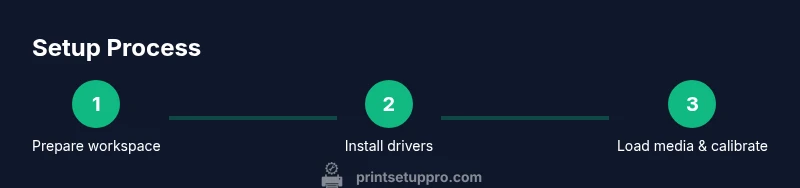
- 1
Prepare workspace and materials
Clear your workspace, ensure power and internet are available, and lay out all required items. This minimizes repeated trips and reduces the risk of losing small parts. Confirm your Kodak model and driver compatibility before you begin.
Tip: Keep cartridges and paper in their sealed bags until needed to preserve quality. - 2
Position printer and connect power
Place the printer on a stable surface near power and your computer or router. Plug in the power cord, turn the printer on, and allow the initial setup to run (LEDs should stabilize). Avoid stacking objects on top of the printer.
Tip: Use a dedicated outlet to prevent voltage fluctuations from affecting calibration. - 3
Install drivers and software
Download the latest Kodak driver package for your OS and install it. Follow prompts to authorize permissions and complete the setup wizard. If prompted, connect via USB or join your Wi-Fi network.
Tip: Restart your computer after installation to ensure the driver components load correctly. - 4
Connect printer to computer via USB or Wi-Fi
Choose USB or wireless during setup. For USB, use a direct connection to avoid hub-related drops. For Wi‑Fi, confirm the printer appears in your network and run the printer setup wizard.
Tip: If the printer doesn’t appear, temporarily disable firewall or security software blocking new devices. - 5
Load cartridges and photo paper
Open the cartridge bay and insert each color cartridge until it clicks. Load the photo paper with the printable side facing up and align the guides. Close the tray and run a printer maintenance check.
Tip: Use the recommended paper type for your printer model to prevent feed issues. - 6
Run calibration and print a test page
Access the printer utility to run color calibration and print a test page. Compare the test print against the calibration targets and adjust the color profile if needed.
Tip: If colors seem off, switch to a different color profile or tweak the printer’s color balance in the driver settings.
People Also Ask
What Kodak printer models are best for beginners?
Kodak offers several user-friendly models ideal for beginners, focusing on simple setup and straightforward color management. Check for USB and wireless options and confirm driver availability for your operating system.
Kodak has several beginner-friendly models with easy setup and color management.
Why do my photos look dull or off-color after printing?
Color drift can result from mismatched color profiles, paper type, or outdated drivers. Calibrate the printer, select the correct media profile, and ensure the monitor is color-calibrated for best results.
Calibrate the printer and use the right paper profile.
Can Kodak printers print from Mac and Windows?
Yes. Kodak printers support both macOS and Windows with appropriate drivers. Install the correct driver package for your OS and follow the setup wizard to complete the connection.
Yes, you can print from both Mac and Windows with the right driver.
What should I do if the printer isn’t detected by my computer?
First, check the USB cable or network connection. Ensure the printer is powered and on the same network as your computer. Reinstall the driver if needed and verify the device shows in your printer settings.
Check connections, restart, and reinstall drivers if needed.
How often should I replace Kodak ink cartridges?
Replace cartridges when print quality drops or color channels run low, following the printer’s maintenance prompts. Using compatible cartridges maintains color accuracy and print longevity.
Replace cartridges when quality drops or panels show warnings.
Is wireless printing from mobile devices supported?
Many Kodak printers support mobile printing via built-in apps or AirPrint/Google Cloud Print-like features. Enable printer sharing on the network and use the Kodak app or your device’s native print option.
Yes, most Kodak printers support mobile printing.
Watch Video
Quick Summary
- Use genuine Kodak media for best results
- Calibrate color after changing media or ink
- Keep drivers updated for reliability
- Regular maintenance reduces jams and color drift