Printer for Phone: How to Print From Your Smartphone Today
Learn how to pick, set up, and print from your phone to a compatible printer. This step-by-step guide covers wireless options, apps, troubleshooting, and security for home offices, students, and DIY enthusiasts.


In this guide you’ll learn how to pick and set up a printer for phone so you can print from your smartphone anytime. You’ll cover wireless options, compatibility with iOS and Android, and simple steps to install apps and print photos, documents, or web pages. By the end you’ll be able to print from your phone with a few taps.
Why a printer for phone matters
In today’s mobile-first world, a printer for phone is more than a convenience—it's a productivity upgrade. When you can print photos, receipts, or class notes directly from your pocket, you save time and reduce the friction of switching devices. According to Print Setup Pro, choosing a printer that plays nicely with smartphones dramatically simplifies everyday workflows. The Print Setup Pro team found that most home-office setups benefit most from a printer that supports both iOS AirPrint and Android Mopria, along with a reliable Wi-Fi connection. In practice, this means picking a device that can print over Wi‑Fi, connect via Bluetooth for nearby tasks, or support a direct Wi‑Fi setup so your phone can speak to the printer without a router. For students and DIY enthusiasts, the capability to print from a simple app, even when you’re off-network, can be a game-changer. In short, a good printer for phone makes mobile printing seamless, secure, and fast, turning your phone into a portable print station.
Print Setup Pro’s recommendations emphasize choosing printers with broad compatibility and strong mobile ecosystems to ensure future-proof performance. As you compare models, also consider how easy it is to update firmware and whether the vendor offers a reliable mobile app. These attributes determine how enjoyable and practical mobile printing will be over months and years rather than just the first week of use.
How wireless printing works with smartphones
Smartphones have evolved into powerful printing endpoints, thanks to standardized protocols and manufacturer apps. The AirPrint protocol (Apple) and Mopria (Android) enable one‑tap printing from most apps, without downloading drivers. When a phone and printer are on the same network, your device discovers the printer and sends a print job in a format the printer understands. If you’re using Wi‑Fi Direct or Bluetooth, the devices can connect directly without router involvement, which is handy for quick checks in a small home. Modern printers also support cloud printing options via their official apps, letting you print from any connected device. The goal is to minimize steps: select the document or image, choose print, pick the right paper size and quality, and hit print. The smoother the integration, the more you’ll actually use mobile printing rather than emailing documents to yourself.
For Print Setup Pro readers, prioritizing printers that offer both AirPrint and Mopria compatibility plus solid app support reduces friction every time you print from your phone. If you travel or work from a campus, cloud-print features can keep workflows consistent across devices, ensuring that a single print job travels with you.
Choosing the right printer for phone use
Not all printers are equally friendly to mobile devices. Prioritize compatibility with iOS and Android, support for AirPrint or Mopria, and robust companion apps. Check for features like auto‑two‑sided printing, flexible paper handling, and color accuracy if you’re printing photos. If you rely on cloud storage, ensure the printer’s app can access your favorite services (iCloud, Google Drive, Dropbox). Look for secure print jobs, password protection, and user accounts on shared devices—these matter when the printer sits in a home office or a student dorm. Finally, compare total cost of ownership: purchase price, ink/toner yield, and replacement parts. Print Setup Pro’s guidance suggests choosing a model with long‑term firmware updates and easy compatibility upgrades.
Connecting your phone to the printer: options and setup
The core choices are Wi‑Fi, Bluetooth, or direct USB. For most home setups, a wireless connection to the same network is the simplest and most reliable path. On iPhone and iPad, AirPrint lets you print from any app that supports printing; on Android, Mopria delivers a similar experience. If your printer supports Bluetooth, you can print from nearby devices without a network, but Bluetooth ranges are short. Some printers offer both Wi‑Fi Direct and standard Wi‑Fi, combining ease of use with broad compatibility. To begin, enable the printer’s wireless mode, connect your phone to the same network, and verify the printer appears in the print menu of your device. If you’re using a print app, sign in and allow access to local storage or cloud services you intend to print from.
Apps and features that simplify printing from your phone
Many printers ship with native apps that extend capabilities beyond basic printing. These apps let you print directly from camera roll, annotate PDFs, scan to phone or cloud storage, and monitor printer status. Common features include edge‑to‑edge photo printing, auto crop, and quality presets like draft, normal, or best. For students, scanning to PDF with searchable text can streamline submissions. Cloud printing options allow you to send jobs from a tablet or laptop, then pick them up from your phone when you’re at the printer. Remember to explore per‑document settings such as page range, scale, orientation, and color management to ensure your print looks exactly as intended. Finally, keep your apps updated to access the latest mobile printing enhancements and bug fixes.
Troubleshooting mobile printing problems and security basics
If your phone can’t see the printer, confirm both devices are on the same network and that the printer is not in sleep mode. Restart the printer, router, and phone to reset connections, then re-check the printer’s visibility in the device’s print menu. If colors appear off, verify color calibration and the selected color profile in the app. For print failures, inspect ink levels or toner, paper jams, and queued jobs in the printer’s control panel. Security matters: enable PIN release for sensitive documents, restrict access to the printer’s admin panel, and keep firmware updated to reduce vulnerability. Print jobs left on public networks can be intercepted; always use a private network or VPN when possible. If problems persist, consult the manufacturer’s support resources or Print Setup Pro’s troubleshooting checklist.
Security and privacy when printing from your phone
Mobile printing introduces new privacy considerations. When you print from a public or shared network, sensitive documents can be exposed through insecure connections or unencrypted print queues. Use secure printing options, such as password-protected or PIN release, and disable cloud print when not needed. Ensure your phone’s OS and printer firmware stay current, and review app permissions to limit access to photos and documents. If you share a printer at a dorm or office, enable user accounts and monitor print logs. The goal is to keep data on the device and in transit protected while maintaining convenient access for authorized users.
Tools & Materials
- Phone (iOS or Android)(Latest OS version recommended (iOS 12+/Android 11+). Ensure Bluetooth/Wi‑Fi is enabled.)
- Wireless printer with AirPrint/Mopria support(Supports your phone’s mobile printing standards.)
- Wi‑Fi network or mobile hotspot(Both devices on the same network for standard printing.)
- Official printer app or built‑in print support(Install from the App Store/Play Store or use system print features.)
- Paper (letter/A4) and ink/toner(Keep a small supply for testing and everyday use.)
- USB cable (optional)(Used if you temporarily connect for setup or troubleshooting.)
- Printer manual or manufacturer support link(Helpful for model-specific steps.)
- Firmware updates available(Check periodically to maintain compatibility with mobile printing.)
Steps
Estimated time: 25-40 minutes
- 1
Identify mobile printing method
Determine whether your phone uses AirPrint (iOS) or Mopria (Android) and whether the printer supports Wi‑Fi Direct for direct phone connections. This upfront check saves you from trying incompatible methods later.
Tip: If unsure, start with AirPrint (iPhone) or Mopria (Android) as a baseline since they are widely supported. - 2
Power on and connect the printer
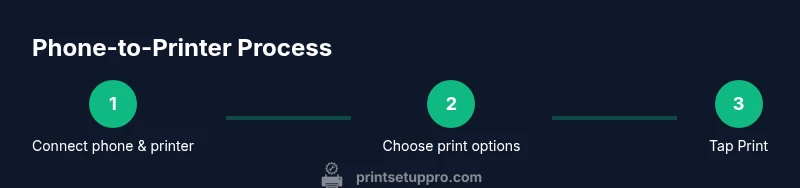
Turn on the printer and enable its wireless mode. Connect it to your Wi‑Fi network or make it ready for direct connections. Confirm the printer appears in the network list of the phone’s print settings.
Tip: If the printer won’t show up, reboot both devices and ensure they’re on the same network. - 3
Install or enable printing app
Install the manufacturer’s app or enable the device’s native print feature. Sign in if required and grant necessary permissions to access photos and documents.
Tip: Use official apps for best compatibility and feature access. - 4
Open a document or photo to print
From your phone, select the item you want to print and choose the Print option. Preview the layout, select the printer, paper size, and quality.
Tip: Choose a test file like a photo or a small document first to verify settings. - 5
Print and verify results
Send the job and check the print output for alignment, color, and margins. If needed, adjust the printer’s settings or the app’s print options and reprint.
Tip: Save a preferred preset (e.g., photo mode, document mode) for quick future prints.
People Also Ask
What is a printer for phone and why should I consider one?
A printer for phone is a printer designed to print directly from smartphones using wireless protocols like AirPrint or Mopria. It simplifies mobile workflows by letting you print photos, documents, or web pages without a computer. It’s especially helpful for home offices, students, and DIY enthusiasts who want quick, on‑the‑spot printing.
A printer for phone lets you print directly from your smartphone using wireless tech, making printing quick and simple.
Do all printers support mobile printing?
Not all printers support mobile printing. Look for AirPrint (iOS) or Mopria (Android) compatibility and a good companion app. If in doubt, check the manufacturer’s specs before purchasing.
Most but not all printers support mobile printing; check for AirPrint or Mopria compatibility.
Is a special app required to print from my phone?
Many printers work with built‑in print features, but a manufacturer app can unlock extra options like cloud printing, scanning, and status monitoring. Install the official app if available.
Often you can print with built‑in features, but the manufacturer app can unlock extra functions.
Can I print from my phone without an internet connection?
Yes, if your printer supports Bluetooth or Wi‑Fi Direct, you can print directly from your phone without a home network. For most setups, a local network is easier and more reliable.
Yes, Bluetooth or Wi‑Fi Direct can enable offline mobile printing.
How can I protect privacy when printing from my phone?
Use secure printing options like PIN release, update firmware, and limit app permissions to only necessary data. Regularly review who can access the printer in shared environments.
Use PIN release and keep firmware updated to protect printed documents.
Watch Video
Quick Summary
- Check compatibility first before buying.
- Use official apps for reliable results.
- Test print a representative document.
- Secure sensitive prints with PIN release and private networks.