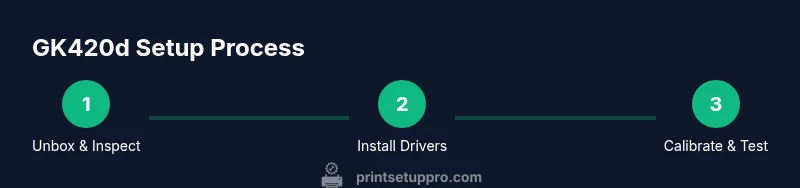
Zebra GK420d Setup and Troubleshooting Guide
Learn how to set up, calibrate, and troubleshoot the Zebra GK420d label printer for reliable, high-quality label printing. This step-by-step guide covers drivers, media loading, connectivity, calibration, test prints, and common fixes.


Goal: set up and troubleshoot the Zebra GK420d label printer for reliable, high‑quality printing. You’ll learn hardware checks, driver installation, media loading, calibration, test printing, and fixes for jams or misfeeds. By following these steps, you’ll be able to print labels confidently from a home office or small business.
GK420d in Practice: What It Is and When to Use It
The GK420d is a compact, direct thermal label printer designed for small businesses and home offices that need dependable, high‑contrast labels without fuss. It excels at shipping, inventory, and asset labeling thanks to fast print speeds and simple operation. This guide places the Zebra GK420d in a practical context, highlighting when to choose it over larger, feature‑rich models and how to optimize it for daily label tasks. According to Print Setup Pro, the GK420d remains a solid choice for compact spaces where reliability and ease of use matter most. The printer supports a range of label stock and media widths, enabling quick adaptation to evolving labeling needs. Throughout this article we’ll use real-world examples to illustrate setup, calibration, and common troubleshooting scenarios that home office users, students, and small businesses encounter.
Verifying Compatibility and Preparing Your Desk Setup
Before you touch a cable, confirm compatibility: ensure you have a GK420d printer, the appropriate connection method (USB or Ethernet), and fresh, compatible label stock. If you plan to print from a laptop, confirm your OS version supports Zebra drivers and that you have access to administrator privileges for driver installation. Prepare a clean, unobstructed workspace with space for label rolls and a clear path to the power outlet. Keep a pen, notebook, and the printer’s manual handy for quick reference. This planning step minimizes surprises during installation and helps you calibrate more quickly when you start printing labels.
Installing Printing Drivers and Software
Driver installation is a critical foundation for reliable GK420d operation. Start by downloading the latest driver package from Zebra’s official site or using the disc provided with the printer. Install the driver, then restart your computer if prompted. During setup, select the GK420d as your default printer and configure paper/label size to match your stock (commonly 4x6 inches for shipping labels). If you’re using macOS, ensure the CUPS driver is updated and that the printer shows as active in System Preferences. Print a test page to confirm visibility and alignment.
Connecting and Powering On the GK420d
Power off the printer before making any connections. If you’re USB‑connected, use a standard USB‑B to USB‑A cable and plug the printer directly into your computer. For network printing, attach an Ethernet cable to the printer’s Ethernet port and connect the other end to your router or switch. Once wired, plug in the power supply and turn on the GK420d. The status light should blink briefly, then settle to a steady state when ready. If you don’t see a power indicator, recheck the power supply and outlet.
Loading Labels and Media Sensing
Label loading requires care to avoid feed issues. Open the printer cover, place a roll on the spindle, and thread the label stock around the media sensor. Align the guides to the width of your stock to prevent skew. Advance a few labels manually to confirm smooth feeding before closing the cover. If labels don’t advance, check for debris in the feed path, reseat the roll, and ensure you’re using the correct stock type for direct thermal printing. Proper media sensing reduces misfeeds and skewed output.
Calibrating and Printing a Test Label
Calibration ensures the printer accurately detects label gaps and margins. With the GK420d powered on and loaded with stock, hold the feed button until the status light flashes | then release to calibrate. After calibration, print a single test label from the driver or from the printer’s control panel. If the label alignment is off, adjust the media width guides and re‑calibrate. Print another test label to confirm adjustments. Calibration is a quick, repeatable process that significantly improves reliability over time.
Printer Settings for Common Label Types
Many users print typical 4x6 shipping labels, but the GK420d handles various label sizes and materials. In the printer properties, set the correct media size (e.g., 4x6 in). Enable or disable label peeler as needed, and adjust darkness and print speed to optimize for stock quality and environment. For best results, select a direct thermal stock compatible with your printer and avoid using wax ribbons unless your needs require thermal transfer. Document any changes you make so you can revert if issues arise.
Troubleshooting Common GK420d Issues
Common problems include misfeeds, jammed labels, unclear prints, and driver detection failures. Start with a simple check: ensure the printer is powered, the stock is loaded correctly, and the cables are firmly connected. If prints are faint, adjust the print darkness setting and verify you’re using fresh stock. For misfeeds, re‑calibrate, reseat the stock, and clean the media sensor. When the printer is not detected by your computer, reinstall drivers or try a different USB port or Ethernet port. Keeping firmware up to date helps prevent recurring issues.
Maintenance and Long-Term Care
Regular maintenance protects the GK420d from performance dips and jams. Wipe the exterior with a microfiber cloth and gently clean the print path with isopropyl alcohol when needed. Replace consumables as they wear (nozzles and sensors are typically included in maintenance guidelines). Store label stock away from heat and humidity to prevent curling. Periodically check for firmware updates and review driver settings to maintain compatibility with your current OS and applications. A small maintenance routine goes a long way toward consistent print quality.
Tools & Materials
- GK420d printer(Ensure it is powered off during installation and loading.)
- Power cable(Use the original power supply if possible.)
- USB cable (optional for USB setup)(Use USB if you are not using a network connection.)
- Ethernet cable (optional for network setup)(Use for networked printing; connect to a router or switch.)
- Label stock (direct thermal, compatible with GK420d)(Common sizes include 4x6 inches; match stock type to printer settings.)
- Driver/software package(Download from Zebra or install from included media; ensure OS compatibility.)
- Computer or laptop(Needed to configure drivers and print from software; not mandatory for direct printing from a supported device.)
Steps
Estimated time: 60-75 minutes
- 1
Unbox and verify components
Remove the GK420d from the packaging and verify all listed components are present. Check for any transit damage and ensure the power supply and cables are included. This reduces the chance of missing items that delay setup.
Tip: Take photos of the unboxing in case you need to reference packaging contents later. - 2
Install printer drivers
Download the latest GK420d drivers from Zebra or use the included CD. Install the drivers, select the GK420d as your default printer, and configure the label size to your stock.
Tip: Restart the computer after installation to ensure the driver loads correctly. - 3
Connect power and choose connection method
Attach the power cable and connect via USB or Ethernet as planned. Power on the printer and ensure the status light indicates readiness.
Tip: If using USB, try a different USB port if the printer isn’t detected. - 4
Load label stock
Open the cover, mount the label roll, thread the media path, and align guides to the stock width. Close the cover and advance a few labels to check feeding.
Tip: Keep labels flat and avoid over-tightening the guides to prevent skew. - 5
Calibrate the sensor
Hold the feed button until the status light flashes, then release to calibrate. Calibrating helps the printer detect gaps and margins accurately.
Tip: If labels don’t feed after calibration, reseat stock and recalibrate. - 6
Print a test label
From the driver, print a test label to verify alignment, darkness, and speed. Adjust settings if the print is faint or misaligned.
Tip: Start with default settings and only increase darkness as needed. - 7
Configure printer settings in software
In your application, select the GK420d and confirm label dimensions, print speed, and darkness. Save the profile for future use.
Tip: Document your profile settings for consistency across multiple devices. - 8
Troubleshoot common issues
If jams or misfeeds occur, check stock direction, clean the path, and re‑calibrate. For detection issues, clear the sensor area and re‑install drivers if needed.
Tip: Keep a small cleaning kit handy for quick path maintenance. - 9
Maintenance and long-term care
Establish a routine for cleaning the print path, replacing worn consumables, and updating firmware. Store label stock in a cool, dry place to avoid curling.
Tip: Schedule quarterly checkups to maintain print quality over time.
People Also Ask
What is the Zebra GK420d best used for?
The GK420d is a compact direct thermal label printer ideal for small businesses needing fast, reliable shipping and inventory labels. Its simple setup makes it a solid choice for everyday labeling tasks.
The GK420d is best for small business labeling tasks that require quick setup and reliable printing.
Which labels can the GK420d print?
It prints on direct thermal labels, commonly in 4x6 inch shipping formats. Ensure the stock is compatible with direct thermal printing to avoid adhesive or texture issues.
It prints direct thermal labels, usually 4x6 inches, so use compatible stock.
How do I fix label jams on the GK420d?
First, power off and inspect the media path for obstructions. Recalibrate the sensor, reload stock correctly, and print a test label. If jams persist, check for damaged stock.
Power off, clear obstructions, recalibrate, reload stock, and test print again.
Do I need to calibrate after loading new media?
Yes. Calibrating ensures the printer detects gaps and margins correctly for new stock. Recalibrate after changing stock size or type.
Yes, recalibrate after changing label stock to ensure correct detection.
Can GK420d connect via USB and Ethernet?
The GK420d supports USB and Ethernet. Choose USB for direct PC printing or Ethernet for networked setups and multiple users.
It supports USB and Ethernet; pick the option that fits your setup.
How often should I perform maintenance on the GK420d?
Perform light maintenance monthly, with a deeper cleaning and sensor check every few months, depending on usage. Replace worn consumables as needed.
Do light maintenance monthly and deeper cleaning every few months.
Watch Video
Quick Summary
- Install the correct drivers and media settings.
- Load labels properly to prevent jams.
- Calibrate sensors for accurate feeds.
- Test print and adjust settings as needed.
- Perform routine maintenance to extend life.