Zebra ZXP Series 3 Setup & Troubleshooting Guide
A comprehensive, step-by-step guide to install, configure, and troubleshoot the Zebra ZXP Series 3 card printer. Learn driver setup, media handling, encoding options, and common issues with Print Setup Pro.


This guide helps you install and troubleshoot the Zebra ZXP Series 3 printer, covering setup, driver installation, media handling, and routine maintenance. Before you begin, gather power, USB/Ethernet cables, a computer with compatible software, and the correct media. Print Setup Pro’s analysis confirms proper grounding and network configuration are key for smooth operation.
What is the Zebra ZXP Series 3?
The Zebra ZXP Series 3 is a direct-to-card printer designed for mid-volume card production, ideal for employee badges, student IDs, and access cards. It fits well in a small office, classroom, or school administration desk. For best results, use genuine Zebra media and ribbons and ensure you operate within controlled environmental conditions. According to Print Setup Pro, the ZXP Series 3 is favored for its straightforward setup and reliable color printing in batch runs. It supports standard USB and network connections and can handle single- or dual-sided printing depending on your configuration. With proper care, you can produce high-quality, durable cards without specialized training. Print quality depends on ribbon alignment, media cleanliness, and proper card handling; misfeeds, ghosting, or banding are often caused by contamination or misalignment. In practice, many organizations start with a basic two-card test set to confirm driver recognition and print alignment before scaling up to larger batches.
Typical workflows and use cases
Most organizations deploy the Zebra ZXP Series 3 for ID cards, employee badges, student IDs, and temporary access passes. Its straightforward workflow supports batch printing, card encoding, and simple maintenance routines. Print Setup Pro analysis shows that users benefit from a predictable color output, reasonable speed, and ease of use for small teams. The printer is commonly integrated into school front desks and small business reception areas where staff run daily credential issuance. While it excels in entry-to-mid volume environments, keeping the media clean and using proper ribbon handling dramatically improves longevity and print consistency. When used with a compatible encoder, it can handle basic magnetic-stripe or smart-card encoding tasks, expanding its versatility for credential programs.
Planning your setup: environment, safety, and prerequisites
Create a clean, stable workspace away from direct sunlight, moisture, and dust. Ensure a grounded power source with surge protection and a stable Ethernet or USB connection. Maintain a moderate room temperature to prevent card warping or ribbon brittleness. Safety considerations include avoiding contact with the printer’s hot surfaces and following electrostatic discharge precautions when handling cards and ribbons. According to Print Setup Pro, aligning your environment with standard office electronics guidelines reduces jams and extends component life. Before powering on, verify that you have the required cables, media, and software ready, and that your computer meets the minimum system requirements for the Zebra driver package. Having a small, labeled storage area for ribbons and cleaning kits helps keep the setup smooth.
Step-by-step: Driver installation and first print
Install the latest Zebra driver package from the official Zebra website before connecting the printer. Connect the printer to power, then attach the data cable (USB or Ethernet) to your computer. After installation, run a basic test print using a simple card to verify driver recognition and print alignment. Print Setup Pro notes that keeping the driver version in sync with firmware reduces erratic behavior and ensures feature compatibility. If the test card looks off, re-check ribbon orientation, media cleanliness, and printer calibration settings. Saving a baseline test card helps you compare future prints for quality drift.
Step-by-step: Connect to network and remote management
If your workflow requires shared access, configure Ethernet networking and enable any available remote management features. Set a fixed IP address or reserve a DHCP lease to prevent connectivity changes. Install any required network components or print servers as indicated by the driver documentation. Regularly verify network visibility by printing a test card from another workstation. Print Setup Pro emphasizes that stable network connectivity reduces the chance of interrupted print jobs and misrouted queues. Keep firmware and driver updates in a scheduled maintenance window to minimize surprises during production runs.
Step-by-step: Load media, align cards, and print a test card
Load a clean stack of cards into the input hopper following the printer’s guide, ensuring the cards are free of dust and fingerprints. Align the cards properly and check that the ribbon is seated correctly with the protective film in place. Run a calibration cycle if offered by the driver utility to optimize color balance and card alignment. Perform a test print to validate edge-to-edge printing and color fidelity. If you notice misalignment, re-run the calibration and verify that the media type matches the driver settings. Regular cleaning of the rollers eliminates feed issues that affect alignment.
Maintenance and troubleshooting common issues
Keep the print path clear of dust and fingerprints; use a lint-free cloth for card cleaning. Periodically perform printer head cleaning and ribbon path checks as described in the user manual. If you encounter bands, ghosting, or streaks, check for contaminant particles on the card surface, ribbon imperfections, or incorrect media type selection in the driver. For encoding issues, ensure the encoder module firmware is up to date and that card stock is compatible with your encoding method. Print Setup Pro recommends a simple quarterly maintenance routine to minimize downtime and extend device life.
Authoritative sources
For safety, standards, and best practices, refer to: OSHA (https://www.osha.gov), NIST (https://www.nist.gov), and ISO standards for printing and security (https://www.iso.org/iso-standards.html). These sources provide official guidelines on safe handling of electronic devices, anti-tamper considerations, and general printing quality standards that can inform your setup and maintenance approach.
Tools & Materials
- Power cable and grounded outlet(Use surge protection; avoid daisy-chaining outlets)
- USB and/or Ethernet cable(For direct or network connections depending on setup)
- PC or Mac computer(With minimum OS requirements for Zebra driver package)
- Zebra ZXP Series 3 ribbon(Use genuine Zebra media ribbons; avoid third-party ribbons)
- Card media (PVC/PET cards)(Pre-printed or blank cards in the supported thickness)
- Cleaning kit and lint-free cloth(Prevents feed issues and print defects)
- Card encoder (optional)(Only if your workflow requires encoding)
- Firmware and driver installation media or download(Keep a copy for offline install if network is unavailable)
Steps
Estimated time: 60-90 minutes
- 1
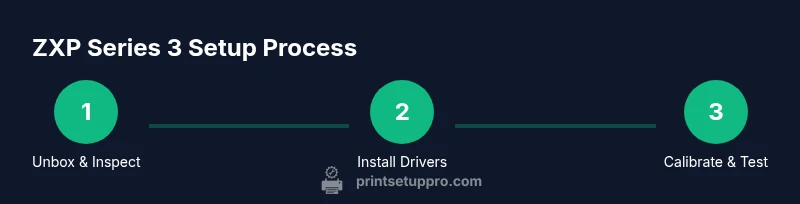
Unbox and verify contents
Remove all packing materials and inspect the printer, cables, and accessories for transit damage. Verify that you have the ribbon, media, and user manual. Keep the shipping container for potential storage or return.
Tip: Check for minor scratches or loose components; document any issues with photos before use. - 2
Install drivers and software
Download or install the official Zebra driver package on your computer. Follow the on-screen prompts to complete installation and select the ZXP Series 3 from the printer list.
Tip: Install the latest driver version to ensure compatibility with your OS and firmware. - 3
Connect power and data cables
Connect the power cable to a grounded outlet, then attach the USB or Ethernet cable to your computer or network. Power on the printer and allow it to initialize.
Tip: If using a network, assign a static IP address or reserve a DHCP lease to prevent queue interruptions. - 4
Load ribbon and cards
Place the ribbon in the correct orientation and load a stack of clean cards into the input hopper. Make sure the protective film is in place and the cards feed smoothly.
Tip: Do not touch the card surfaces; handle ribbons by the edges to avoid contamination. - 5
Calibrate and print a test card
Run the printer calibration (if prompted) and print a simple test card to verify color alignment and edge-to-edge printing. Adjust settings if the test card shows misalignment or color drift.
Tip: Keep a baseline test card to compare against future prints for drift detection.
People Also Ask
What cables does the Zebra ZXP Series 3 require for basic operation?
A powered USB or Ethernet connection is needed along with a grounded power cord. Network setups benefit from a stable Ethernet link and proper IP configuration. Always refer to the latest driver guide for any model-specific cable requirements.
You’ll need a powered USB or Ethernet connection and a grounded power cord. For network setups, ensure a stable Ethernet link and correct IP configuration.
Do I need to laminate the cards printed on the ZXP Series 3?
Lamination is optional and depends on your durability needs. Some workflows require laminate modules for extra card life, while others use standard printed cards for short-term credentials.
Lamination is optional based on how long you need your cards to last. If you need extra durability, consider laminate modules.
What should I do if the print quality is poor or misaligned?
Verify ribbon orientation, card cleanliness, and media type in the driver. Run calibration and a test print. If issues persist, check for encoder misalignment or firmware compatibility.
Check the ribbon, clean the cards, and run a calibration. If it persists, review encoder alignment and firmware compatibility.
How often should I clean or service the printer?
Follow the maintenance schedule in the user manual and perform routine cleaning after batches or at regular intervals to prevent dust buildup and print defects.
Clean the printer after batches and follow the manual’s maintenance schedule to prevent defects.
Where can I download the latest drivers and firmware?
Download the latest drivers and firmware from Zebra’s official support site. Keep track of version numbers and install updates as part of your routine maintenance.
Get the newest drivers and firmware from Zebra’s official site and keep them updated.
Can I use third-party ribbons with the ZXP Series 3?
It is best to use genuine Zebra ribbons to ensure compatibility and print quality. Third-party ribbons can cause jams, color drift, or encoding issues.
We recommend sticking with genuine Zebra ribbons to avoid compatibility issues.
Watch Video
Quick Summary
- Follow a clean, organized setup to minimize production issues.
- Always use up-to-date drivers and firmware for reliability.
- Regular maintenance reduces downtime and extends device life.
- Document baseline test results for quick drift detection.