Phone Printer Setup: Print from Your Phone Easily Today
Learn how to print from your phone to a compatible printer with step-by-step setup, app choices, and troubleshooting tips for home offices, students, and DIY enthusiasts.


Learn how to print from a phone to a compatible printer. This guide covers selecting a phone printer, connecting over Wi‑Fi or Bluetooth, choosing the right app or OS print service, and common troubleshooting steps to fix printing when mobile. By following these steps, home office users, students, and DIY enthusiasts can print photos, documents, and receipts directly from their smartphone with confidence.
What is a phone printer?
A phone printer is a modern printing solution designed to receive print data directly from a smartphone or tablet. Most models support wireless connections—Wi‑Fi, Bluetooth, NFC, or cloud printing—and ship with mobile apps or built‑in OS print services. The goal is seamless, on‑the‑go printing for home offices, dorm rooms, and small businesses. When evaluating a phone printer, consider how well it integrates with your phone’s ecosystem, the quality of output, and how easy it is to set up without a computer. For a lot of users, the advantage is reduced setup friction and faster access to printed receipts, photos, and documents from a device you already carry. According to Print Setup Pro, selecting a phone printer means balancing mobile compatibility, print quality, and security for home offices.
Why mobile printing matters for home offices
Mobile printing is no longer a niche feature; it has become a staple that keeps workflows flexible. For home offices and students, printing from a phone means you can capture notes from a whiteboard, print assignments in a cafe, or generate client invoices while away from a desk. The convenience extends to instant photo prints for scrapbooks or storyboards, and it reduces dependency on laptops. Print quality matters, but reliability and speed often determine whether mobile printing becomes a regular habit. Print Setup Pro analysis shows that users increasingly value ease of setup, privacy controls, and automatic firmware updates that keep mobile printing secure over time.
Key features to look for in a phone printer
When scanning the landscape for a phone printer, three features usually separate the good from the great:
- Native mobile support: Look for strong iOS and Android compatibility, including native print services like AirPrint, Mopria, or manufacturer apps.
- Wireless flexibility: Wi‑Fi Direct, Bluetooth, and cloud printing options help you print from anywhere in the same network or even remotely via the cloud.
- Output quality controls: Ensure you can adjust DPI, color management, paper size, and media type from your phone for consistent results. A strong feature set reduces post‑print editing and reprints.
How mobile printing protocols work
Mobile printers rely on a mix of protocols to receive data from phones. AirPrint (iOS) and Mopria (Android) provide standardized printing routes, while manufacturer apps offer extended features like direct photo printing, photo cropping, and borderless layouts. Wi‑Fi Direct creates a peer‑to‑peer network between phone and printer, bypassing routers, which is great in tight spaces. Cloud printing lets you queue print jobs from anywhere with internet access, though it may introduce extra latency and privacy considerations. Understanding these options helps you pick a printer that matches your typical use cases and network setup.
Choosing the right ecosystem (iOS, Android, or cross‑platform)
If you’re fully invested in Apple devices, AirPrint compatibility is a major time saver. For Android users, Mopria‑enabled printers typically offer broad support and strong app ecosystems. If you switch devices often or have mixed devices, prioritize cross‑platform printers and apps that support both ecosystems. Look for a printer that maintains consistent print quality across platforms and provides a single, unified mobile app for settings and troubleshooting. This alignment reduces confusion and speeds up daily tasks, from printing receipts to academic handouts. Print Setup Pro recommends evaluating how often you print from each platform and choosing devices that minimize friction across your everyday workflows.
Setup prerequisites you should confirm before you start
Before wiring or pairing devices, confirm several prerequisites to prevent dead ends:
- Both phone and printer are on the same network, or you have a supported direct connection.
- The printer is powered on and has enough paper and ink/toner for your typical tasks.
- Your phone has the required app installed or the OS print service is enabled.
- You know your printer’s IP address or can access the device’s built‑in menu to verify settings.
- Firmware on the printer and the phone’s OS are up to date. These checks save time during the actual setup and help avoid common roadblocks.
Step-by-step: initial connection overview
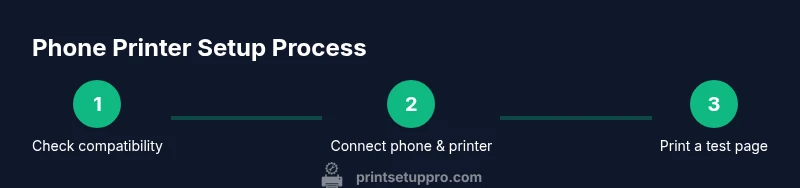
Getting started typically involves three core actions: ensuring a compatible ecosystem, enabling the correct print service, and pairing the devices. Start by enabling AirPrint or Mopria on the printer if available, or install the manufacturer app. Then connect the phone to the printer either via the local network or direct wireless link. Finally, verify the printer appears in the phone’s print menu and perform a test print to confirm the connection.
Printing from the phone: general workflow
Once the devices are connected, the general workflow is straightforward: open the document or image you want to print, tap the share or print option, select the target printer, adjust settings (color vs grayscale, paper size, copies), and confirm. Many apps offer a quick print icon within their interface, while others require you to access the system print service. Having one consolidated control panel in the printer’s app can reduce confusion and improve consistency across print jobs.
Printing from different apps: photos vs documents
Photo printing often requires color accuracy, appropriate photo paper settings, and borderless layouts. For documents, you typically need reliable text sharpness and consistent margins. Some phones allow direct printing from the photo gallery with one tap, while document printing from apps like PDFs or word processors may require selecting a print option from the app’s share sheet. In both cases, previewing the print and performing a quick test run helps catch misalignments before consuming paper and ink.
Troubleshooting common issues
If your phone can’t see the printer, recheck network settings and ensure the printer is in discovery mode. Restarting both devices can clear temporary connectivity glitches. If prints are failing, verify the correct page size and media type, confirm ink or toner levels, and check for firmware updates. When cloud printing is slow or files fail to upload, test a local print first to determine if the issue is network‑related. Print Setup Pro suggests keeping a simple test document and a neutral photo handy for quick diagnostics.
Security and privacy considerations for mobile printing
Mobile printing can expose documents to network access if not configured properly. Always use secure networks, enable printer‑level authentication where available, and keep firmware updated to patch vulnerabilities. If you frequently print sensitive materials, prefer direct connections over public networks and review your printer’s privacy settings for data storage or cloud print history. Regularly audit devices connected to your printer and remove devices you no longer use.
Maintenance and best practices for long‑term reliability
Keep the printer firmware up to date and perform occasional nozzle cleanings or printhead calibrations as recommended by the manufacturer. Use genuine ink or toner and store media correctly to prevent jams. Schedule routine checks for paper paths, rollers, and sensor alignment. For mobile users, maintain app permissions carefully and uninstall apps you no longer use to minimize potential security risks. A little proactive care goes a long way toward consistent quality and fewer breakdowns.
Authoritative references and further reading
For further guidance on wireless printing standards and security best practices, consult reputable sources:
- NIST: https://www.nist.gov
- FTC consumer guidance: https://www.ftc.gov
- Apple AirPrint overview: https://www.apple.com/airprint/
- Mopria Alliance: https://www.mopria.org
Tools & Materials
- Smartphone (iOS or Android)(Ensure the device supports AirPrint (iOS) or Mopria (Android) or has the printer manufacturer app.)
- Wireless printer(Must support Wi‑Fi, Bluetooth, or cloud printing and be within range of the network.)
- Wi‑Fi network(Both phone and printer should be on the same network for local printing.)
- Printing app or OS print service(Install or enable the native print service and any required manufacturer app.)
- USB-C or Lightning cable (optional)(Use for initial setup if direct USB connections are supported.)
- Test content (photo or document)(Helpful for verifying print quality and settings.)
Steps
Estimated time: 30-45 minutes
- 1
Verify compatibility
Check that your phone’s OS and the printer support AirPrint, Mopria, or the manufacturer’s app. Confirm you have the latest firmware on the printer and the latest OS updates on your phone. This foundational check prevents most early connection issues.
Tip: If you’re unsure, consult the manufacturer’s compatibility page before buying. - 2
Enable or install the print service
On iPhone, verify AirPrint is available; on Android, ensure Mopria or the vendor app is installed and enabled. Open a test document to ensure the print option appears in the share or print menu.
Tip: Keep the printer app updated to access new features. - 3
Connect devices to the same network
Join the printer to your Wi‑Fi network or enable a direct Wi‑Fi Direct connection from the printer. Reboot both devices if the printer doesn’t show up in the print list after initial setup.
Tip: Use a 2.4 GHz network for broader compatibility; 5 GHz can sometimes be less stable for discovery. - 4
Add the printer to your phone
In the phone’s print settings, select Add Printer or the printer’s app, then choose the device from the discovered printers list. Confirm the connection is established with a test print.
Tip: Note the printer’s IP address in its settings as a troubleshooting aid. - 5
Prepare content and print
Open the file or photo, adjust page size, color options, and orientation. Use the preview function to confirm margins and borders before printing.
Tip: For photos, select the best color profile and borderless option if available. - 6
Print a test page
Print a simple document to verify alignment, margins, and color accuracy. If issues arise, adjust print settings and reprint a test.
Tip: If color is off, reselect the color management settings in the app. - 7
Fine‑tune print settings
Set paper size, print quality, and color mode to match your media. Save these as a preset if your printer supports it to streamline future tasks.
Tip: Create presets for common tasks (receipts, photos, essays) to save time. - 8
Print from another app
Try printing from a different app to verify consistency. Some apps use their own print interface, while others rely on the OS print service.
Tip: If one app fails, update it or use the OS print option as a fallback. - 9
Secure and maintain
Review privacy settings, disable cloud print when not needed, and keep firmware up to date. Periodically check for firmware updates and confirm the device is reachable on the network.
Tip: Regularly remove unused devices from the printer’s connected devices list.
People Also Ask
What is a phone printer and why should I consider one?
A phone printer is a device that accepts print jobs directly from a smartphone or tablet over wireless connections. It simplifies printing on the go and is ideal for home offices, students, and DIY projects.
A phone printer lets you print directly from your phone using wireless connections, ideal for quick prints on the move.
Do I need a special app to print from my iPhone or Android phone?
Most phones can print via built‑in OS services like AirPrint on iOS or Mopria on Android, or through the printer manufacturer’s app. Check compatibility with your printer before buying.
Most devices use built‑in print services like AirPrint or Mopria, or a manufacturer app.
What should I do if my phone can't find the printer?
Verify both devices are on the same network, restart both devices, and double‑check that the printer is in discovery mode. If needed, re‑add the printer from the phone’s print settings.
Make sure both devices are on the same network and try re‑adding the printer from the phone's print menu.
Is mobile printing secure for sensitive documents?
Security depends on network conditions and printer settings. Use secure networks, enable print job authentication when available, and keep firmware up to date to protect data.
Security depends on network and printer settings; use secure networks and update firmware.
Can I print from multiple apps to the same printer?
Yes, most printers support printing from multiple apps via the OS print service or the manufacturer app. Some apps may require their own print interface.
Most printers work with many apps through OS print services or the manufacturer app.
Watch Video
Quick Summary
- Identify a phone printer with strong mobile ecosystem support.
- Ensure both devices share a network or use direct wireless pairing.
- Test print and adjust settings to achieve expected quality.
- Maintain security by updating firmware and limiting cloud-print exposure.