Printer Won't Connect to Phone: Quick Troubleshooting Guide
Struggling to print from your phone? This urgent, step-by-step guide helps you diagnose and fix a printer that won't connect to phone, with clear diagnostics, actionable steps, and safety tips from Print Setup Pro.


When your printer won't connect to phone, the most common fix is a quick connectivity check: verify both devices are on the same Wi‑Fi network, ensure Bluetooth is in the correct state for your setup, and re-add the printer in your phone's printing settings. If that fails, try restarting both devices and resetting the printer's network settings.
Why Connections Fail: A Quick Overview
Connectivity between a phone and a printer hinges on a few core factors: correct network settings, compatible printing protocols (AirPrint for iOS, Mopria for Android), and the printer’s current status (online vs offline). According to Print Setup Pro, most failures come from simple misconfigurations rather than defective hardware. In practice, you’ll commonly see issues when the printer is on a different network than your phone, when the printer’s firmware is out of date, or when a VPN or guest network blocks device discovery. Understanding these fundamentals helps you diagnose quickly and avoids unnecessary troubleshooting. Keep in mind that printers and phones rely on discovery beacons; if those signals are blocked, your device won’t see the printer at all. This section sets the stage for the practical fixes that follow, and it reminds you that consistent connectivity is built on stable networks, current software, and correct printing protocols.
Print Setup Pro’s guidance emphasizes checking the basics first: confirm both devices are on the same network, ensure the printer’s wireless indicator shows a stable connection, and verify that the correct printing protocol (AirPrint/Mopria) is enabled. When these conditions aren’t met, the solution is usually straightforward. If you’re in a busy home or small office, reduce interference by moving the printer closer to the router and turning off other devices that could disrupt the signal. Once the fundamentals are secure, proceed to the quick checks in the next section for a faster resolution.
Quick Checks You Can Do Now
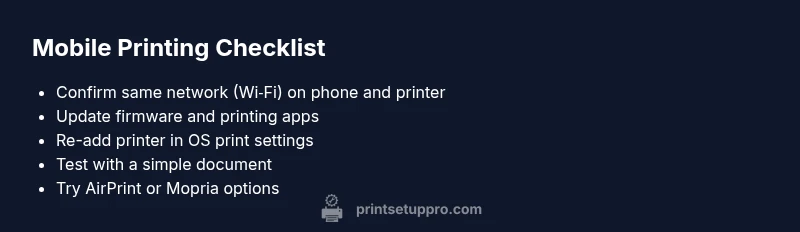
If you’re short on time, run these quick checks in order. They solve the majority of problems without needing to modify settings on your phone or printer. First, confirm both devices are connected to the same Wi‑Fi network and that the network is functioning. Then, check the printer’s status indicator to ensure it’s online and not in Sleep/Offline mode. On your phone, open the printing settings and remove any old printer entries, then re-add the printer fresh. If your printer supports both AirPrint (iOS) and Mopria (Android), make sure the appropriate service is enabled.
Next, restart both the printer and the phone. Simple restarts fix many transient glitches, especially after a firmware update. If you recently updated either device’s OS or the printer’s firmware, re-check compatibility and re-run the connection steps. Finally, ensure there are no VPNs, firewalls, or guest networks that could block device discovery. If the issue persists, it’s time to dive deeper with the diagnostic flow and targeted fixes.
Common Scenarios: iPhone vs Android
Phone-to-printer connectivity often behaves differently depending on the mobile platform. iPhone users most commonly rely on AirPrint; if AirPrint isn’t available, some printers offer a vendor app or a Mopria bridge via a web interface. Android users frequently use Mopria or the vendor’s app; these options require enabling discovery services and ensuring the printer is listed under the same network. If your iPhone or Android device has privacy or location permissions disabled for the printing app, discovery can fail even when the network looks correct. In both ecosystems, ensuring the printer appears in the list of available printers is the golden signal that the connection is working. Print Setup Pro recommends checking OS permissions, updating the printer app, and confirming that the printer firmware supports the mobile protocol you intend to use.
To avoid future surprises, always check for OS and app updates before a print job. If you switch networks (for example, from home to a coffee shop), reconnect from the printer’s control panel and the mobile device, and test with a simple document. The goal is a reliable, repeatable setup that you can execute in seconds.
Reconnecting the Printer: Quick Re-add Overview
If you’ve confirmed the basics but the phone still doesn’t see the printer, the next step is to re-add the printer to your phone’s print service. This process clears stale cache entries and forces a fresh discovery pass. Start by deleting the printer from your phone’s printer list. Then, on the printer, ensure wireless is enabled and the correct network is selected. Reopen the printing app, select Add Printer or Choose Printer, and allow the device to scan again. If your printer supports multiple protocols (AirPrint, Mopria, or vendor-specific), try the alternative protocol during re‑adding. This approach fixes many issues caused by mismatched discovery protocols or cached credentials.
In most cases, re-adding the printer resolves the problem where the printer shows up intermittently or not at all. If it still doesn’t appear, proceed to the firmware and app updates step below. Print Setup Pro notes that firmware and app updates often include improved discovery logic that makes re-adding printers more reliable.
Step-by-Step Fixes You Can Try Now
This section provides a concrete sequence to fix the most common cause: the printer being on a different network than your phone or having outdated firmware. Start by confirming you’re on the same 2.4 GHz or 5 GHz band that the printer uses, then re-add the printer in your phone’s print settings. Update the printer firmware and the mobile app to the latest version. If the problem persists, reset the printer’s network settings and reconfigure from scratch, ensuring you connect to the correct Wi‑Fi network. Finally, try a test print from a different app or document to rule out app-specific issues. If you reach the limits of these steps, a factory reset and fresh configuration may be necessary, but only after you’ve saved any custom printer settings.
Remember to document each step you perform in case you need to escalate. Print Setup Pro advocates a methodical approach so you can isolate whether the issue is network, device, or firmware related.
Safety, Warnings, and When to Call for Help
While most printer-phone connectivity issues are solvable at home, there are times when professional assistance is warranted. If the printer’s wireless module shows signs of hardware failure (unexpected LED patterns, no network discovery after a factory reset, or persistent offline state after firmware updates), contact the printer manufacturer’s support or a certified technician. Never attempt internal hardware repairs or firmware flashing from unofficial sources, as this can void warranties. Safety first means ensuring that you keep network credentials secure and avoid exposing sensitive information during remote support sessions. Print Setup Pro recommends documenting error messages and steps you’ve tried so a support technician can diagnose quickly and accurately.
Prevent Future Disconnects: Best Practices
To minimize future printer-phone connectivity issues, adopt a routine maintenance mindset. Regularly update firmware and mobile apps, keep the printer on a stable network with minimal interference, and use a single, dedicated printer for mobile printing when possible. If you share the printer across multiple devices, consider enabling automatic re-discovery or creating a fixed IP address for the printer to reduce discovery delays. Keep an eye on the printer’s wireless signal strength and reposition the router or printer if the signal is marginal. Finally, keep the printer’s firmware in sync with OS updates on your phone by setting reminders to check for updates monthly.
What to Gather Before Contacting Support
Before reaching out for help, assemble essential details: the printer model and firmware version, your phone model and OS version, the exact steps you used to attempt the connection, and any error codes displayed. If you can reproduce the issue with multiple apps or documents, note that as well. Having screenshots of the printer’s network status and the phone’s print settings can speed up diagnosis. Print Setup Pro’s team also recommends capturing a short video of the issue and the steps that lead to it for remote troubleshooting. This preparation helps technicians quickly pinpoint whether the problem is network, device, or protocol related.
Steps
Estimated time: 20-40 minutes
- 1
Confirm network alignment
Check that both devices are connected to the same Wi‑Fi network and that the printer’s wireless indicator shows a solid connection. Move closer to the router if the signal is weak.
Tip: Keep other high-bandwidth devices away during setup. - 2
Re-add printer to phone
Delete the printer from your phone’s printer list, then re-add it using the official printing app or OS print settings. Select the correct protocol during setup.
Tip: If you have multiple printers, choose the correct one by name. - 3
Update firmware and apps
Check for and install any available firmware updates for the printer and updates for the phone’s printing app or OS.
Tip: Enable automatic updates where possible. - 4
Test with a simple document
Try printing a basic document or test page to confirm the connection works before moving on to more complex tasks.
Tip: If AirPrint/Mopria shows an error, note the exact message. - 5
Consider protocol alternatives
If one protocol fails, try the other (AirPrint vs Mopria) or use the printer’s vendor app for discovery.
Tip: Vendor apps often simplify multi-device support. - 6
Perform a network reset if needed
If all else fails, reset the printer’s network settings and set up the connection from scratch on the same network.
Tip: Only reset after saving current settings to avoid data loss.
Diagnosis: Printer won't connect to phone
Possible Causes
- highOutdated firmware or app
- highPrinter offline or on a different network
- mediumPhone connected to a VPN/guest network or restrictive firewall
- lowIncompatible printing protocol (AirPrint/Mopria mismatch)
- lowHardware issue with the printer's Wi-Fi module
Fixes
- easyRestart printer and phone to clear temporary glitches
- easyVerify both devices are on the same network and re-connect the printer
- easyUpdate printer firmware and mobile app to latest versions
- easyRemove old printer entries, then re-add the printer in phone print settings
- mediumReset printer network settings and reconfigure from scratch
- easyEnsure correct protocol (AirPrint or Mopria) is enabled and used
People Also Ask
Can I print from both iPhone and Android with the same printer?
Yes. Most printers support AirPrint on iPhone and Mopria on Android, or offer a vendor app that handles both. Ensure the printer is on the correct network and that the appropriate protocol is enabled.
Most printers support both AirPrint and Mopria, so you can print from iPhone or Android once the network and protocol are set up correctly.
Why is my printer showing offline even though it’s connected to Wi‑Fi?
Offline status usually means the printer cannot reach the network or the print service. Check the printer’s network connection, ensure it has a valid IP on the same network, and re-add it to your phone if necessary.
Offline status typically means a network reach issue or outdated software. Check connectivity and re-add the printer if needed.
Do I need to enable AirPrint or Mopria?
AirPrint (iOS) and Mopria (Android) enable wireless printing. If your printer supports these, keep the feature enabled and select the appropriate protocol in the printer app or OS print settings.
AirPrint and Mopria are the standard wireless printing methods for iPhone and Android. Enable the one your device uses.
How long should I wait after resetting network settings?
Give the printer a moment to rejoin the network and to re-establish its wireless lights. Then re-add the printer in your phone and attempt a test print.
After a reset, allow a minute or two for the printer to reconnect, then try printing again.
Is Bluetooth required for mobile printing?
Most mobile printing relies on Wi‑Fi or direct wireless protocols rather than Bluetooth. Bluetooth can be used for setup on some devices, but it’s not universally required for printing.
Bluetooth isn’t always needed; many printers print over Wi‑Fi or direct wireless methods.
What if the printer and phone never discover each other on a new network?
If discovery fails after network changes, reset both devices’ network settings if possible, clear old printer entries, and reconfigure using the printer’s app or the OS print setup wizard. If problems persist, contact support.
If discovery still fails after network changes, reset and reconfigure, or reach out to support for help.
Watch Video
Quick Summary
- Verify networks first and keep devices close during setup
- Update firmware and apps to restore compatibility
- Re-add the printer in OS print settings to refresh discovery
- Use AirPrint or Mopria correctly; try vendor apps if needed
- Escalate to support if hardware issues are suspected